---Advertisement---

How to Deposit Checks on Your USAA Bank App?

Published On: August 18, 2025
How to Deposit Checks on Your USAA Bank App
---Advertisement---

Hey everyone, welcome back to another tutorial video. In today’s guide, I’ll show you how to deposit checks using your USAA Bank mobile app. Let’s get started!
Hey everyone, welcome back to another tutorial video. In today's guide, I’ll show you how to deposit checks using your USAA Bank mobile app. Let’s get started!

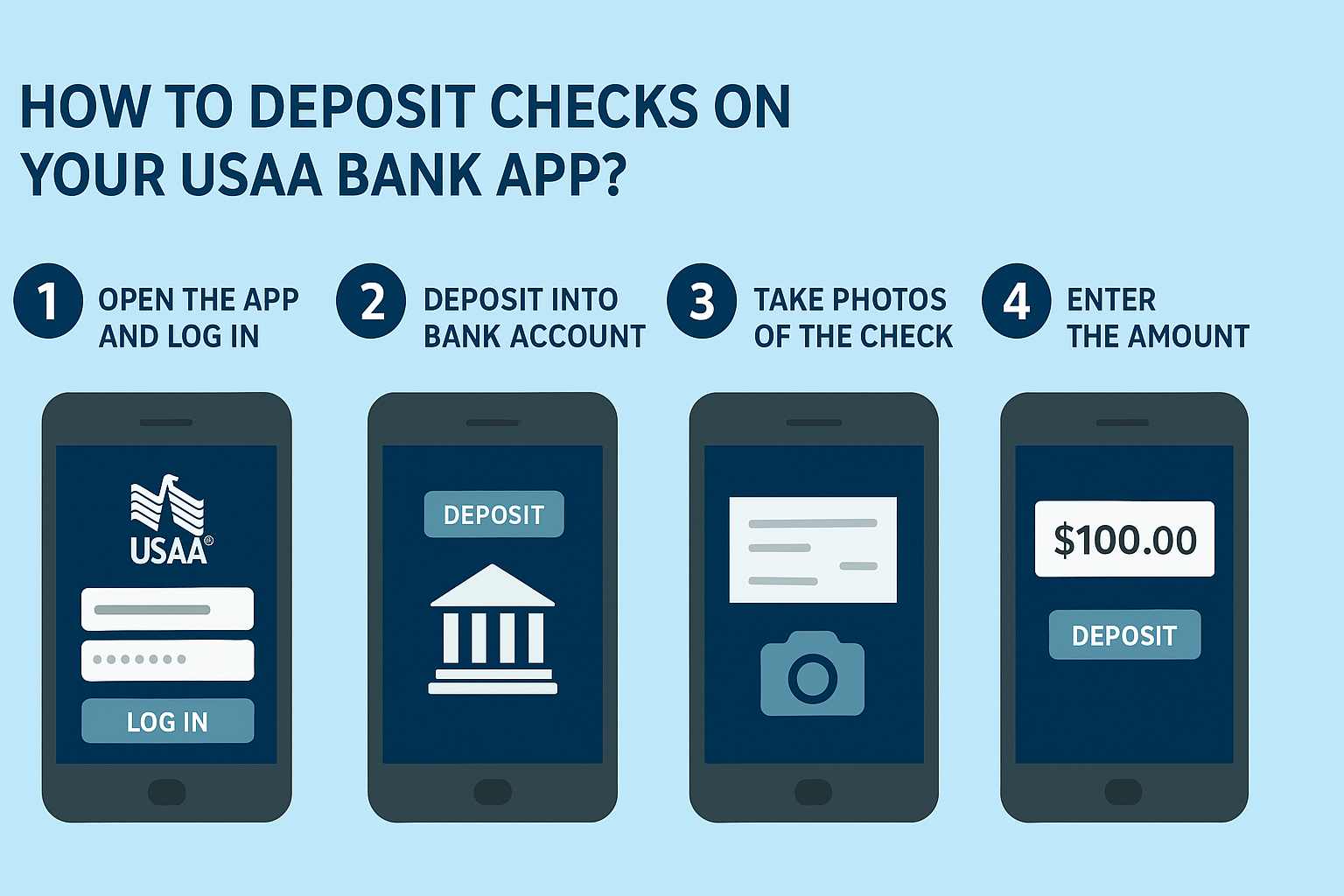
Step 1: Open the App and Log In

First, open the USAA Bank mobile app on your phone and log into your account.

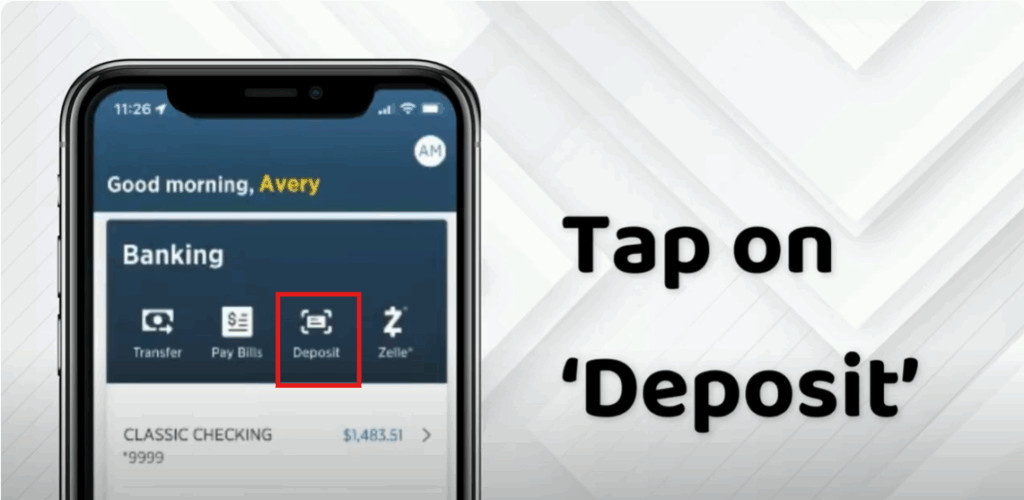
Step 2: Tap on Deposit

Once you’re on the home screen, look for the Deposit option and tap on it.
Step 3: Select “Deposit Into Bank Account”

You’ll be taken to a new screen. Tap on Deposit Into Bank Account to begin.
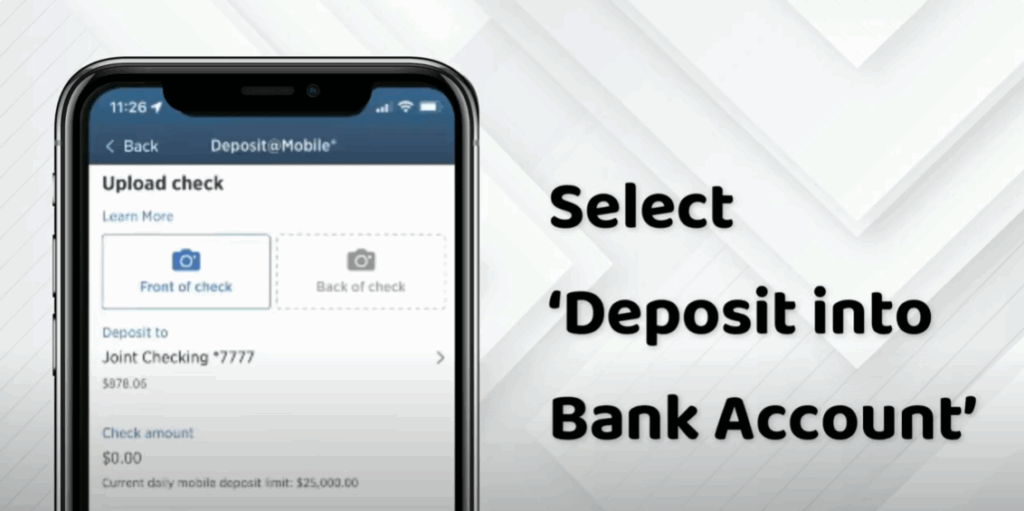
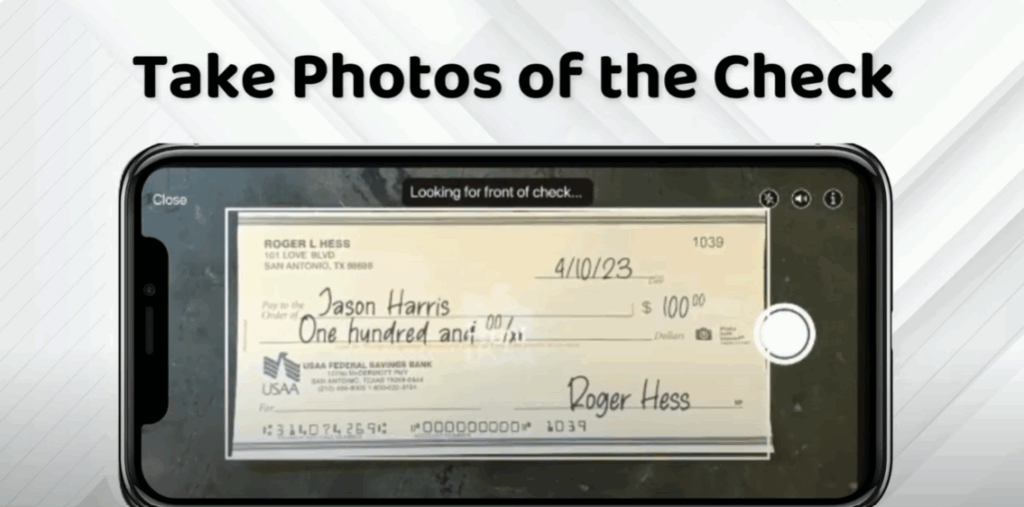
Step 4: Take Photos of the Check

Follow the instructions to take clear photos of both the front and back of your check.

Make sure the images are well lit.

Ensure all four corners are visible.

Step 5: Choose the Account

Tap on the option to choose the bank account where you want the check deposited.

Step 6: Enter the Amount

Enter the dollar amount exactly as written on the check.
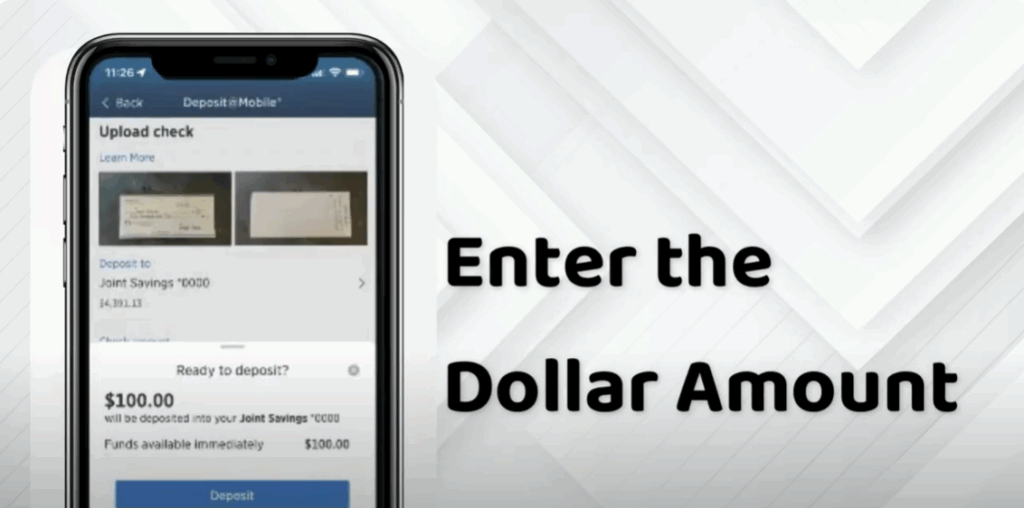
Step 7: Tap on Deposit

Once everything looks good, tap the Deposit button (it should appear in green) to complete the process.
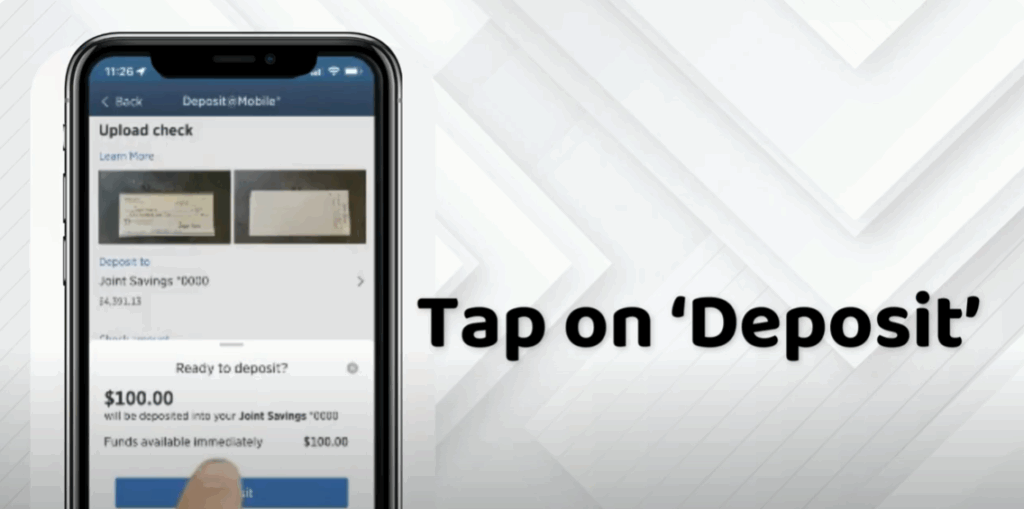
And that’s it! You’ve successfully deposited your check using the USAA Bank app.


Step 1: Open the App and Log In

First, open the USAA Bank mobile app on your phone and log into your account.

Open the App and Log In

Step 2: Tap on Deposit

Once you’re on the home screen, look for the Deposit option and tap on it.

Tap on Deposit

Step 3: Select “Deposit Into Bank Account”

You’ll be taken to a new screen. Tap on Deposit Into Bank Account to begin.

Select “Deposit Into Bank Account”

Step 4: Take Photos of the Check

Follow the instructions to take clear photos of both the front and back of your check.

  • Make sure the images are well lit.
  • Ensure all four corners are visible.
Take Photos of the Check

Step 5: Choose the Account

Tap on the option to choose the bank account where you want the check deposited.

Choose the Account

Step 6: Enter the Amount

Enter the dollar amount exactly as written on the check.

Enter the Amount

Step 7: Tap on Deposit

Once everything looks good, tap the Deposit button (it should appear in green) to complete the process.

Tap on Deposit

And that’s it! You’ve successfully deposited your check using the USAA Bank app.

---Advertisement---

Related Post

Enable New Windows 11 25H2 Features After December Update (KB5070311)
Enable/Disable Steam Networking IP Sharing – Step-by-Step Guide
Valorant Stuck on Loading Screen? Fix It Now!
Tips

Valorant Stuck on Loading Screen? Fix It Now!

By Tech Gitter
|
December 31, 2025
How to Increase or Decrease Font Size in Google Chrome
Solutions

How to Increase or Decrease Font Size in Google Chrome

By Tech Gitter
|
December 29, 2025

Leave a Comment

Join WhatsApp Join Telegram