

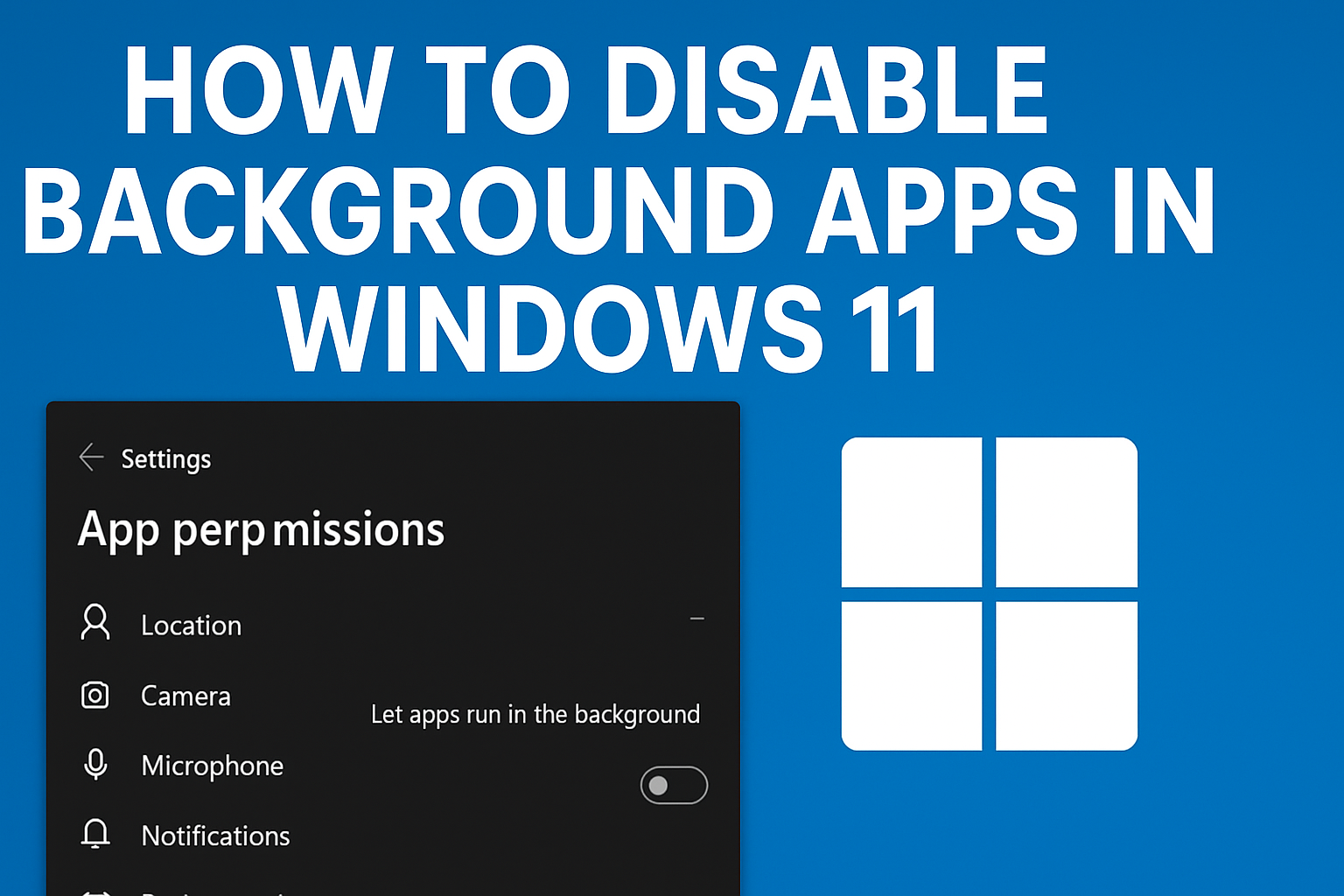
When you start up your Windows 11 PC, many apps keep running in the background even if you’re not using them. These background apps can slow down your computer, drain battery on laptops, and use up internet data without you noticing. The good news is, Windows 11 gives you simple options to disable background apps and improve performance. In this blog, we’ll explain step by step how to turn off background apps in Windows 11, so your system runs faster and more efficiently.
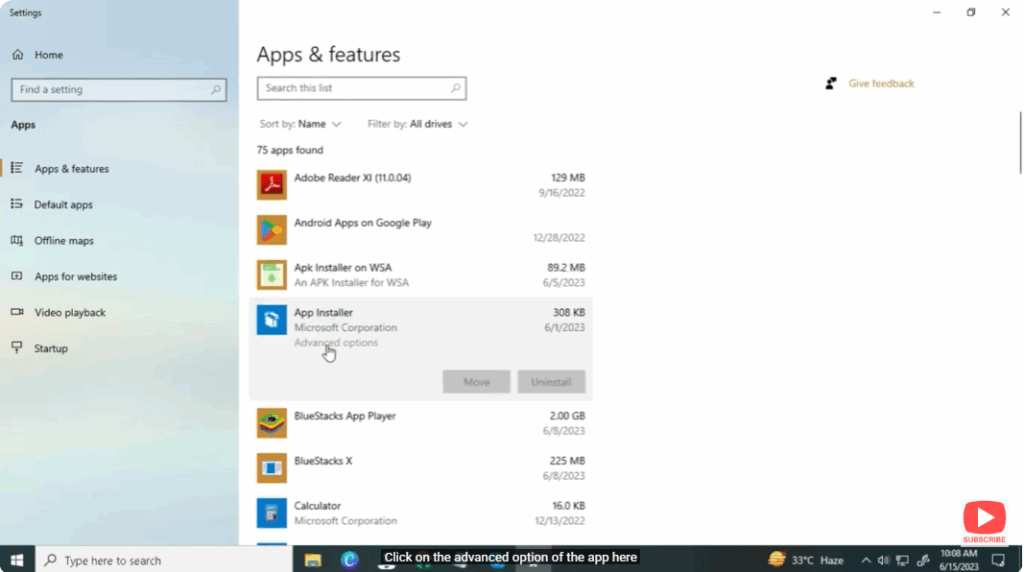
- Search apps.
- Click on the advanced option of the app here.
- Turn off background option.
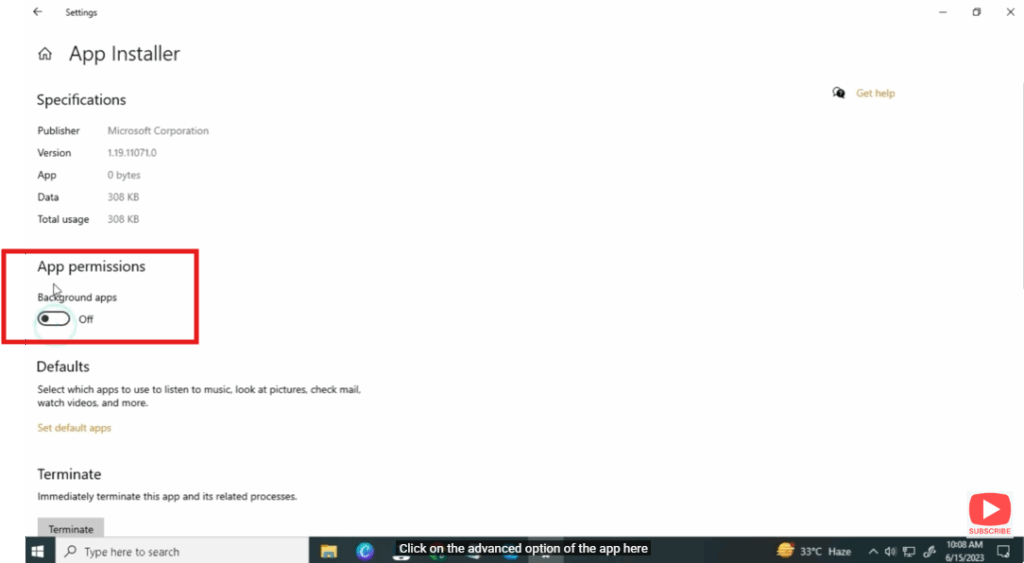
- Turn off any app you don’t want to run in the background.
Conclusion
Disabling background apps in Windows 11 is a quick and effective way to boost your computer’s performance, save battery life, and reduce unnecessary data usage. By turning off apps you don’t need running all the time, your system can focus on the tasks that matter most to you. Whether you’re working, gaming, or just browsing, managing background apps ensures a smoother and faster experience. Try these steps today and enjoy a more efficient Windows 11 PC.






