

When you browse the web using Google Chrome, some websites ask for your location to show nearby results or personalized content. While this can be useful, it can also raise privacy concerns if you don’t want sites to track where you are. Luckily, Chrome lets you easily control or completely disable location access with just a few clicks. In this guide, we’ll show you how to turn off location access in Google Chrome on your computer or mobile device, so you can browse safely and protect your personal information.
Step 1: Open Google Chrome
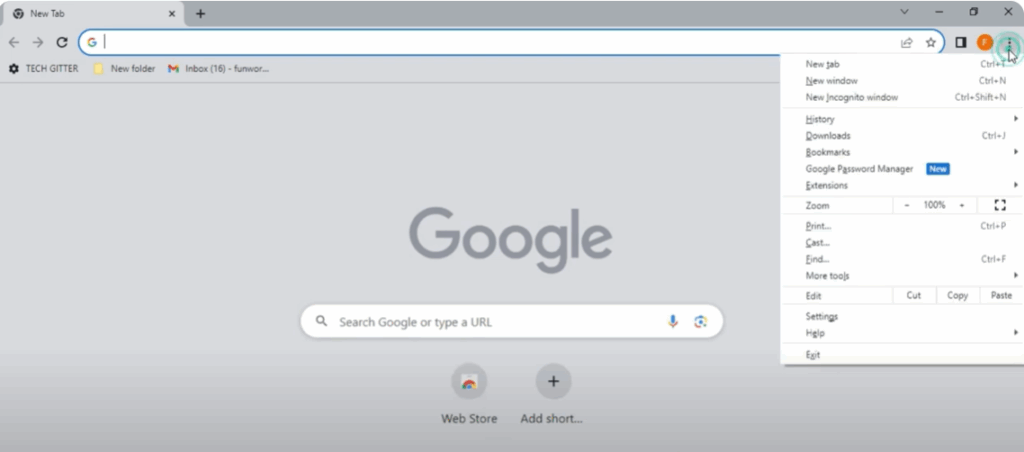
First of all, open your Google Chrome and open Chrome settings by clicking on the three dots visible on the screen.
Step 2: Go to Privacy Settings
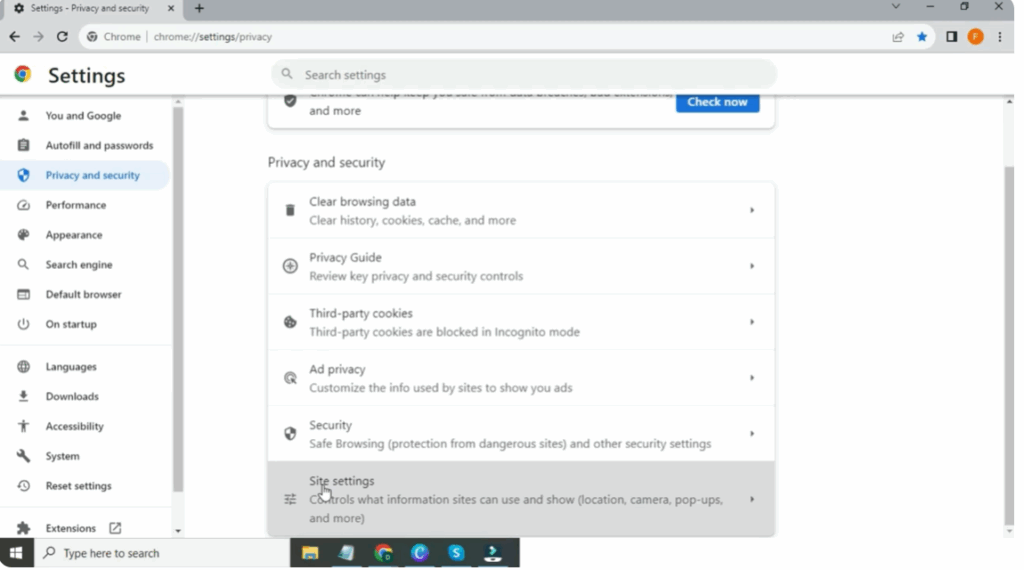
Open the Privacy and Security option and scroll the screen. You will see the Site Settings. Tap on it.
Step 3: Disable Location
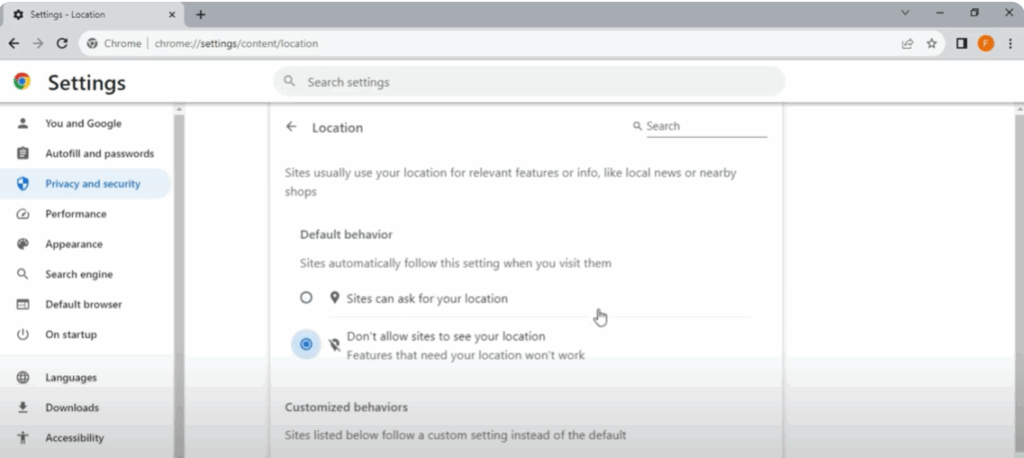
Go to Google location and disable your device location. You can re-enable it as per your usage.
And that’s it!






