
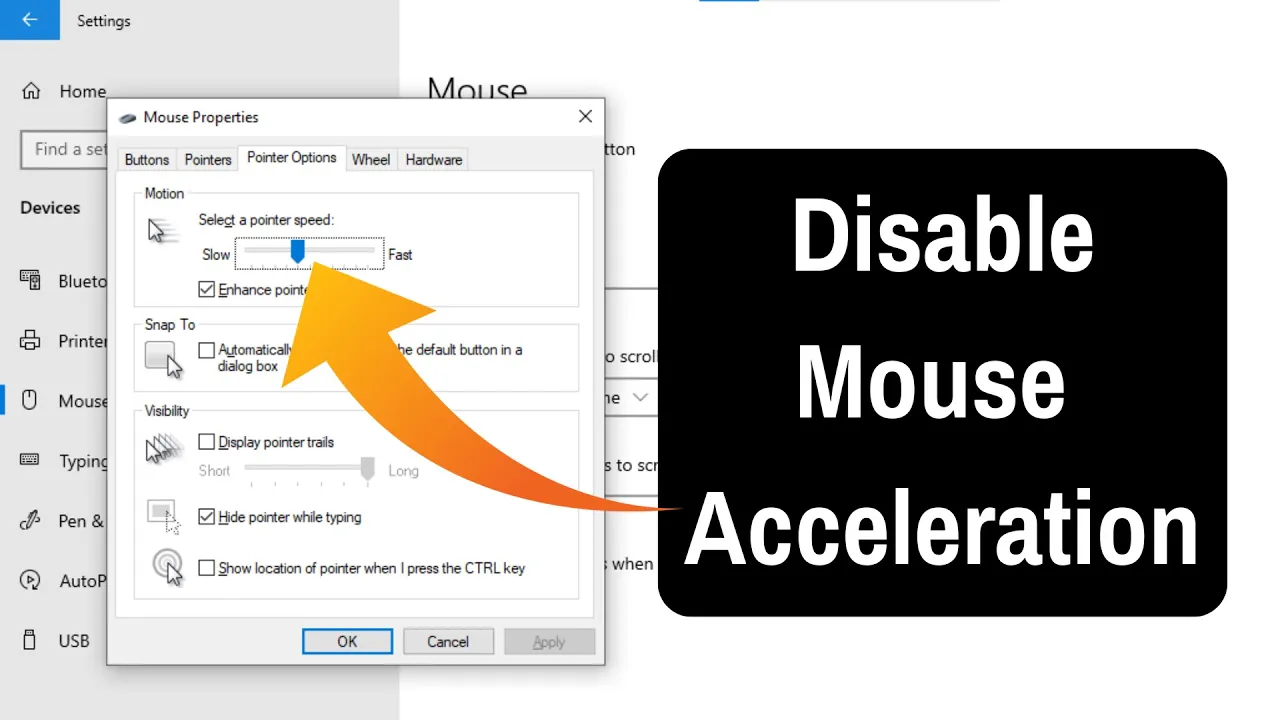
Mouse acceleration in Windows 11 can sometimes make your cursor feel unpredictable. Instead of moving at a steady pace, the pointer speeds up depending on how quickly you move the mouse. While this feature is meant to help, many users find it annoying—especially for gaming or precise work—because it reduces accuracy. The good news is, you can easily disable or turn off mouse acceleration in Windows 11 with just a few clicks. In this blog, we’ll show you step by step how to do it in simple language, so your mouse movements stay smooth and consistent.
🛠 How to Disable Mouse Acceleration in Windows 11
Method 1: Use Windows Settings (System Settings)
- Open Settings
- Press Win + I to open Settings.
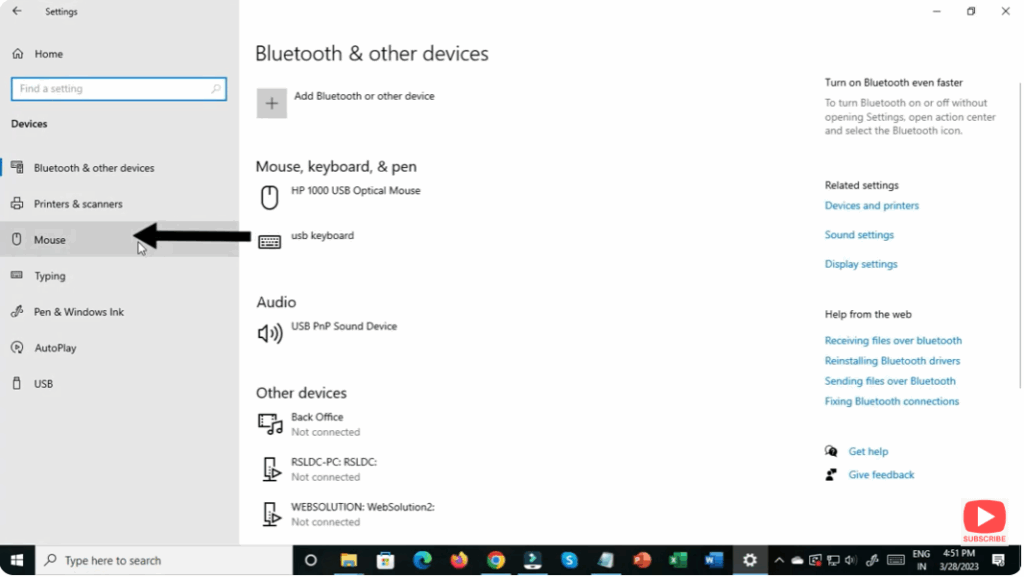
- Go to Bluetooth & Devices → Mouse.
- Adjust Additional Pointer Options
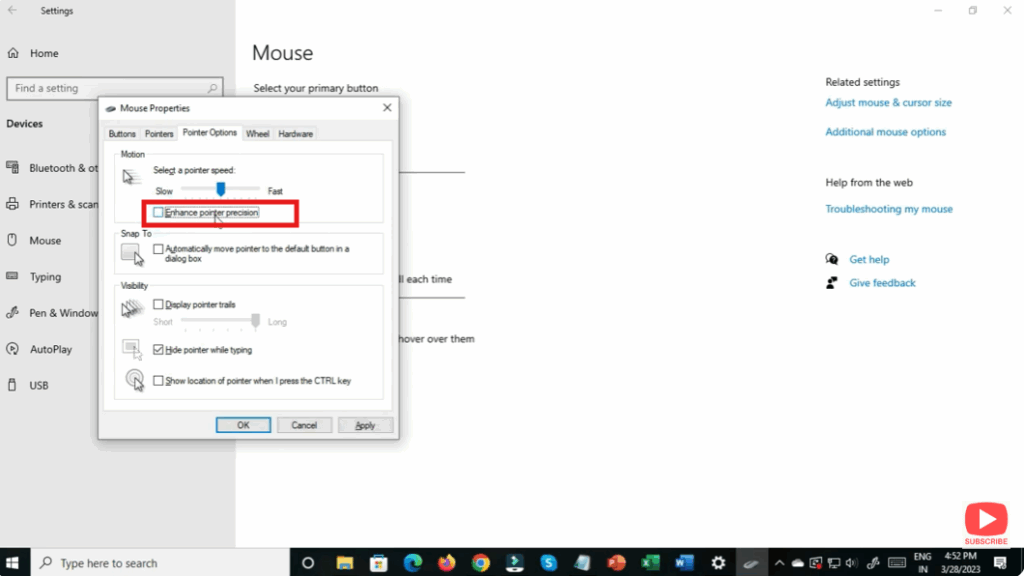
- Scroll down and click Additional mouse settings.
- This opens the traditional Mouse Properties dialog.
- Follow the steps above to uncheck Enhance pointer precision in the Pointer Options tab.
✅ Final Thoughts
Disabling mouse acceleration in Windows 11 is a straightforward but powerful tweak — especially for users who demand consistent and accurate pointer behavior. Whether you use the Control Panel, Windows Settings, or the Registry method, you’ll gain better control over your cursor.
Once it’s turned off, take some time to get used to the new feel and fine-tune your mouse sensitivity (DPI) if needed to get the snappy, reliable pointer movement you want.






