

If you find it distracting when the Windows 11 Start Menu shows web results instead of just your local files and apps, you can easily turn that feature off. The web search option in Windows pulls results from Bing, which can slow down searches and raise privacy concerns for some users. Luckily, Windows 11 allows you to disable web results directly through Settings, Group Policy, or the Registry Editor. In this blog, you’ll learn simple step‑by‑step methods to disable the Start Menu web search so your system only shows results from your computer and not the web.
Follow the steps carefully and don’t skip any part to make sure it works correctly.
- Open “Registry Editor.”
- Click on File → Export and Import.

- Now click on “HKEY_CURRENT_USER.”
- Then click on “SOFTWARE.”
- Next, click on “POLICIES.”
- Click on “MICROSOFT.”
- Right-click on “WINDOWS” and select New → Key.
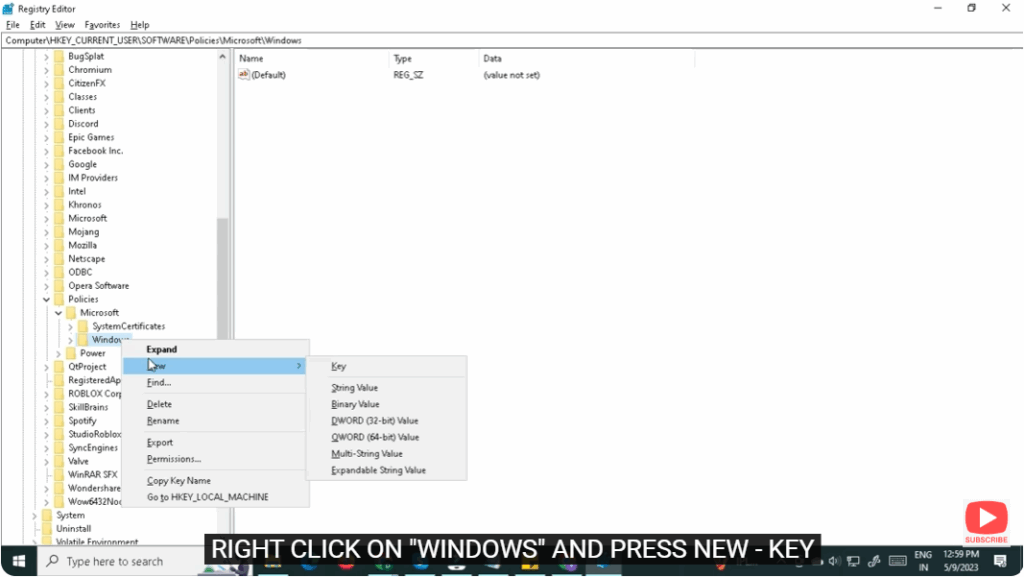
- Type “EXPLORER.”
- Now right-click on the screen, select New → DWORD (32-bit) Value.
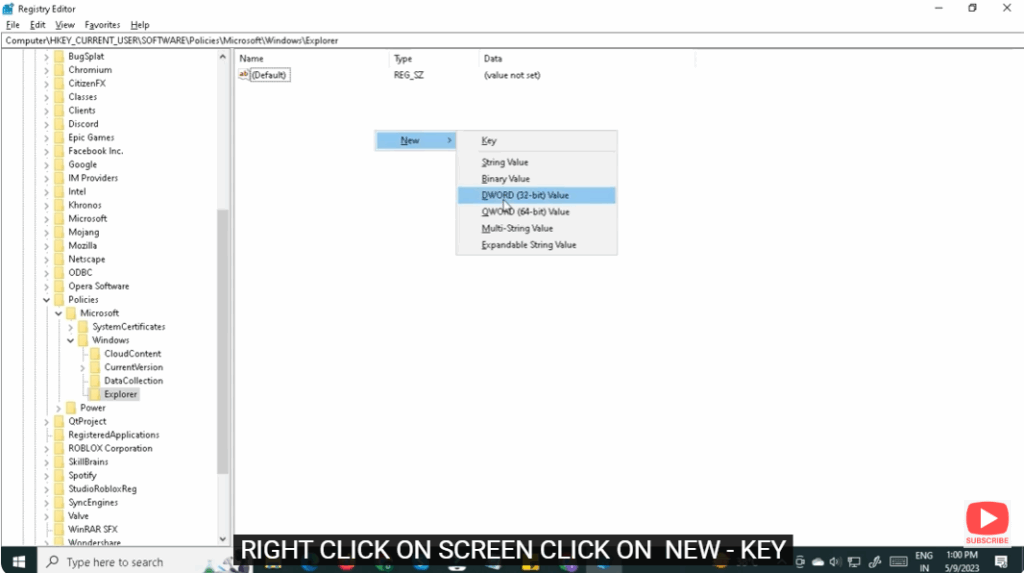
- Type “DisableSearchBoxSuggestions.”
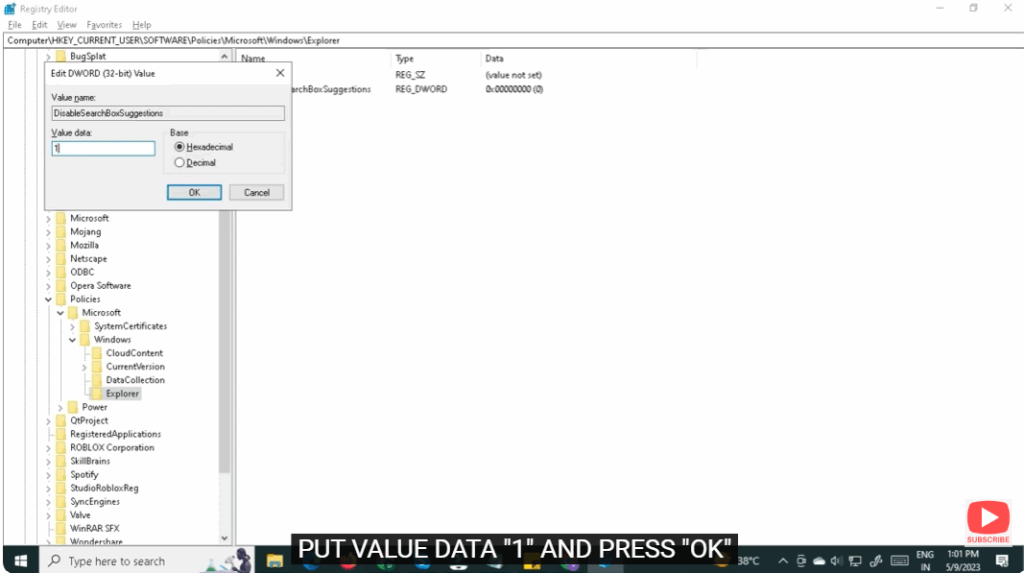
- Double-click on “DisableSearchBoxSuggestions.”
- In the Value Data field, type 1 and press OK.
- Close the Registry Editor.
- Finally, Restart your PC.
You have successfully disabled Start Menu Web Search on your Windows 11 system!






