
Google Chrome is one of the most popular web browsers, known for its speed, security, and simple design. Whether you’ve just set up a new computer or want to switch from another browser, installing Chrome on your PC is quick and easy. You don’t need any special skills—just follow a few straightforward steps to download, install, and set it up properly. In this easy tutorial, we’ll guide you through the entire process of downloading and installing Google Chrome on your Windows PC, so you can start browsing the web faster and more efficiently in no time.
Step 1: Ensure Internet Connection
First of all, your computer should be connected to the internet.
Step 2: Open Internet Explorer
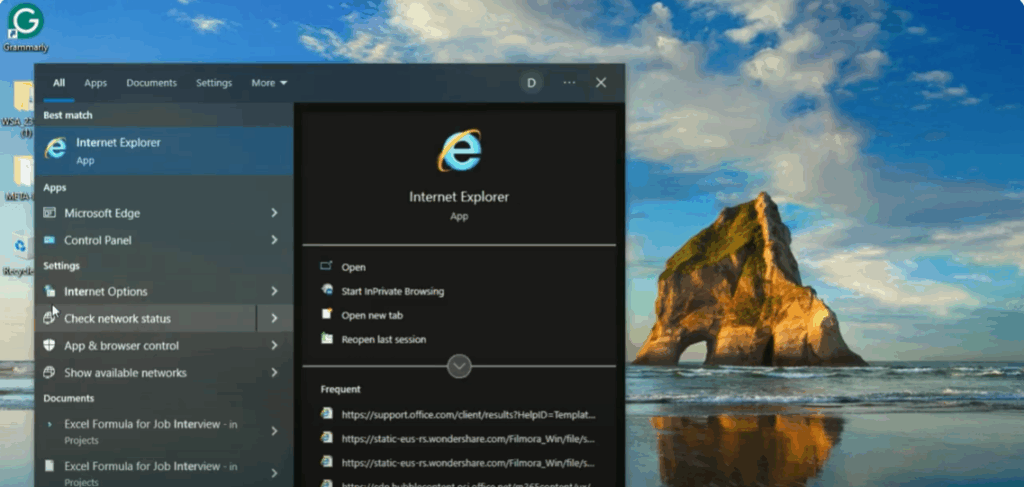
Go to the search bar menu and search Internet Explorer.
Step 3: Search for Google Chrome
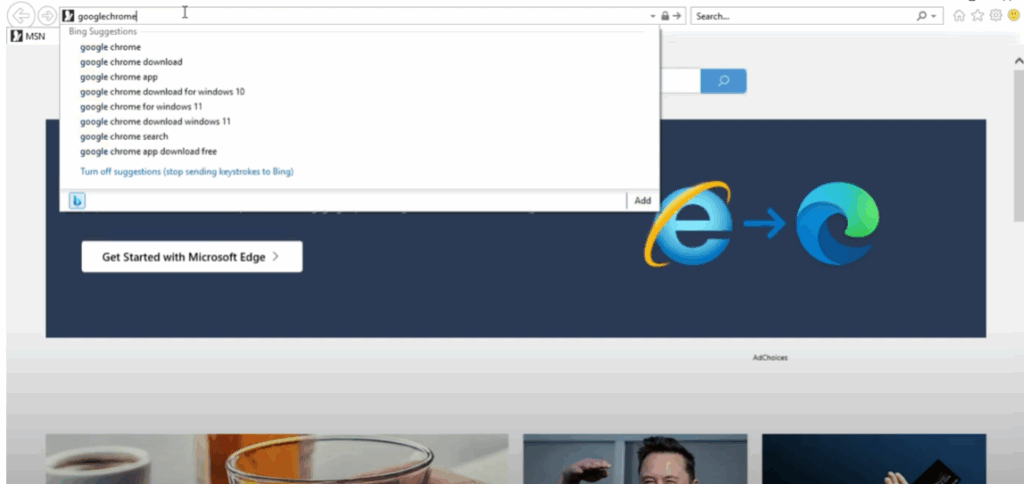
Here, remove the above link and search Google Chrome.
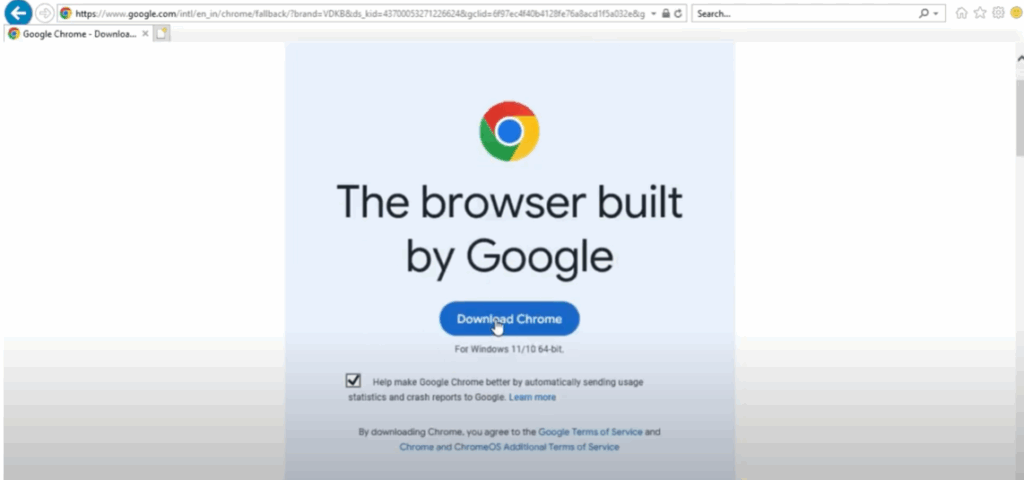
Step 4: Download Google Chrome
Open the first link and download it.
Step 5: Install and Sign In
Google Chrome has been downloaded. Open it now. Sign into it. It is ready to search.






