
Microsoft Office 2021 is one of the most widely used productivity suites, offering powerful tools like Word, Excel, PowerPoint, OneNote, and more. In this guide, we will walk you through the process of downloading and installing Microsoft Office 2021 on your PC, step-by-step.
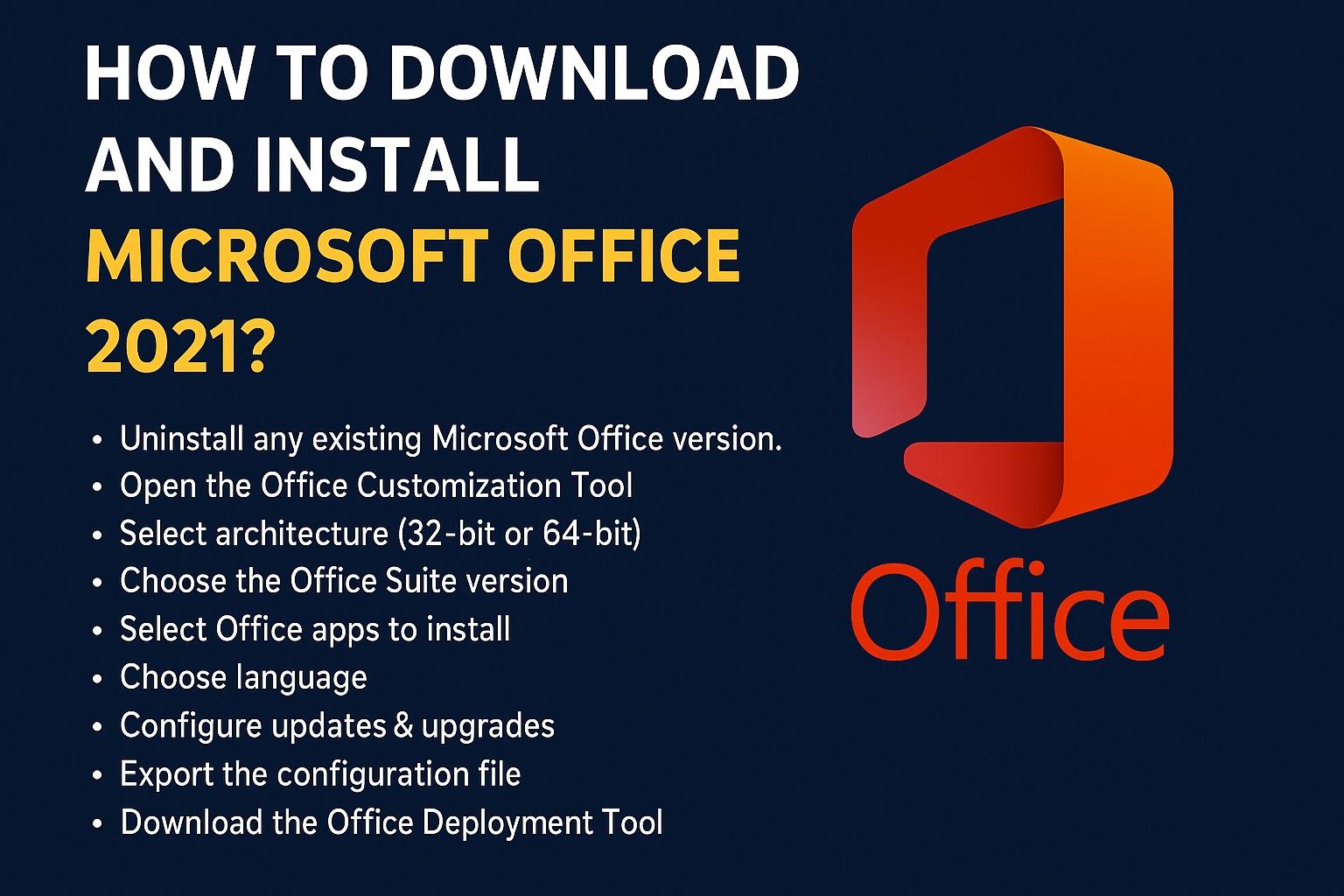
Step 1: Uninstall Existing Microsoft Office (If Applicable)
Before installing Office 2021, ensure that no previous version of Microsoft Office is installed on your PC.
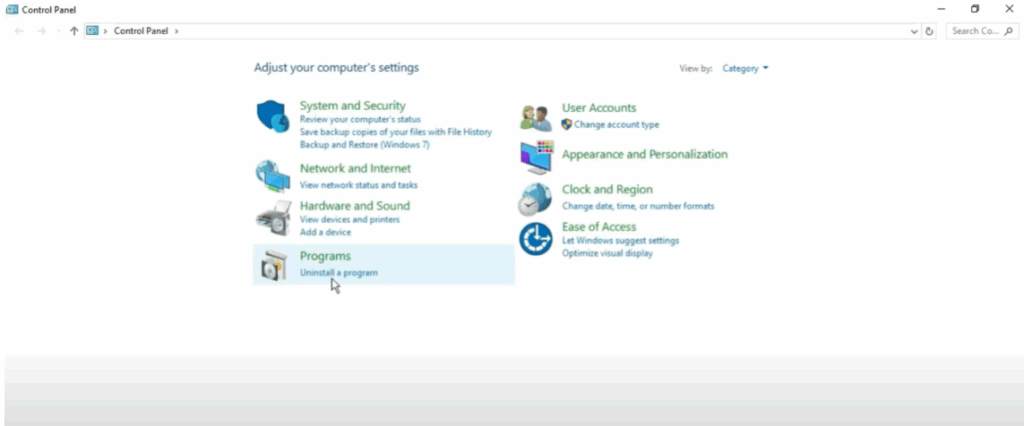
- Go to Control Panel → Uninstall a Program.
- Locate any existing Microsoft Office installation, select it, and click Uninstall.
If you don’t have any older version installed, you can proceed to the next step.
Step 2: Open the Office Customization Tool
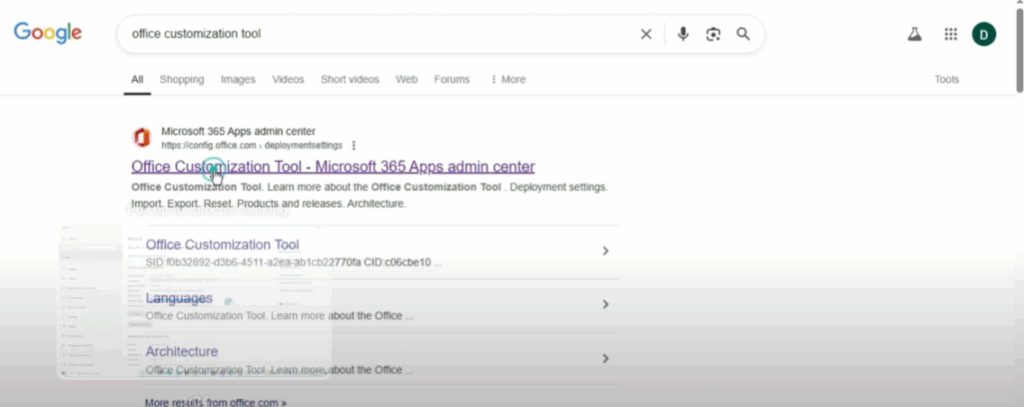
- Launch your Google Chrome browser.
- Search for “Office Customization Tool”.
- Open the first result from microsoft.com.
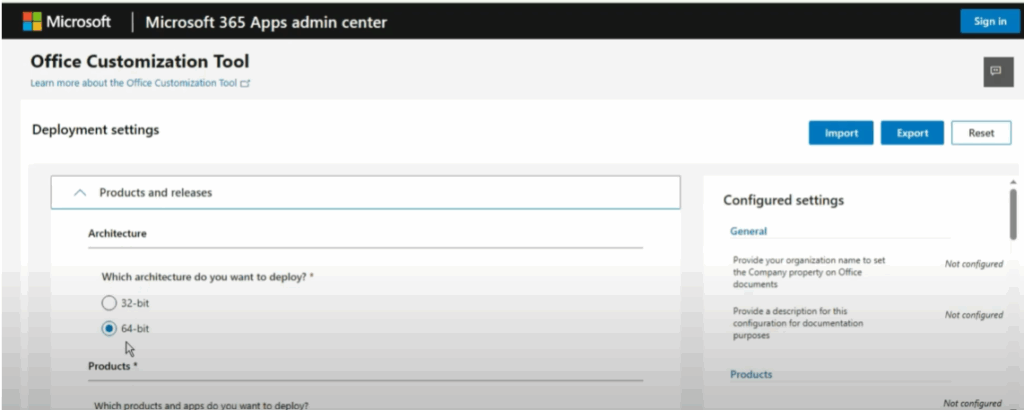
Step 3: Choose Your Architecture
- You will be prompted to select your system architecture – 32-bit or 64-bit.
- To check your system type, right-click This PC → Properties.
- Select the appropriate option (e.g., 64-bit for most modern PCs).
Step 4: Select Office Edition
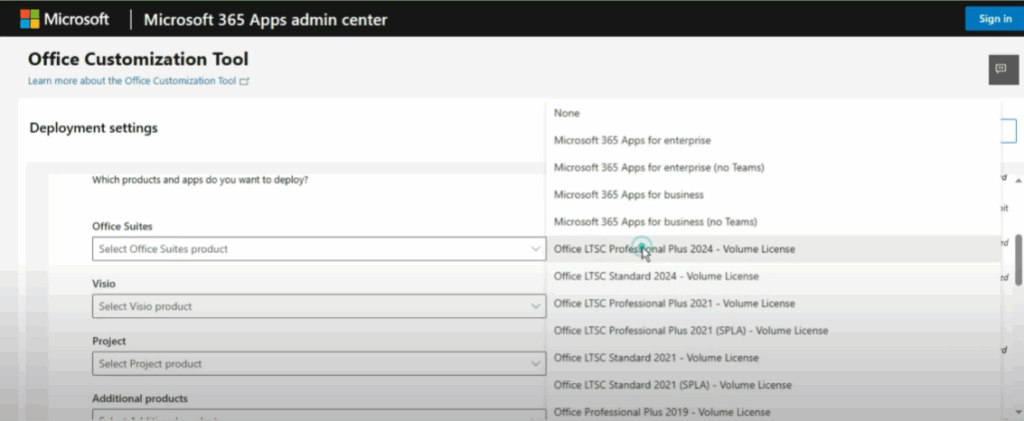
- Under Office Suite, choose Office LTSC Professional Plus 2024 Volume License (or the latest available version for your system).
Step 5: Choose the Applications You Need
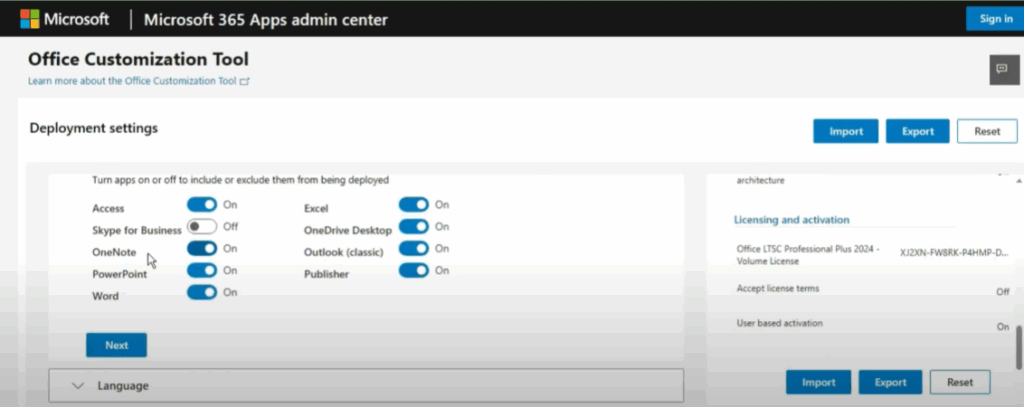
- Scroll down to the Apps section.
- Select only the Office applications you want to install (e.g., Word, Excel, PowerPoint, OneNote).
- Uncheck any apps you do not need.
Step 6: Select Language and Preferences
- Choose English (United States) as the primary language (or your preferred language).
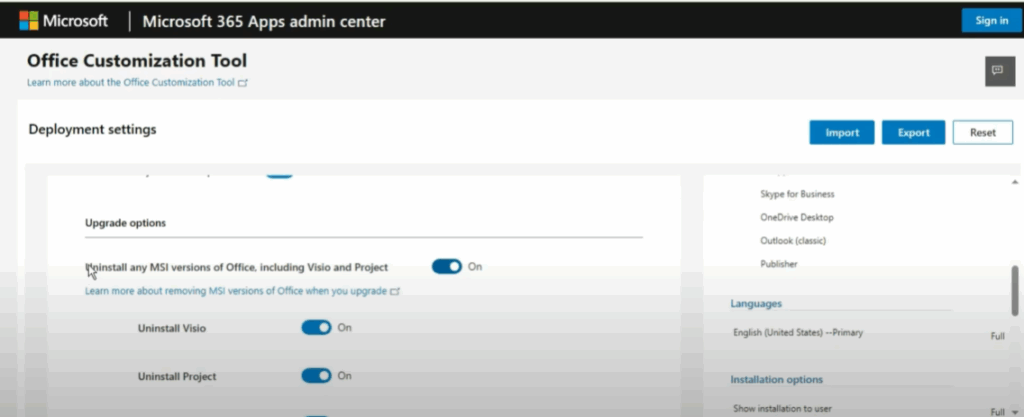
- Click Next until you reach the Updates and Upgrades section.
- Uncheck Uninstall any MSI versions of Office including Visio and Project.
- Continue clicking Next until you reach the finish step.
Step 7: Export the Configuration File
- Click Finish.
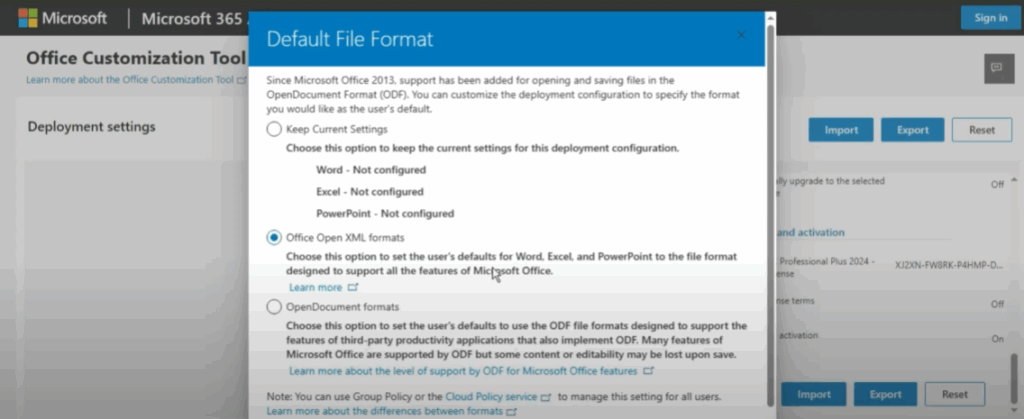
- On the next screen, click Export.
- Select Office Open XML Format, tick the checkbox, and click OK.
- Save the XML configuration file.
Step 8: Download the Office Deployment Tool
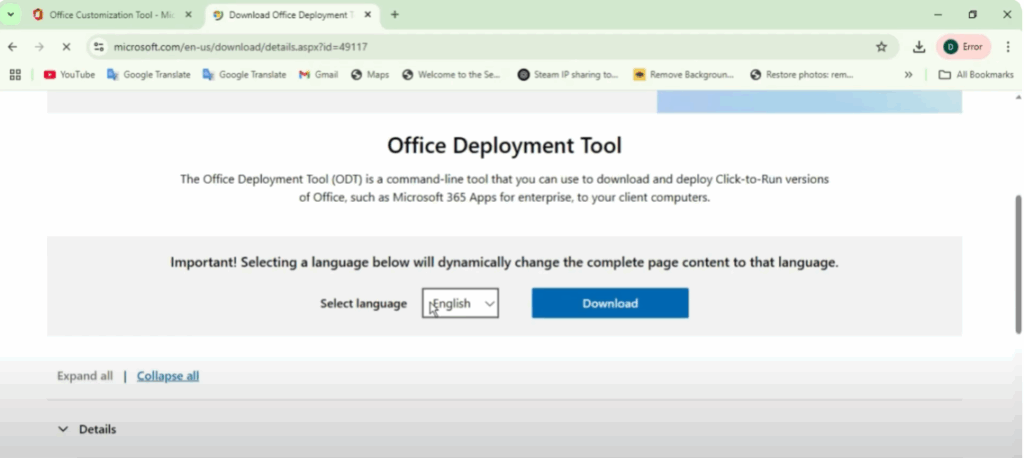
- Open a new browser tab and search for “Office Deployment Tool”.
- Visit the official Microsoft.com link.
- Download and install the tool.
Step 9: Prepare Installation Folder
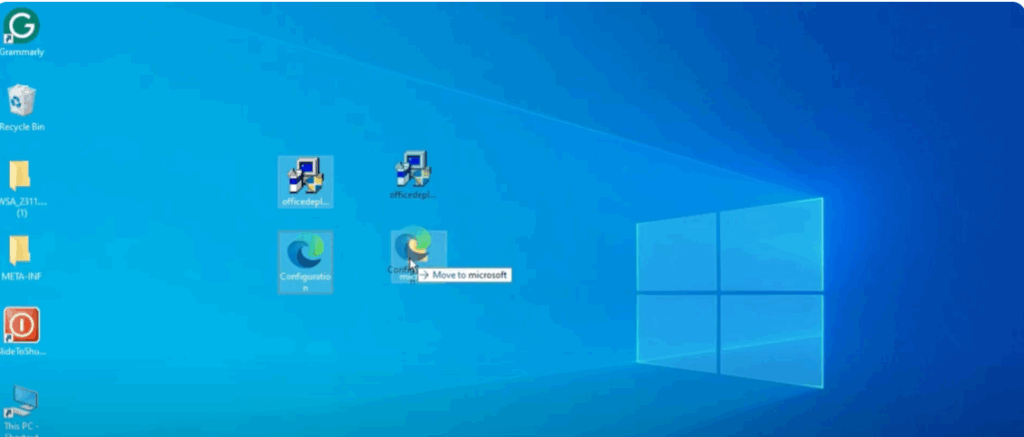
- Create a new folder on your desktop (e.g., Microsoft).
- Move both the Office Deployment Tool files and your XML configuration file into this folder.
Step 10: Install Microsoft Office via Command Prompt
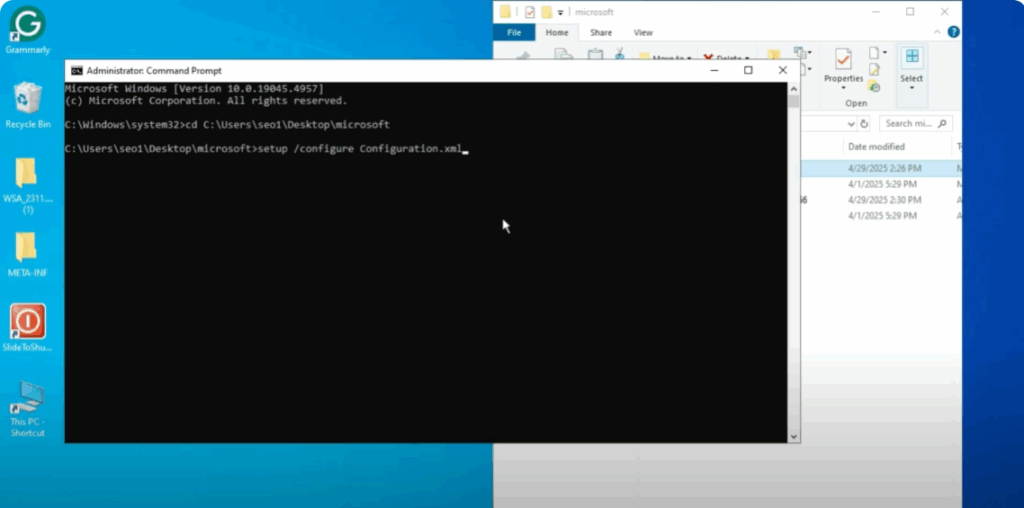
- Open Command Prompt as Administrator.
- Navigate to your Microsoft folder by typing: bashCopyEdit
cd [folder path](Paste the path to your Microsoft folder after “cd”.) - Run the installation command: pgsqlCopyEdit
setup /configure configuration.xml - Wait for the download and installation process to complete. Ensure your PC stays connected to the internet during this time.
Step 11: Launch Microsoft Office 2021
Once the installation is complete:
- Open Word or any other Office application from the Start Menu.
- Verify that everything is working properly.
Final Words
You have successfully downloaded and installed Microsoft Office 2021 on your PC. Now you can enjoy using your favorite productivity tools for work, school, or personal projects.
If you found this guide helpful, don’t forget to share it with others. Stay tuned for more tech tips and tutorials!






