
The Xbox Accessories app is a must-have for anyone using an Xbox controller on their Windows 11 or 10 PC. It lets you customize your controller settings, update firmware, and get the most out of your gaming experience. Downloading and installing this app is simple through the Microsoft Store, and once installed, you can easily connect and manage your Xbox controllers. In this blog, you’ll learn easy step-by-step instructions to download and install the Xbox Accessories app on Windows 11/10.
🛠 Step-by-Step: Download & Install the App
Step 1: Open Microsoft Store
- On your PC, open the Microsoft Store app (look in the Start menu).
- Make sure you’re signed in with your Microsoft account.
Step 2: Search for the App
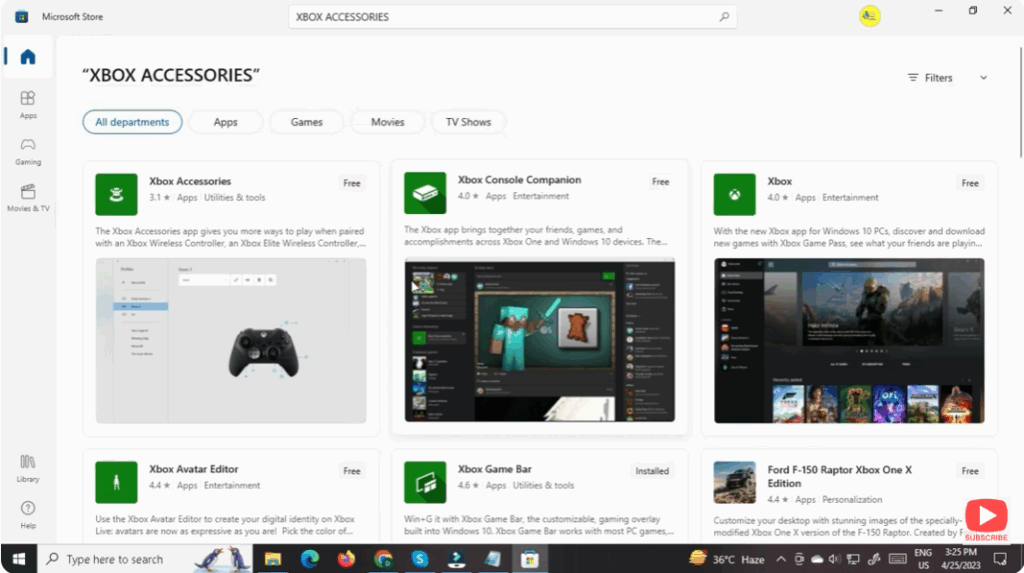
- In the Store search bar, type “Xbox Accessories”.
- Look for the official app published by Microsoft Corporation.
Step 3: Download & Install
- Click the app’s entry, then click Get or Install.
- Wait while the download and installation complete. According to the Store, the app size is around ~80 MB.
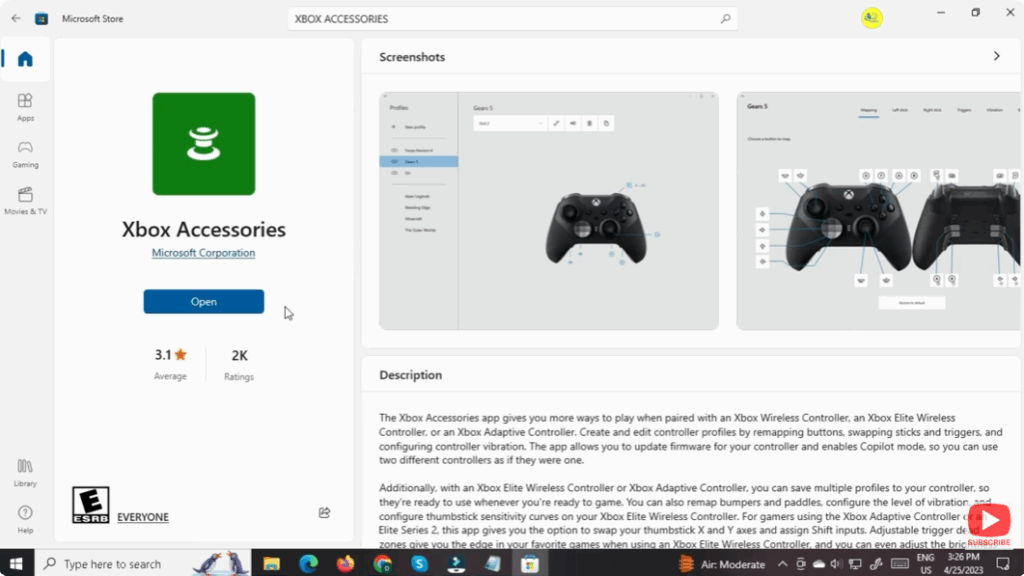
- Once installed, you’ll see an Open button; you can launch the app from here or find it in your Start menu.
Step 4: Launch the App & Connect Your Controller
- Plug in your Xbox controller or wireless adapter (if it’s not already connected).
- Launch the Xbox Accessories app.
- The app should detect your connected device automatically.
Step 5: Update Firmware & Customize
- If your controller needs a firmware update, the app will prompt you. Click Update.
- Explore customization options:
- Remap buttons, add macros or shift modes.
- Change vibration intensity or dead zones (for compatible models).
- Create and save profiles for different games.
📝 Summary
Installing the Xbox Accessories App on Windows 11/10 is quick and gives you real value—firmware updates, customization, and enhanced control over your gaming accessories. Just open Microsoft Store, search for the app, install it, connect your controller, and you’re done. Don’t forget to explore the profiles and Copilot features to get the full benefit.






