
Downloading Google Chrome on Windows 10 is quick and simple, and it only takes a few steps. Chrome is one of the most popular web browsers because it’s fast, secure, and easy to use. If you’re tired of slow browsing or want a fresh browser with better features, installing Chrome is the perfect choice. The good news is, you don’t need any technical skills—just follow a few easy instructions. In this beginner-friendly blog, we’ll explain in simple language how to download Google Chrome on Windows 10 step by step, so you can start browsing smoothly.
🛠️ Step-by-Step Guide: Download & Install Chrome on Windows 10
1. Open Your Current Browser
- Launch whichever browser is already installed — it could be Edge, Firefox, Internet Explorer etc.
- Make sure you have an active internet connection.
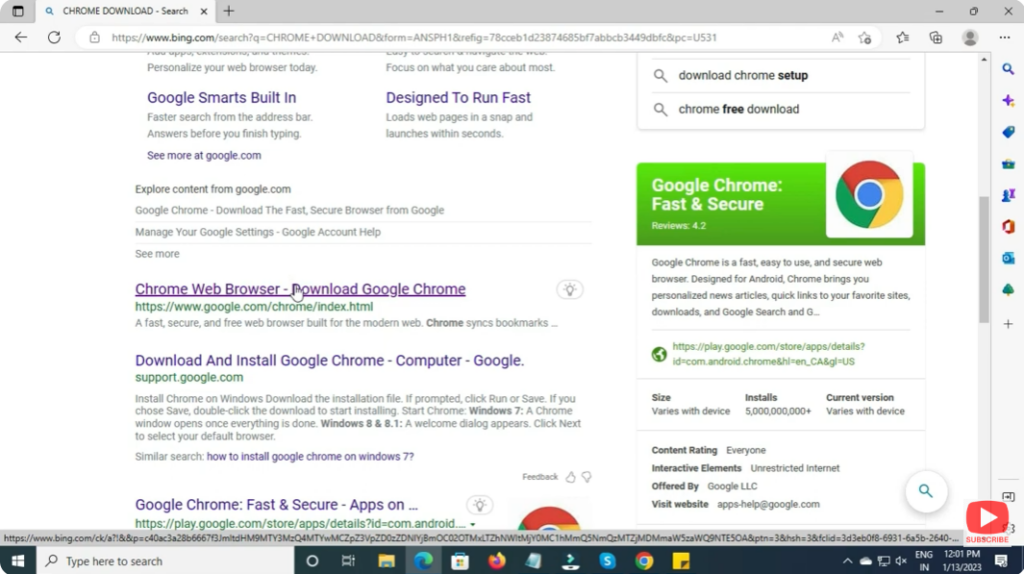
2. Go to Official Chrome Download Page
- In the address bar, type:
google.com/chromeand hit Enter. - This leads to Chrome’s official website — always download from the official site to avoid fake or malicious installers.
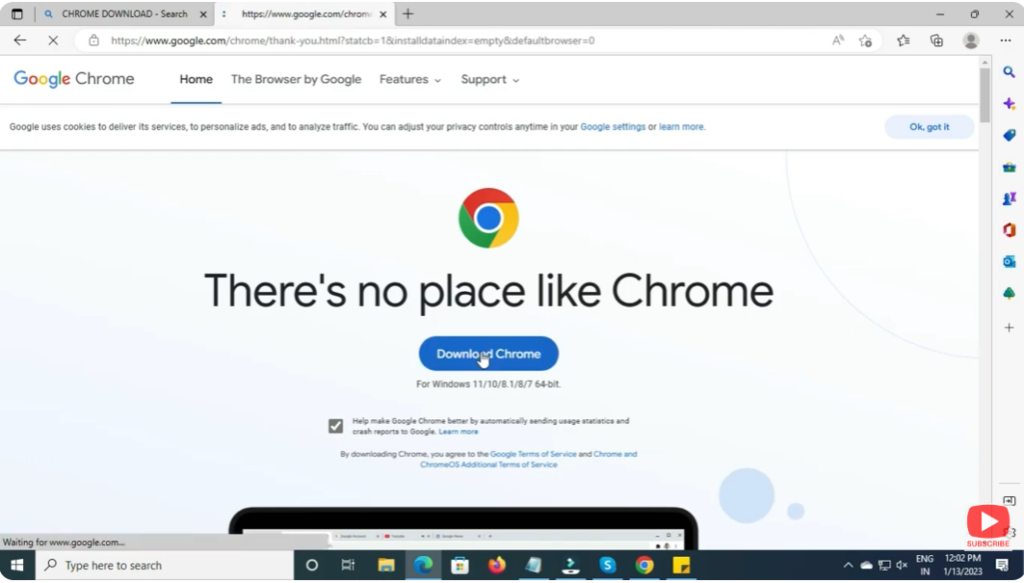
3. Click “Download Chrome”
- On the website, click the “Download Chrome” button.
- You may see a prompt to agree to Terms of Service — click Accept and Install (or similar).
4. Save the Installer
- A file download window will pop up. Save the installer to your Downloads folder (or another folder you prefer).
- The installer is typically named something like
ChromeSetup.exe.
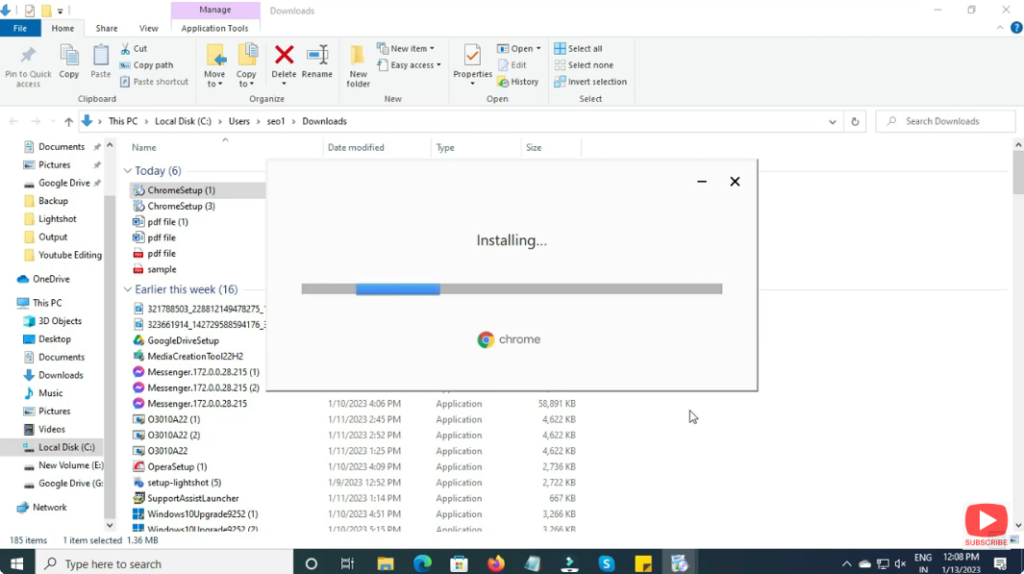
5. Run the Installer
- Once download completes, locate the installer file (e.g. by opening Downloads).
- Double-click the installer (
ChromeSetup.exe). - If a Windows security prompt or UAC asks permission, click Yes / Allow to proceed.
6. Wait for Installation
- The installer will download necessary files and install Chrome.
- This typically takes a few minutes depending on your internet speed.
- After installation, Chrome usually launches automatically — or you can open it via Start menu or desktop shortcut.
7. First-Time Setup
- When Chrome opens first time, you can sign in with a Google account to sync bookmarks, history, settings across devices.
- Or skip sign-in — Chrome still works fine without an account.






