
Apple iTunes is not just a media player—it’s a powerful tool for managing your digital content, syncing mobile devices, and accessing the iTunes Store to purchase or download music, movies, and more. If you’re using a Windows PC and want to enjoy everything iTunes has to offer, this guide is for you.
In this article, we’ll walk you through the complete process of downloading and installing iTunes on your Windows computer. Let’s get started!
🎯 Why Use iTunes?
With iTunes, you can:
- Organize your music and movie library
- Sync content with your iPhone, iPad, or iPod
- Access the iTunes Store for digital purchases
- Manage your media efficiently
🛠️ Step-by-Step: How to Install iTunes on Windows
1. Open Microsoft Store
- Click the search menu bar on your Windows PC.
- Type Microsoft Store and open it.
2. Search for iTunes
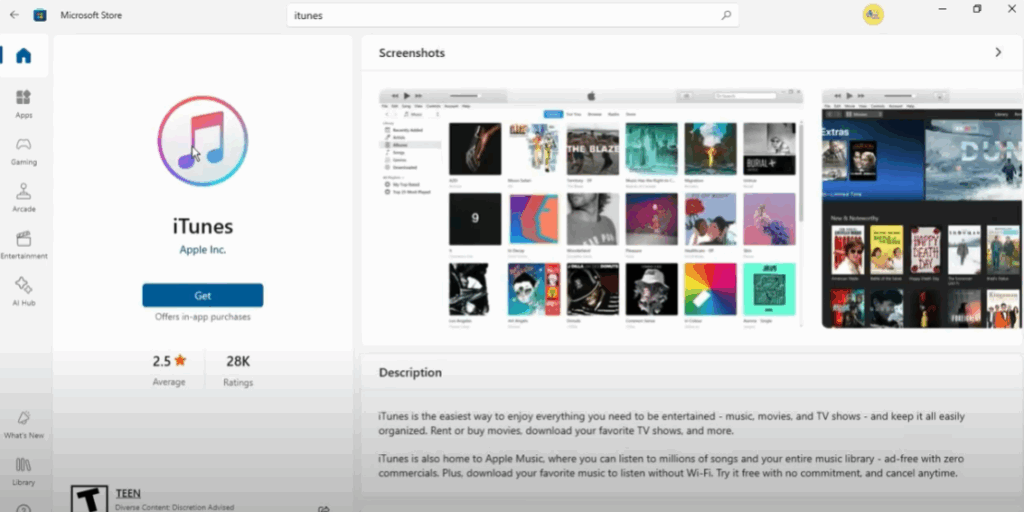
- In the Microsoft Store, type iTunes into the search bar.
- Click on the official iTunes app that appears in the search results.
3. Download the App
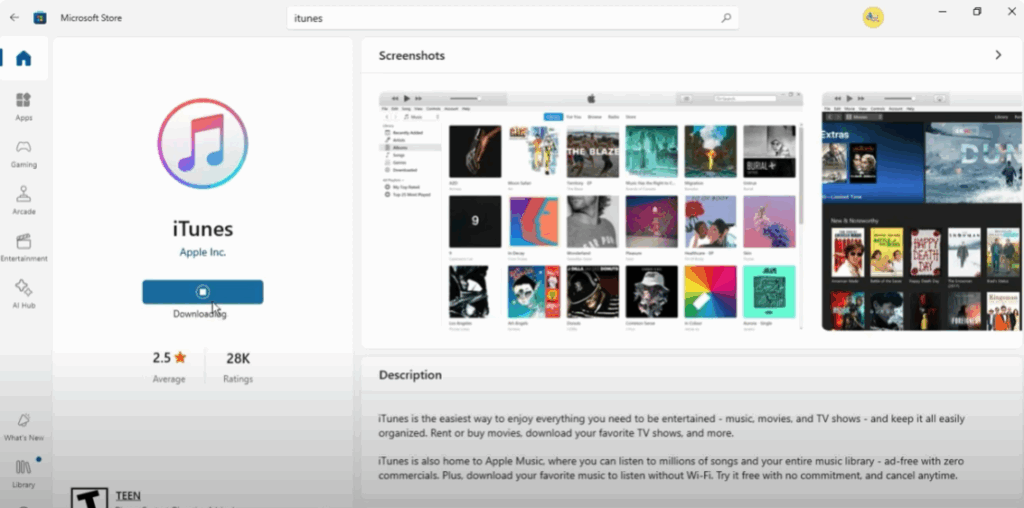
- Click the “Get” button.
- The app will begin downloading. This may take a few minutes depending on your internet speed.
4. Launch iTunes
- Once the download is complete, click Open to launch iTunes.
✅ Initial Setup & Sign-In
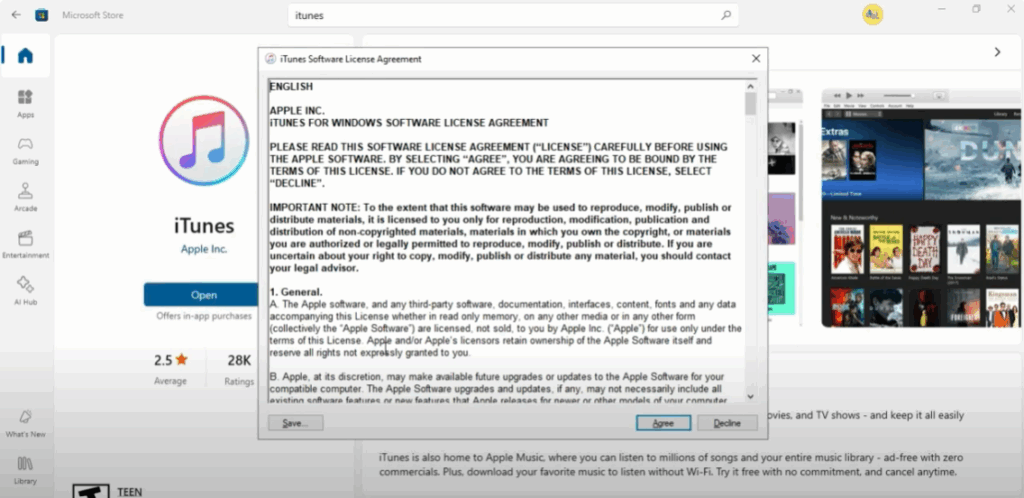
1. Agree to Terms
- When iTunes opens for the first time, you’ll be prompted to read and accept the terms and conditions. Click “Agree” to proceed.
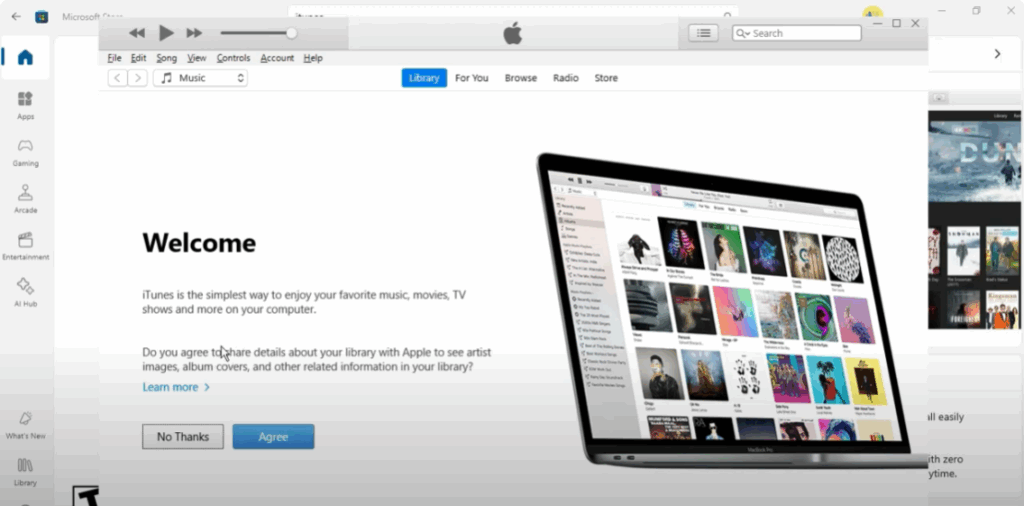
2. Share Library Info (Optional)
- You’ll be asked if you want to share details about your library with Apple (like album covers and artist images). You can click “Agree” or skip it.
3. Sign in with Apple ID
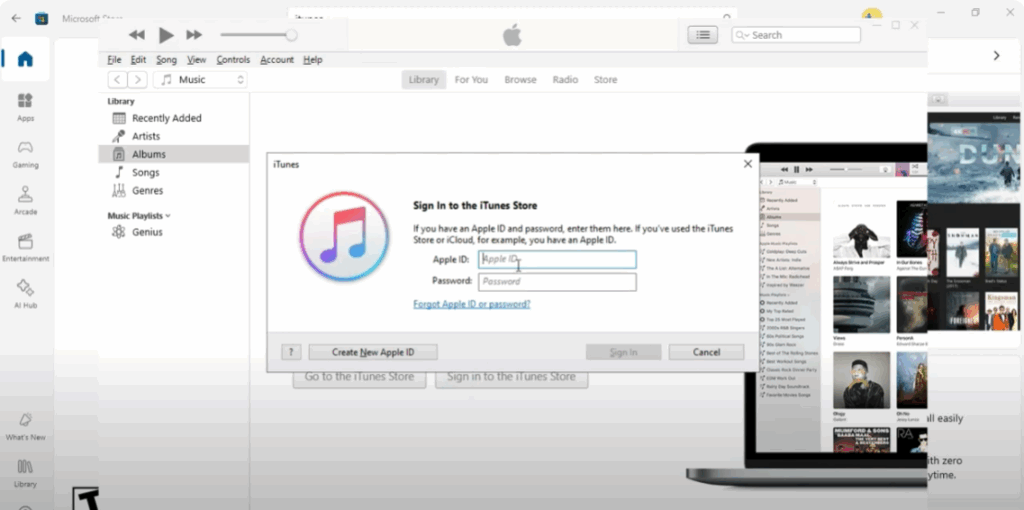
- Enter your Apple ID and password.
- Click Sign In to access the iTunes Store and sync content.
🎉 That’s It!
iTunes is now successfully installed and ready to use on your Windows PC. You can:
- Sync music, movies, and more
- Buy or rent media content
- Create playlists and organize your library
🔚 Final Thoughts
Installing iTunes on Windows is quick and simple. Whether you’re syncing devices or building a media library, iTunes provides a smooth experience. If you found this guide helpful, be sure to:
👍 Like
📤 Share
🔔 Subscribe for more tech tutorials
Thanks for reading, and have a great day!






