
If you want to play Minecraft on your computer, you’ll need to have Java installed first. Java is the software that helps Minecraft run properly, and without it the game won’t even start. The good news is, downloading and installing Java is very simple and takes only a few minutes. In this blog, we’ll guide you step by step on how to download and install Java for Minecraft, explained in easy language so anyone can follow along and start playing without any trouble.
🛠 Downloading & Installing Java
Step 1: Check if Java is Already Installed
- Press Win + R, type
cmdand press Enter. - In the command prompt type:
java -versionIf Java is installed, you’ll see a version number. If the version is outdated (for example lower than what your Minecraft setup requires), you’ll need to install or update.
Step 2: Download the Correct Java Version
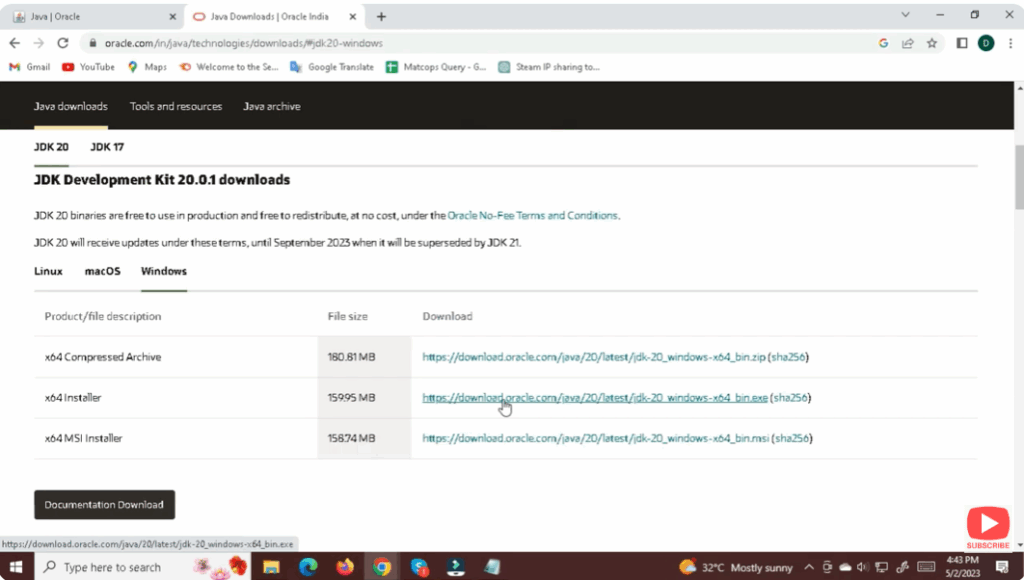
- Visit the official Java download page (via Oracle or other trusted distributors like Adoptium).
- Make sure you select the version required for your Minecraft version (e.g., Java 21) and pick the Windows Installer version (x64 for most modern PCs).
Step 3: Install Java
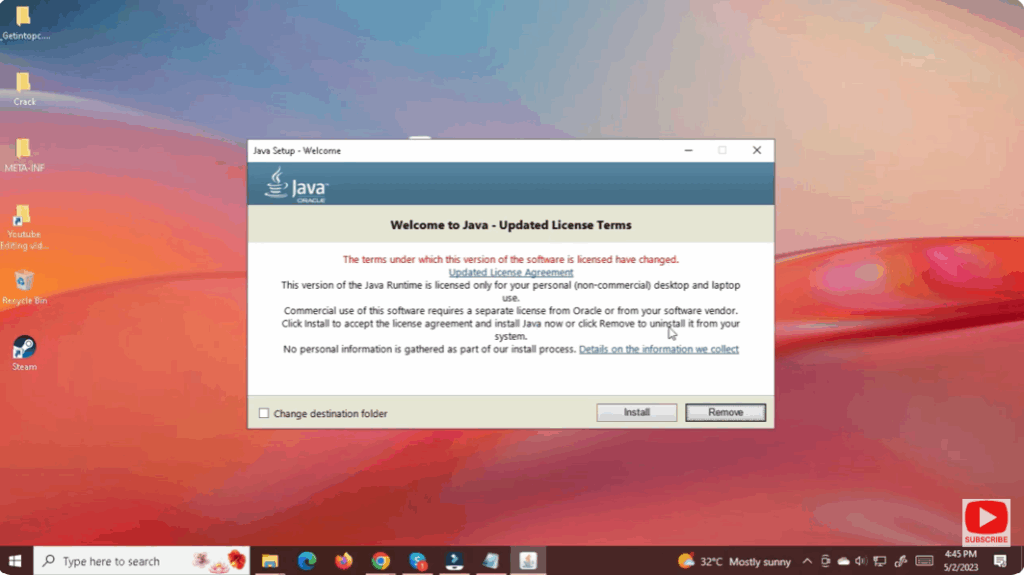
- Once the
.msior.exeinstaller file is downloaded, double-click it to start. - Follow the on-screen prompts: accept license terms, select install location (default is usually fine).
- After installation completes, click Close.
Step 4: Configure Java (Optional but Recommended)
- For modded Minecraft or server setups: ensure
.jarfiles are associated with Java: some guides recommend using a small utility like Jarfix to restore the correct file association. - Open the command prompt again and run
java -versionto confirm your new installation is working and shows the expected version.
✅ Final Thoughts
Getting Java installed is one of the foundational steps for Minecraft players — especially if you’re using the Java edition, modding your game, or running servers. By following the steps above — checking existing Java versions, downloading the correct installer, installing properly, and verifying your setup — you’ll have your system ready for Minecraft with minimal hassle.






