
Having trouble connecting to the internet or setting up your network on Windows 10 or 11? You might need to install the Realtek LAN driver to get things working smoothly. This driver helps your computer communicate with wired networks, and installing it is easier than you might think. Whether you’re setting up a new PC or fixing network issues, this blog will guide you through the simple steps to download and install the Realtek LAN driver. No tech skills needed—just follow along and get your internet connection back on track!
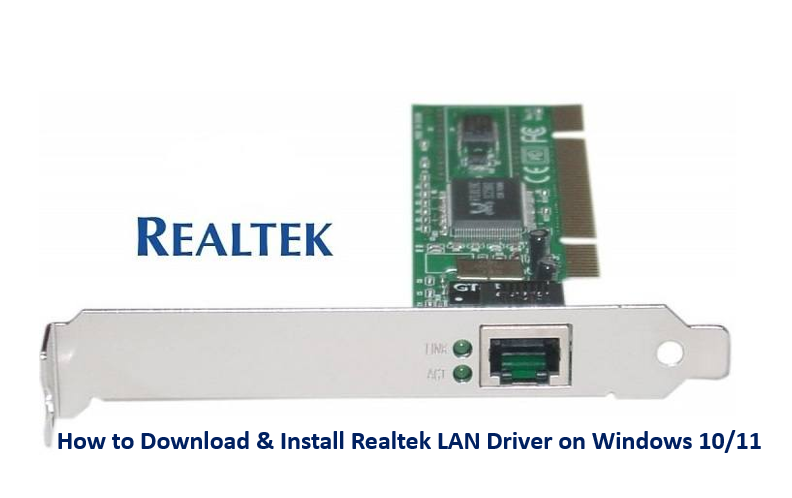
Step-by-Step Guide: Download & Install Realtek LAN Driver on Windows 10/11
Follow these steps carefully:
Step 1: Identify Your Realtek LAN Hardware
- Press Windows + X → open Device Manager.
- Expand “Network adapters”.
- See the entry for your Realtek adapter (for example, “Realtek PCIe GBE Family Controller,” “Realtek Ethernet Controller,” etc.).
- Right-click it → choose Properties → go to Details tab → select Hardware Ids from the dropdown.
- Note down the hardware ID string (e.g.
VEN_10EC&DEV_8168) — this helps you pick the correct driver version.
Step 2: Download the Realtek LAN Driver
- Open your browser and navigate to the official Realtek website (realtek.com) or to your motherboard / PC manufacturer’s website, which often provides a custom / compatible driver.
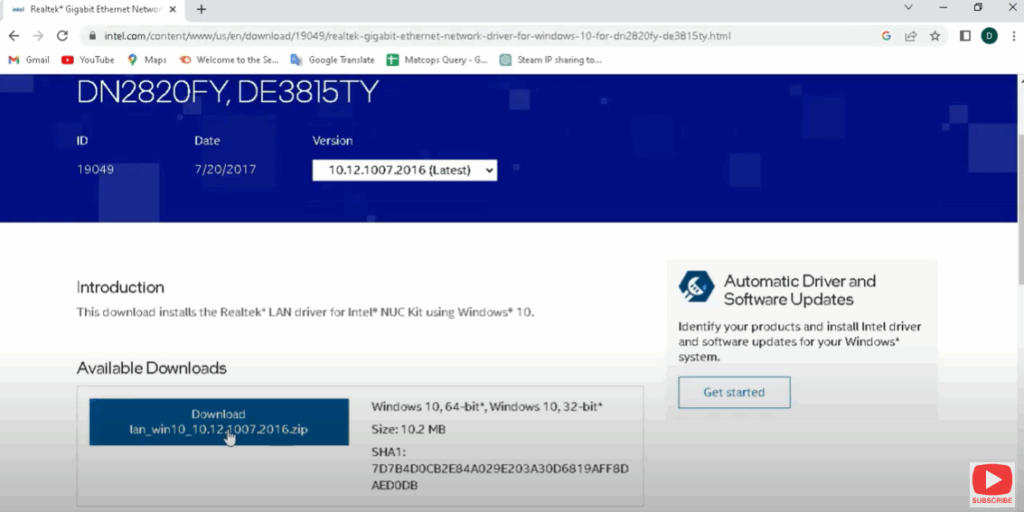
- In Realtek’s site, go to Downloads → Network Interface Controllers → find PCIe / Ethernet → locate the driver version matching your OS (Windows 10 / Windows 11).
- Download the .zip or executable installer (often something like
Realtek_Ethernet_Driver_Win10.ziporRealtek_LAN_Driver_Setup.exe).
- Make sure the driver version supports your exact Windows build (e.g. x64).
Step 3: Extract the Driver (if zipped)
- If the downloaded file is a
.zip, right-click → Extract All… - Extract to a folder you’ll easily access (e.g.
C:\Realtek_Driver).
Step 4: Install the Driver
Method A: Executable Installer
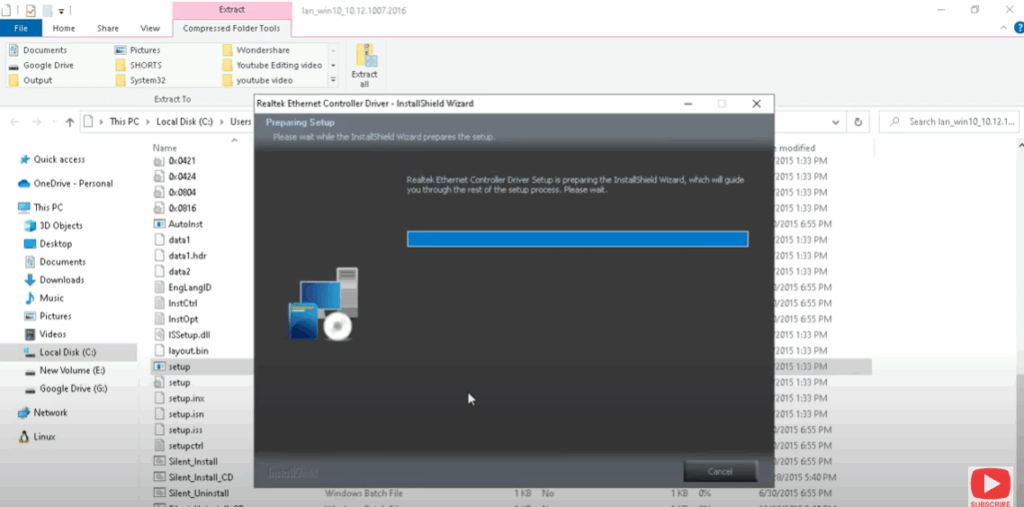
- If the driver package is an executable (
.exe), double-click to run it. - Follow the on-screen prompts (Next → Accept license → Install).
- Once installation finishes, restart your PC.






