
Downloading and installing WhatsApp for Windows PC is simple and lets you chat, call, and share with friends right from your desktop. You can get the official WhatsApp app easily from the Microsoft Store or WhatsApp’s official website. After downloading, the installation is quick, and you just need to scan a QR code with your phone to sync your account. In this blog, you will learn easy steps to download and install WhatsApp on your Windows PC for smooth messaging and calling.
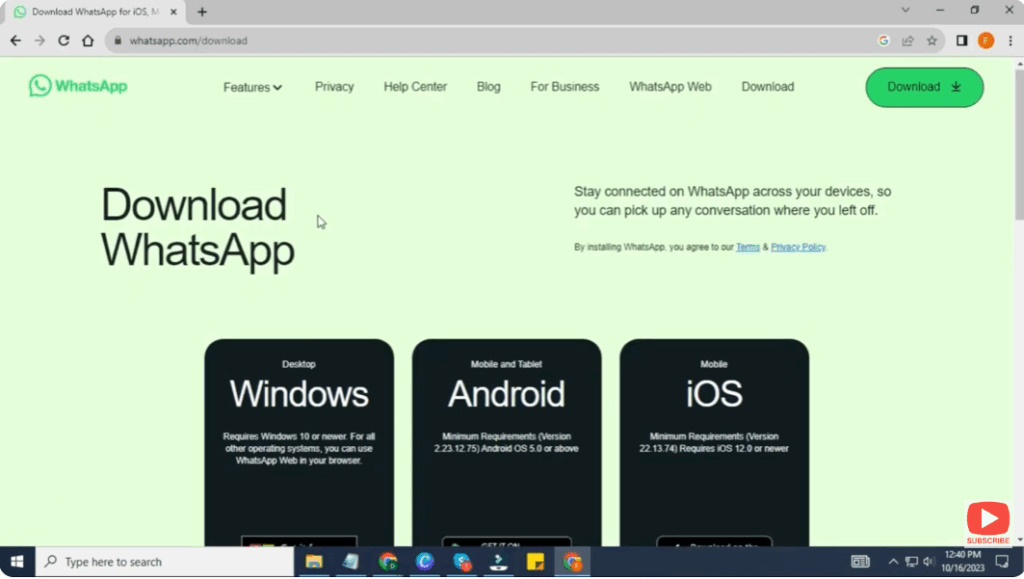
✔ Step 1: Go to the Official WhatsApp Website
- Open your web browser (Chrome, Microsoft Edge, Firefox, etc.)
- In the search bar, type: WhatsApp for Windows
- Click on the official link with the domain whatsapp.com
- You will be taken to the download page for Windows.
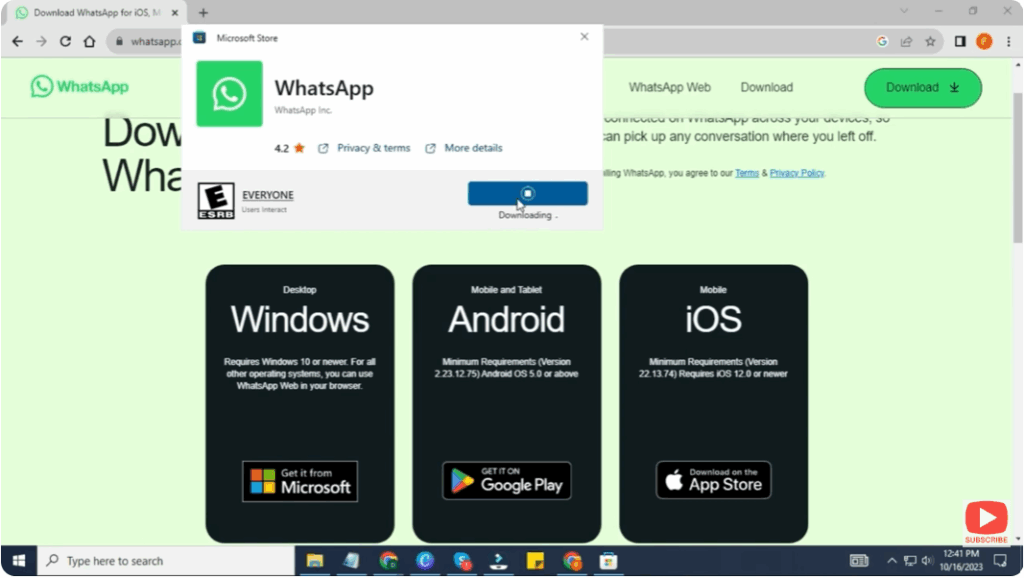
✔ Step 2: Download WhatsApp for Windows
- On the website, click on the “Download for Windows” button.
- A setup file named something like WhatsAppSetup.exe will start downloading.
- Wait until the download is complete.
✔ Step 3: Install WhatsApp on PC
- Locate the file WhatsAppSetup.exe in your Downloads folder.
- Double-click to run the installer.
- WhatsApp will start installing automatically.
- Once installation is complete, the WhatsApp desktop app will open.
✔ Step 4: Connect WhatsApp to Your Phone
To use WhatsApp on your computer, you must link it to your phone.
- Open WhatsApp on your smartphone.
- Tap the three dots (Menu) > Linked Devices.
- Tap Link a Device.
- A QR code scanner will open on your phone.
- Point your phone’s camera at the QR code displayed on your PC.
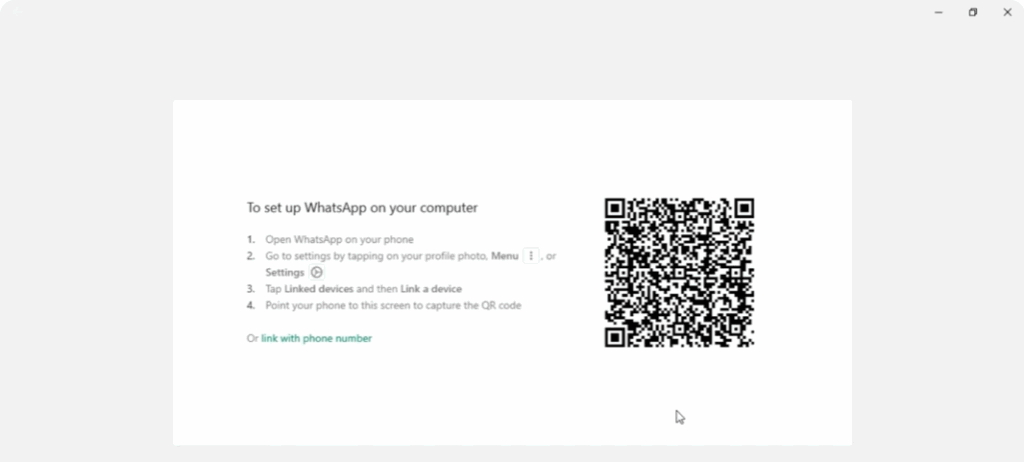
Your WhatsApp account will be instantly connected to your Windows PC.
✔ Step 5: Start Using WhatsApp on PC
Now you can:
- Send and receive messages
- Share photos, videos, and documents
- Make voice and video calls (supported on latest Windows versions)
- Use keyboard shortcuts for fast chatting
- Sync chats between mobile and PC
Using WhatsApp on a large screen boosts your productivity and gives a smooth chatting experience.
Conclusion
Installing WhatsApp on a Windows PC is very simple. Just download it from the official website, install it, and link it to your phone using the QR code. After that, you can enjoy seamless chatting and better workflow right from your desktop.






