
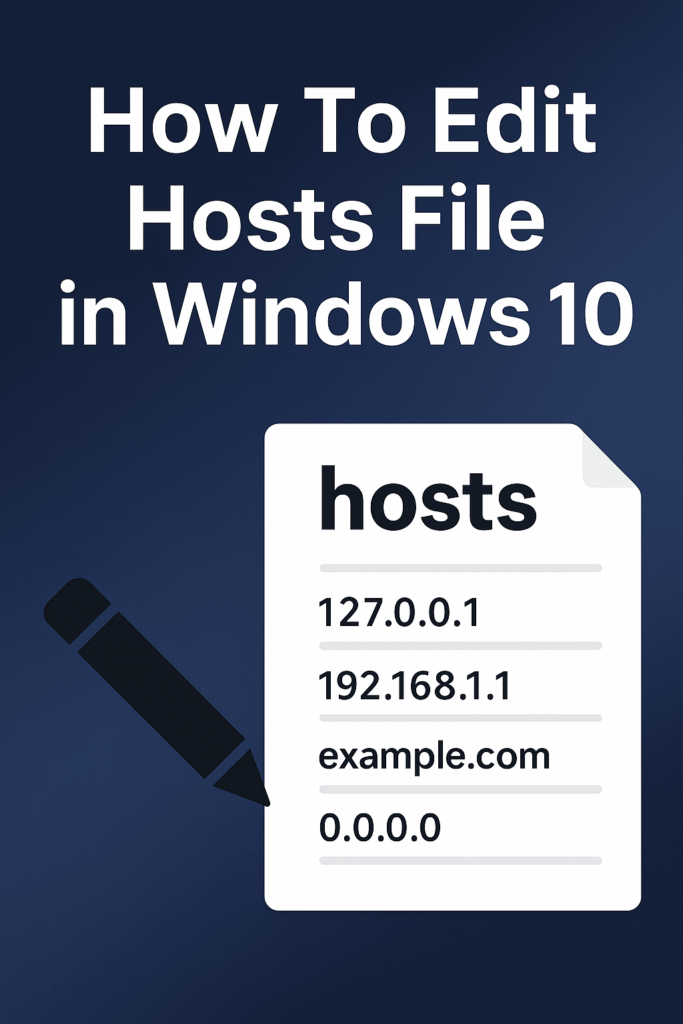
The hosts file in Windows 10 is a special text file that helps your computer map website names to IP addresses, directing traffic before asking DNS servers. Editing this file lets you block websites, test new servers, or redirect domains locally. In this blog, you will learn easy steps to find, open, edit, and save the hosts file safely on Windows 10, so you can customize how your computer handles internet addresses.
🛠 Step-by-Step: How to Edit the Hosts File
1. Back Up the Hosts File
Before making changes, it’s a good idea to make a backup of your current hosts file. Navigate to
C:\Windows\System32\drivers\etc\hosts
and copy it to a safe location with a different name like hosts_backup.
2. Open Notepad (or your text editor) as Administrator
- Click Start, type Notepad.
- Right-click Notepad → Run as administrator.
- Accept any UAC prompt. This elevated mode is required to save changes.
3. In Notepad, open the Hosts File
- In Notepad choose File → Open.
- Navigate to
C:\Windows\System32\drivers\etc. - In the “File name” box, switch to All Files (.) so you can see the
hostsfile (it doesn’t have a .txt extension). - Select
hosts→ Open.
4. Edit the Hosts File
- Scroll to the bottom of the file and add new entries like:
192.168.1.100 example.com www.example.com 0.0.0.0 ads.domain.com - The format is:
IP_address→ spaces or tabs →domain_name(s)→ (optional comment). - To disable an entry, prefix it with a
#so it’s treated as a comment.
5. Save the File
- After editing, File → Save. If you didn’t open Notepad as administrator, you may get an error saying you don’t have permission. Re-open as admin if so.
- Close Notepad.
6. Flush DNS Cache (Optional but Recommended)
To ensure changes apply promptly:
- Open Command Prompt as administrator.
- Run:
ipconfig /flushdns - This clears the DNS resolver cache so your new hosts entries take effect immediately.
7. Test Your Changes
- Open your browser and navigate to a domain you modified.
- If you mapped it to a different IP, you should see the new location.
- If you blocked a domain (
0.0.0.0), you should see an error or no response.
Note: Some browsers may ignore the hosts file if DNS-over-HTTPS is used; check browser settings if your change doesn’t seem to work.
✅ Final Thoughts
Editing the hosts file in Windows 10 is a powerful technique that gives you control over domain-to-IP mappings on your system. Whether you’re blocking domains, redirecting hosts for testing, or managing network behavior, the steps above will guide you through safely opening, editing, saving, and testing your changes.






