
Did you know that Google Chrome can access your device’s motion sensors — like the gyroscope and accelerometer — to improve browsing experiences on supported websites? While this can be useful for gaming, AR experiences, or interactive web content, it can also raise privacy concerns.
🧭 Step 1: Open Chrome Settings
- Launch Google Chrome on your Windows, macOS, or Android device.
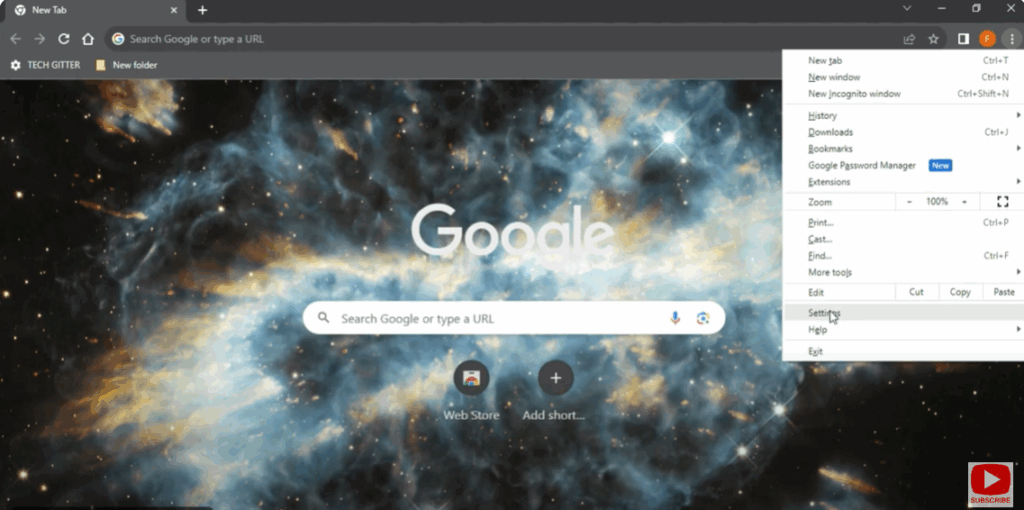
- Click the three dots (⋮) in the top-right corner of your browser.
- Go to Settings from the drop-down menu.
⚙️ Step 2: Open Site Settings
Once inside the Settings page:
- Scroll down and click on Privacy and security.
- Select Site Settings.
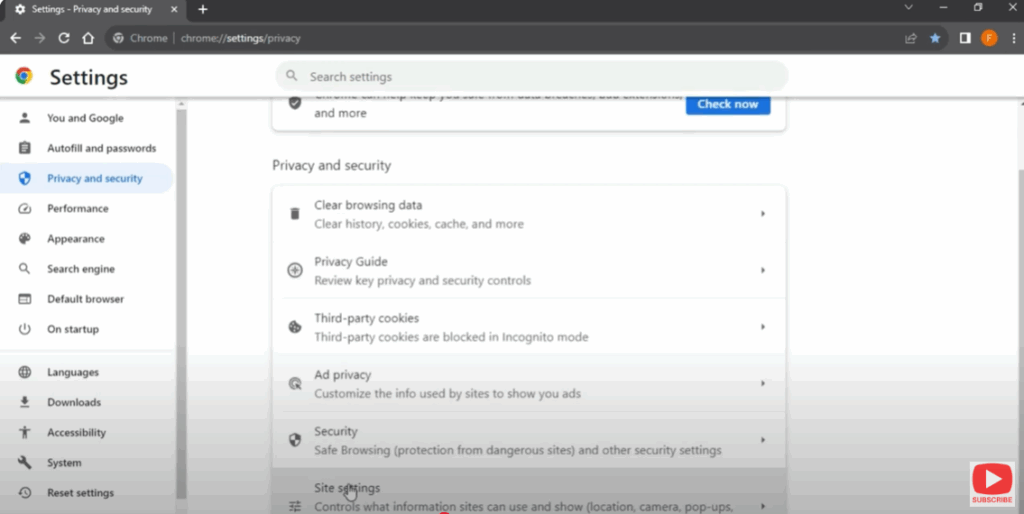
This is where Chrome manages permissions for camera, location, notifications, and sensors.
📱 Step 3: Find Motion Sensor Option
- In Site Settings, scroll down to the section titled Additional permissions.
- Click on Motion sensors.
You’ll now see an option that says:
“Sites can ask to use motion sensors.”
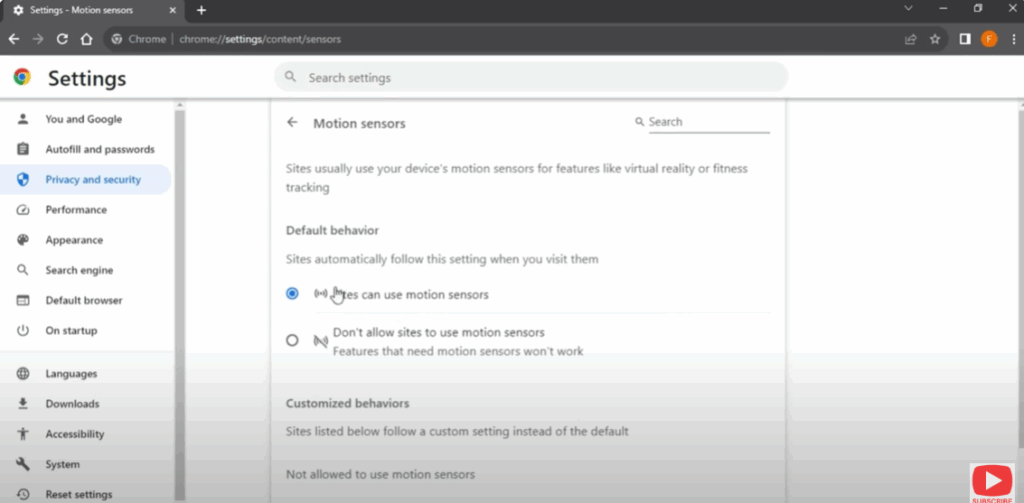
🟢 Step 4: Enable Motion Sensor in Chrome
If you want websites to detect your device’s movement (for games, AR, etc.):
- Turn ON the toggle next to “Sites can ask to use motion sensors.”
Now Chrome will allow supported websites to access motion and orientation data.
🔴 Step 5: Disable Motion Sensor in Chrome
If you prefer better privacy and don’t use motion-based features:
- Simply turn OFF the toggle.
- Chrome will block all websites from accessing motion data.
✅ Tip: Disabling it can also improve battery life on laptops and mobile devices.
✅ Conclusion
That’s it! You’ve learned how to enable and disable motion sensors in Google Chrome on both PC and mobile. Whether you value interactivity or privacy, Chrome gives you full control over how your device shares motion data.
Following these simple steps ensures your browsing experience stays secure, smooth, and personalized.






