
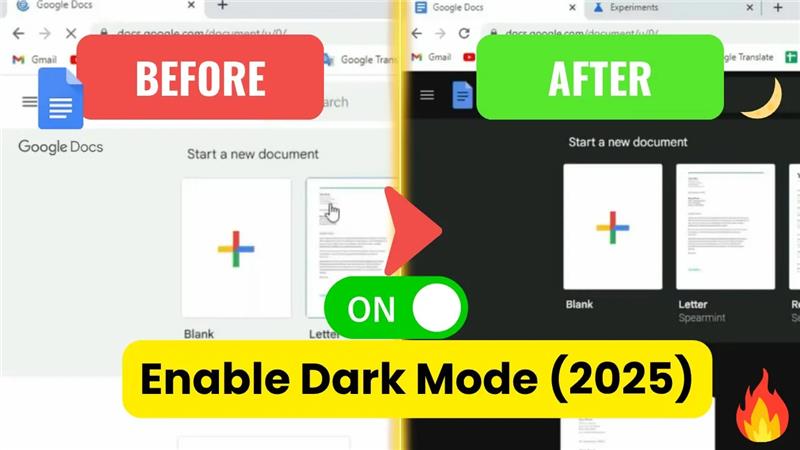
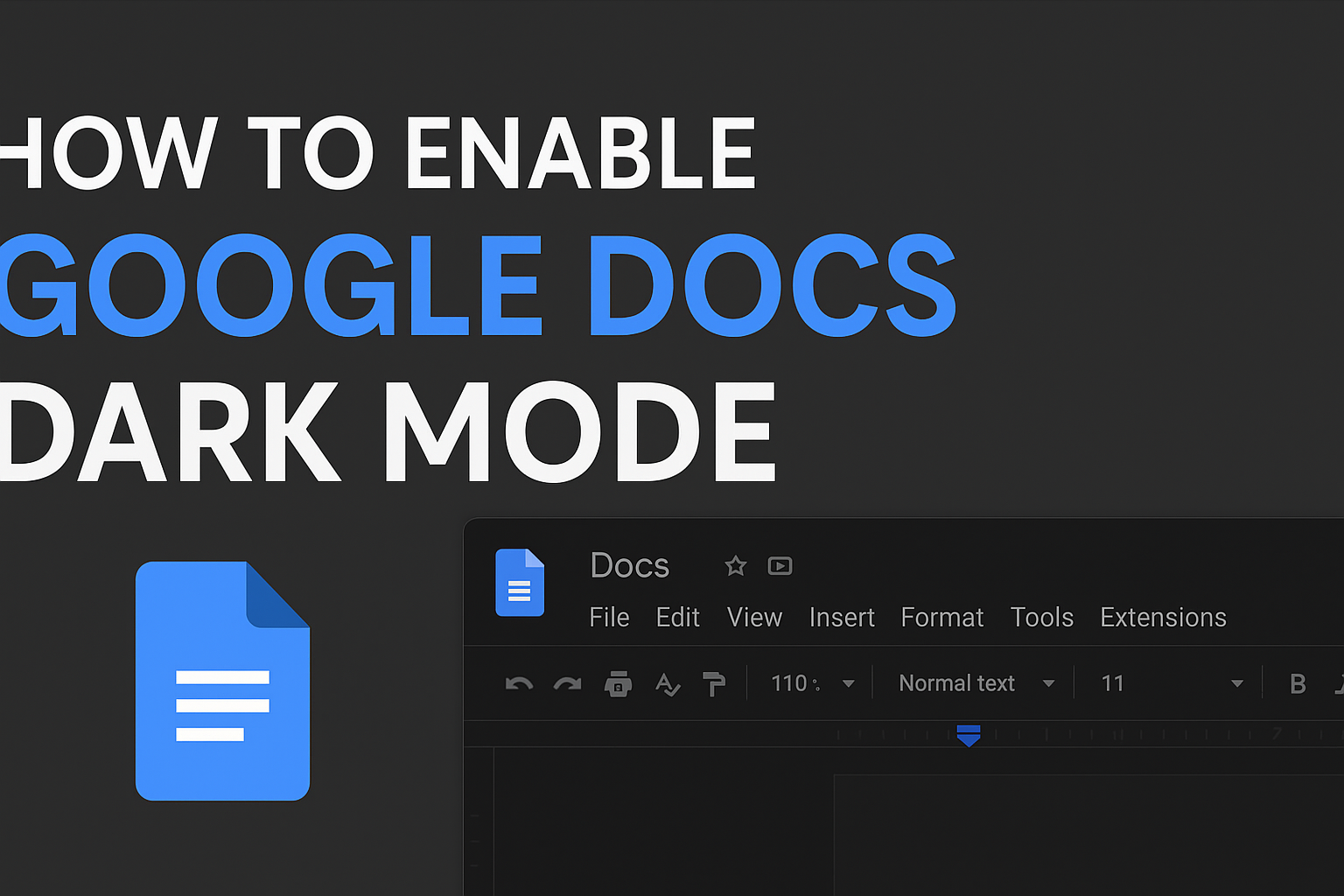
Tired of that bright, white screen in Google Docs hurting your eyes, especially when you’re working late? You’re not alone! The good news is that turning on Dark Mode is a simple fix that can make writing much more comfortable. In this easy 2025 guide, we’ll walk you through the quick steps to get that sleek, dark look on your PC, so you can focus on your words without the glare.
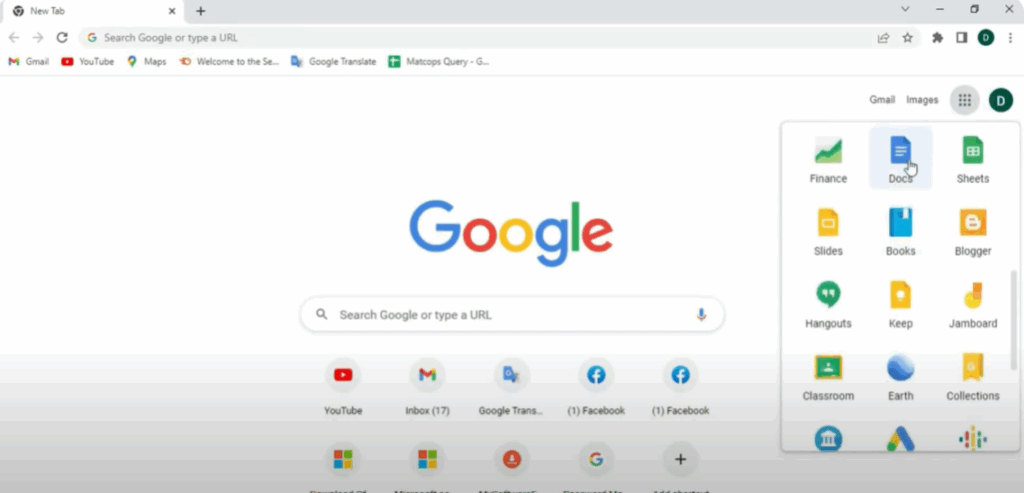
First, open Google Chrome. Now click on the 9-grid icon at the top right corner. This is the Google Apps menu. Scroll down and click on Docs to open Google Docs.
Next, open a new Chrome tab and in the address bar, type chrome://flags. Press Enter. This will take you to the Chrome experiments page. In the search bar at the top of this page, type dark.
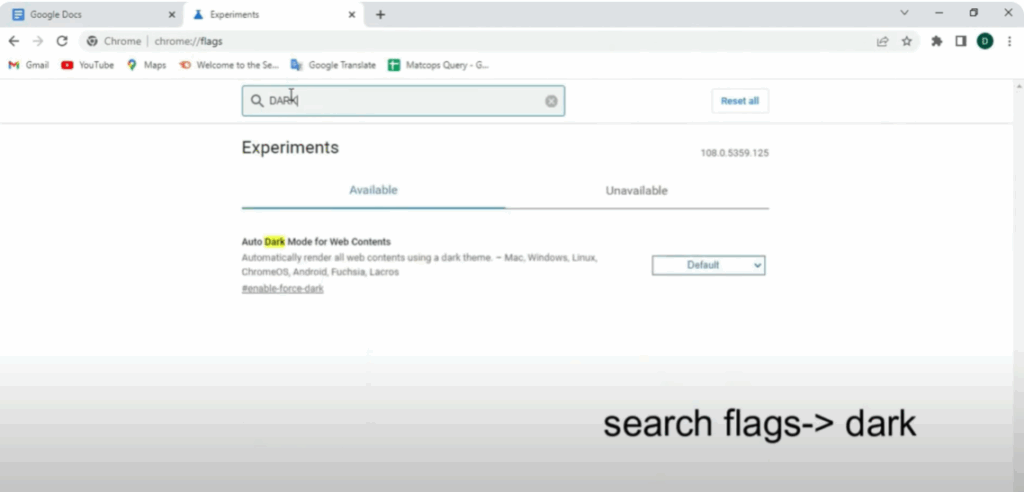
Now, you’ll see a setting that says Auto Dark Mode for Web Contents. Click on the drop-down next to it, which is set to Default by default. Change it to Enabled.
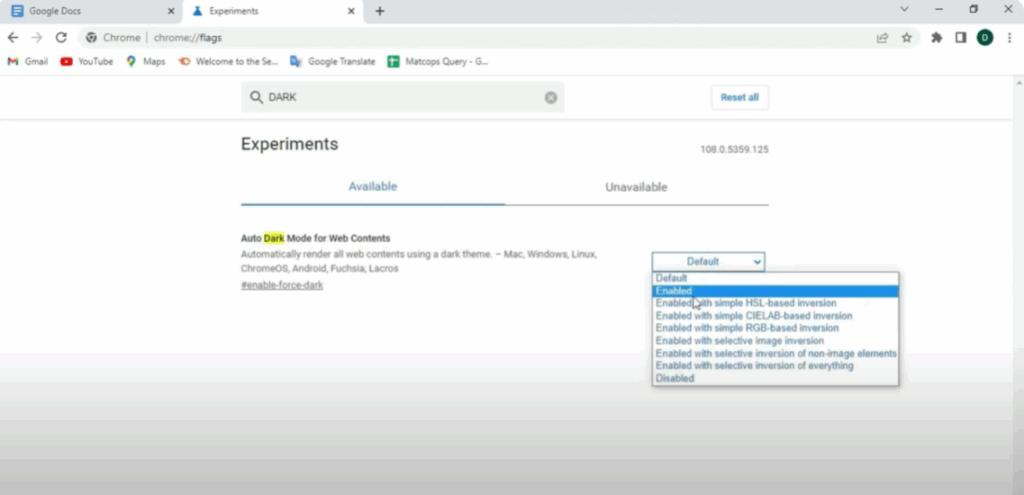
Once you’ve enabled it, Chrome will ask you to Relaunch. Click on relaunch to restart the browser and apply changes.
Now open Google Docs again and you’ll see it has switched to Dark Mode. If at any time you want to switch back to light mode, just set it back to Default.






