
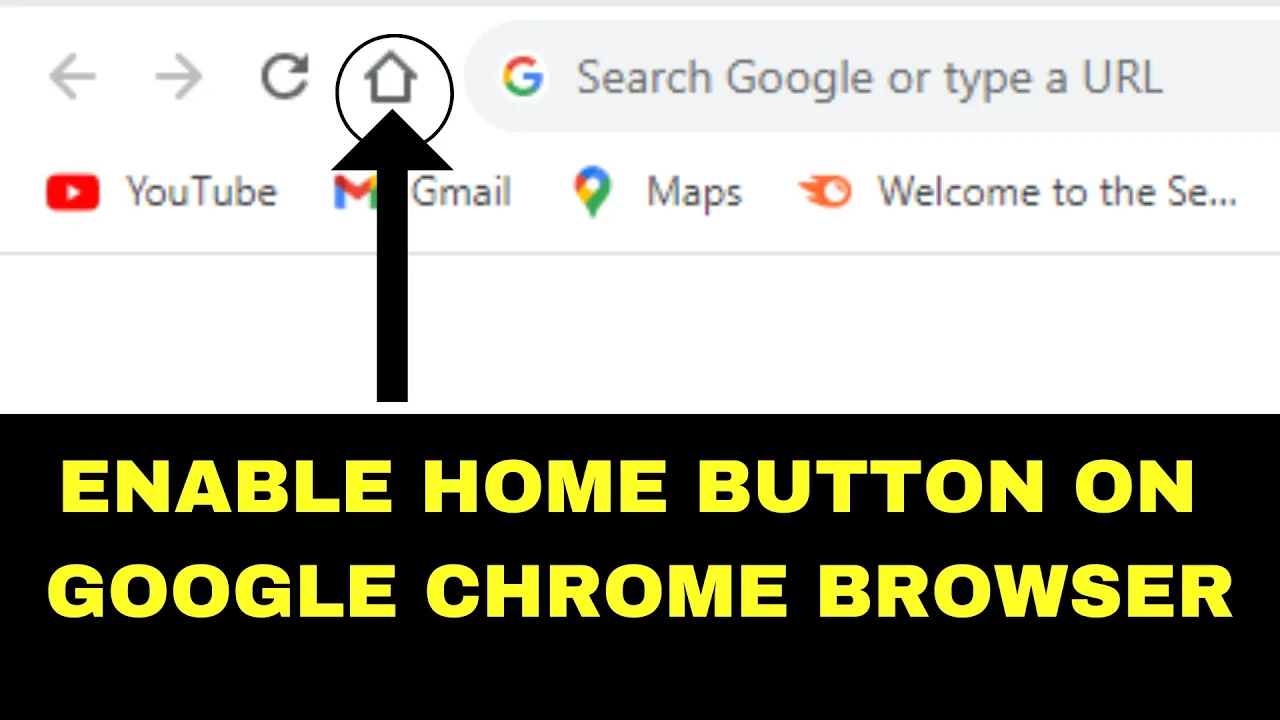
The Home button in Google Chrome makes it super easy to go back to your favorite starting page with just one click. By default, Chrome doesn’t show the Home button, which can be confusing for beginners. The good news is, you can enable it in just a few simple steps, and once it’s turned on, you’ll always have quick access to the page you choose—whether it’s Google, your email, or any website you like. In this beginner-friendly blog, we’ll explain in easy language how to enable the Home button on Google Chrome, so browsing becomes faster and more convenient.
How to Enable the Home Button in Chrome: Step-by-Step
1. Open Chrome Settings
- Launch Chrome on your computer.
- Click the three-dot menu in the top-right corner → select Settings.
2. Open the Appearance Settings
- In Settings, go to Appearance (on the left sidebar or scroll to find it).
3. Toggle On “Show Home Button”
- Find the option labeled “Show Home button” and turn the toggle on (it should turn blue or active).
- Once enabled, a house-shaped Home icon appears to the left of the address bar.
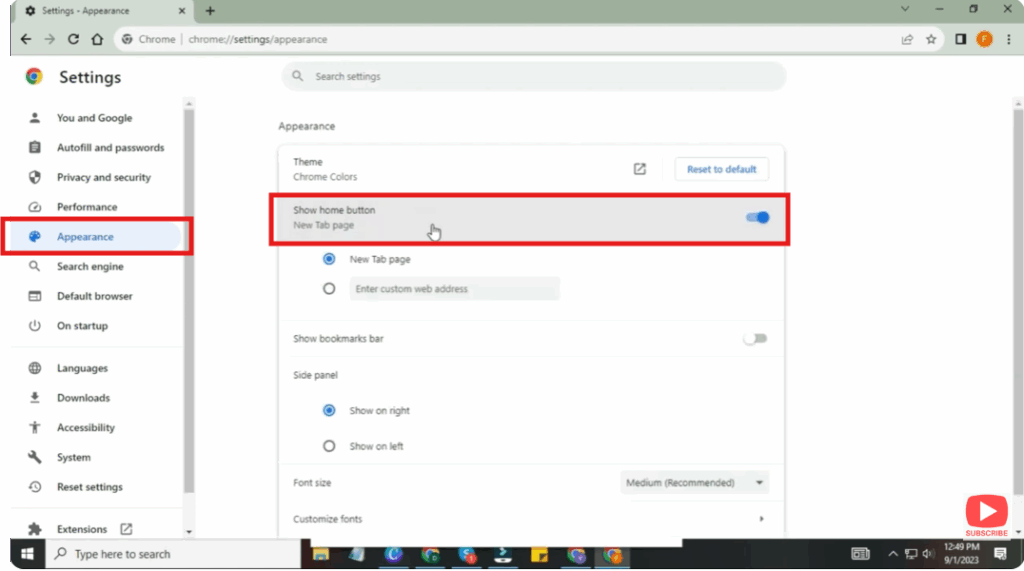
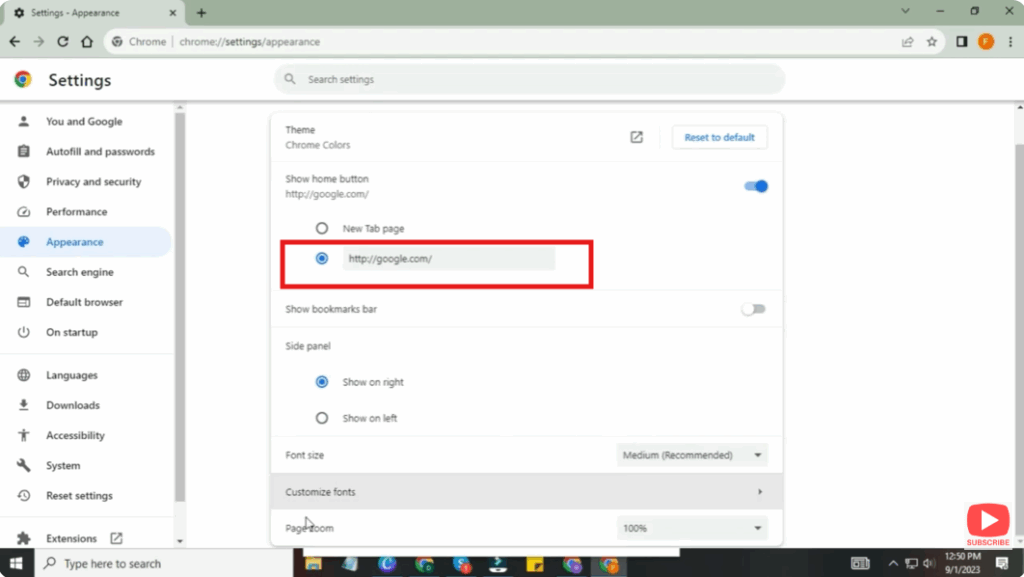
4. (Optional) Set Your Desired Homepage
- Right below the toggle, you’ll see a field labeled “Enter custom web address” or similar.
- Enter the URL of the page you want Chrome’s Home button to open (e.g.
https://www.google.com, or any site you use often). - Changes save automatically.
Conclusion
Enabling the Home button in Google Chrome is simple but adds a handy navigation shortcut — perfect for getting back to your homepage or a favorite site with a single click. If you often find yourself typing URLs or navigating to new tabs repeatedly, this small change can save you time and make your browsing smoother.






