

Entering data in Excel is one of the first steps to using this powerful tool for organizing information, doing calculations, or creating charts. Whether you’re making a budget, tracking attendance, or listing items, Excel makes it easy to type and manage your data. If you’re new to Excel, don’t worry—the process is simple and doesn’t require any special skills. In this beginner-friendly blog, we’ll explain in easy language how to enter data in Excel step by step, so you can start building your spreadsheet with confidence.
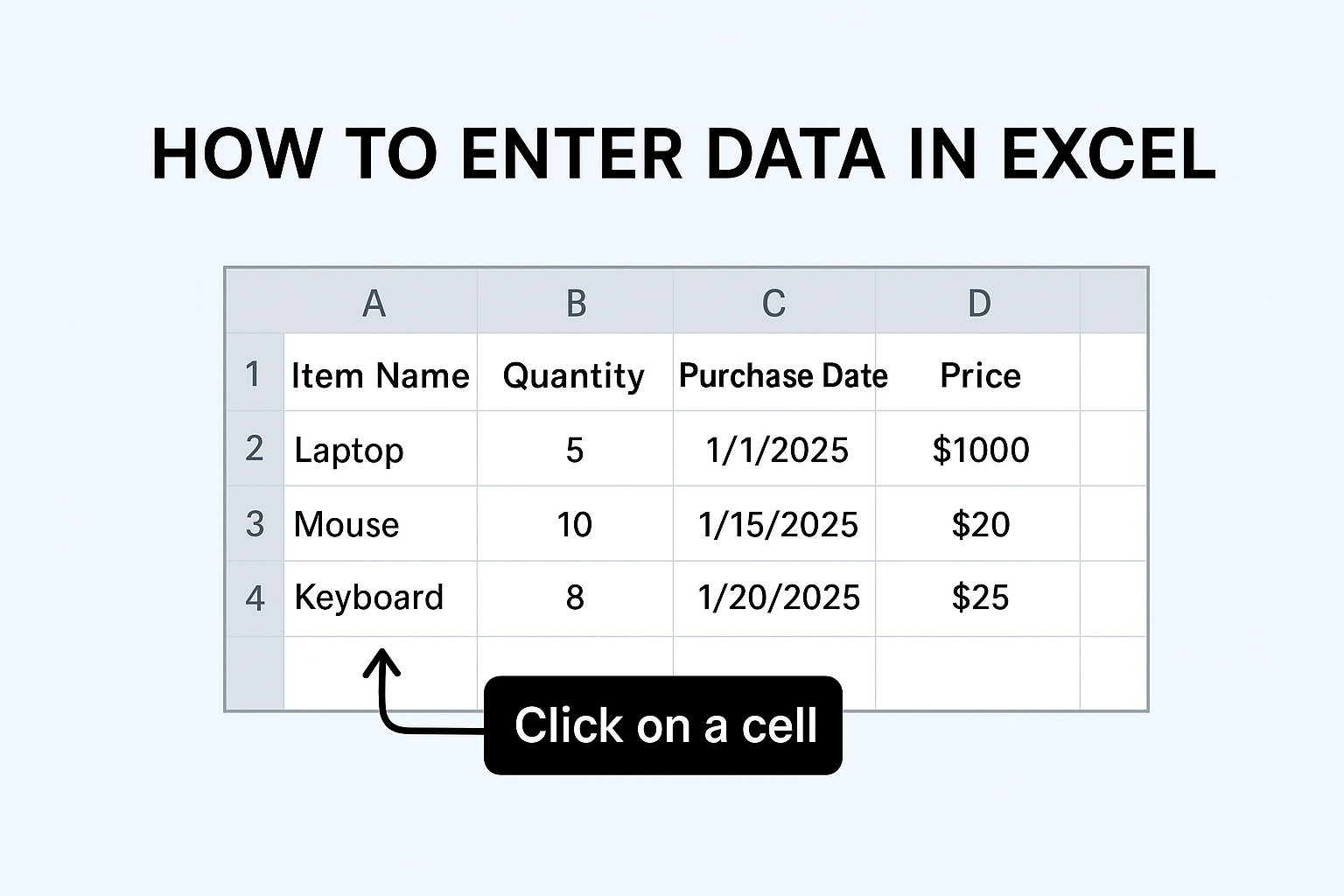
✅ Basic Method: Entering Data Manually
- Select a cell: Click on the cell you want to use (e.g. A1).
- Type your data: Enter the text, number, date, or time.
- Press Enter or Tab:
Entermoves the cursor one cell down.Tabmoves the cursor one cell to the right — useful when filling across columns.
- Multi-cell input: If you want to enter the same data in multiple cells at once, select those cells first, then type the value, then press
Ctrl + Enter. Excel will fill all selected cells with that same value.
Excel supports different data types — text, numbers, dates, times — and typically formats the cell automatically based on what you type.
✨ Faster Data Entry: AutoFill & Flash Fill
For repetitive tasks or series, Excel’s built-in tools can speed things up dramatically:
AutoFill (Fill Handle)
- After entering one (or two) items — for example
January, or1, 2— you can use the little square at the bottom-right corner of the cell (the “fill handle”) to drag and fill a series. - Excel recognizes patterns: numbers (1,2,3…), dates (Jan, Feb, Mar…), weekdays, months — depending on initial entries.
- Once you drag, you’ll see the auto-filled values — useful when you need to fill long columns or rows quickly.
Flash Fill (Pattern Recognition — Excel 2013+)
- If you have data in one column (e.g. first names + last names separately) and want to combine or reformat into another column, Flash Fill can detect the pattern and auto-fill the rest.
- It’s handy when you need bulk edits — e.g. merging name fields, formatting phone numbers — without formulas.
📅 Entering Specific Data Types: Dates, Times & Text
- Dates / Times: Click a cell, type date or time (e.g.
12/31/2025or3:30 PM), then press Enter. Excel recognizes them and applies default date/time format. - Text & Mixed Data: Excel handles plain text easily. For text entries needing spaces or special formatting, just type as usual.
- Combining Text & Numbers: You can type “Product 1”, “Item-A”, or “123-XYZ” — Excel treats as text unless you apply special formatting.
Conclusion
Entering data in Excel doesn’t have to be tedious or error-prone. By mastering manual entry + shortcuts like AutoFill and Flash Fill — and by being mindful of data types and formatting — you can input and manage data quickly and reliably.






