
Hello friends, welcome back to my channel Tech Gitter Official.
In today’s video, I’ll show you exactly how to fill out the W4 form, the form your employer gives you to determine how much federal income tax should be withheld from your paycheck.
Have you started a new job or recently changed jobs? Then the W4 form is extremely important because it affects how much you take home and how much you get back at tax time. In this video, I’ll explain it to you step by step in an easy way so that even if you’re filling it out for the first time, you can fill it out with confidence. Let’s begin.

What is a W4 Form?
The W4 form tells your employer how much federal tax to withhold from your paycheck. It isn’t sent to the IRS. It stays with your employer.
Fill it out carefully because you could get more in each paycheck, but a smaller refund later, or less now and a bigger refund at tax time. Your choices really matter.
Step One: Enter Personal Information
This part is very straightforward. You’ll need to fill in:
- Full legal name: including your first name, middle initial (if you have one), and last name.
- Social security number: required so the IRS can identify you.
- Home address: your complete mailing address, including street, city, state, and zip code.
- Filing status: This is where many people get confused, so let’s break it down.
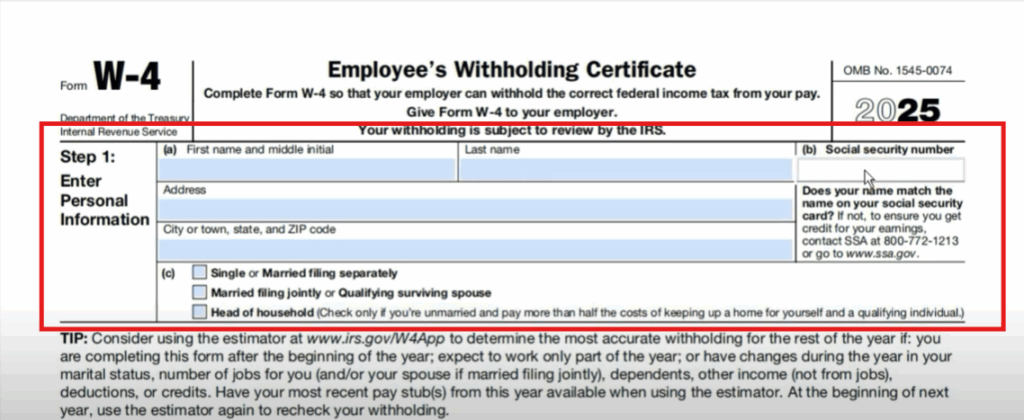
Your filing status means your official tax situation. Choose one of the following:
- Single or Married Filing Separately: Select this if you’re unmarried or married but filing taxes separately.
- Married Filing Jointly, or Qualifying Surviving Spouse: This applies to married couples who combine their incomes on a single tax return.
- Head of Household: Check only if you’re unmarried and pay more than half the costs of keeping up a home for yourself and a qualifying individual. You qualify if you’re unmarried and support a dependent like a child or relative and you pay more than half of the household expenses.
Your filing status affects your tax bracket and standard deduction which together determine how much tax gets withheld from each paycheck.
Step Two: Multiple Jobs or Spouse Works
This step is extremely important but often skipped. Skipping it can lead to underwithholding, meaning you may owe taxes later.
Use this section if:
- You have more than one job at the same time, or
- Your spouse also works and you file jointly.
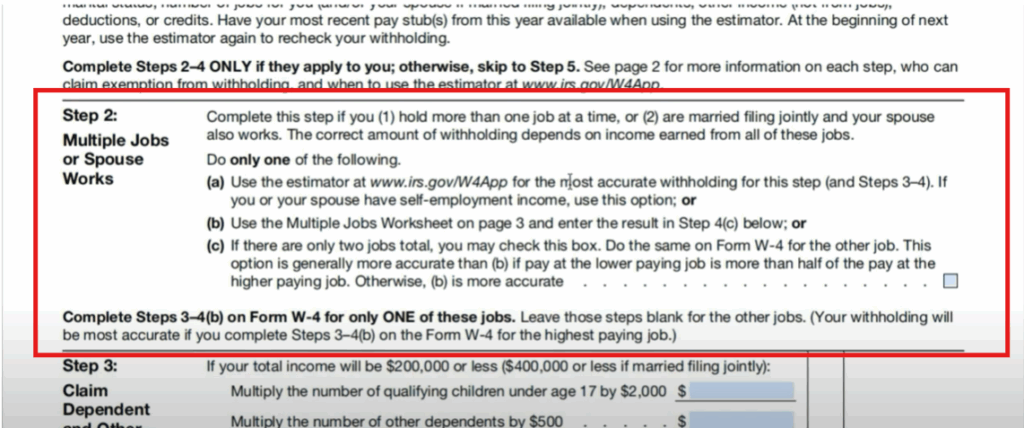
If either applies to you, you must choose only one of the following three options:
- Option A: Use the IRS Withholding Estimator (Recommended)
Go to irs.gov/w4app and use the IRS withholding estimator. You’ll input your job income, any side income, dependents, and deductions. It will give you accurate numbers for steps three and four. - Option B: Use the Paper Worksheet (Page 3)
This is the manual method. Use the worksheet on page three of the form. You’ll match your combined household income in a table and it will tell you how much extra tax to withhold.
Example: if both you and your spouse earn $40,000, the worksheet might recommend an additional $80 per paycheck. You’ll enter that amount in Step 4(c) as extra withholding. - Option C: Check the Box in Step 2(c)
Only use this if you have only two jobs total between you and your spouse, and both jobs pay roughly the same amount. This tells the employer to withhold more than usual to cover both jobs. Don’t use this if one job pays a lot more than the other.
Step Three: Claim Dependents
You can claim these credits only if your income is below:
- $200,000 or less (single),
- $400,000 or less (married filing jointly).
- Multiply the number of qualifying children under age 17 by $2,000.
- Multiply the number of other dependents by $500.
- Add any other credits and enter the total.
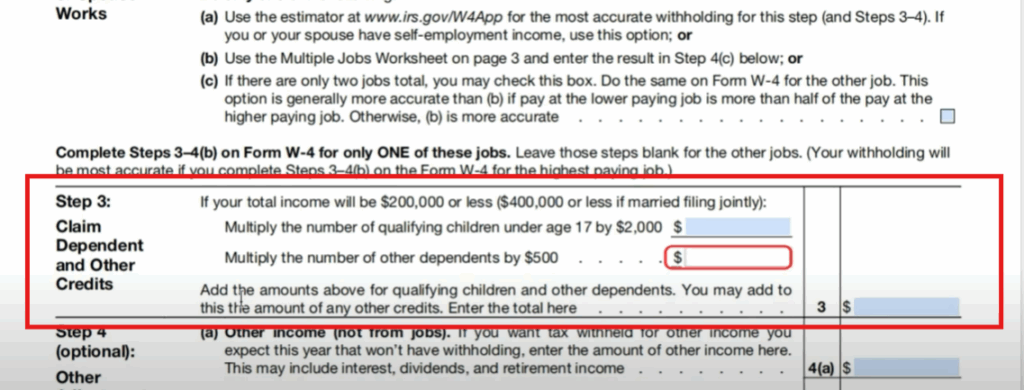
This step allows you to reduce how much tax is withheld if you financially support children or other dependents.
Example: If you have two kids under 17, enter $4,000 in this section. This reduces your withholding, so you’ll take home more money in each paycheck.
If you don’t have dependents or your income is too high, leave this blank.
Step Four: Other Adjustments (Optional)
This section is optional, but helpful if your financial life is more complex.
Use this section if you:
- Have freelance or side income,
- Plan to itemize deductions,
- Want to withhold extra tax voluntarily.
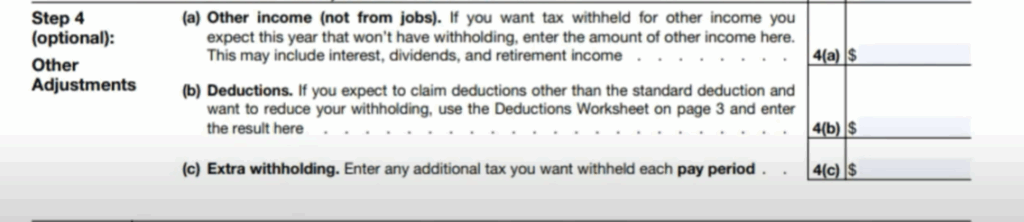
Here’s how to fill it out:
- Step 4(a) – Other Income: Enter income not from jobs, such as freelancing, rental income, dividends, or unemployment. If you leave this blank, no tax will be withheld, and you might owe money later.
- Step 4(b) – Deductions: Only use this if you plan to itemize deductions instead of taking the standard deduction. Use the worksheet on page three of the form. This applies if you pay mortgage interest, donate to charity, or have high medical bills.
- Step 4(c) – Extra Withholding: Enter any extra dollar amount you want withheld from each paycheck. Example: if you want to withhold $50 extra per pay period, write 50 in this box. This is useful if you owed taxes last year and want to avoid it again.
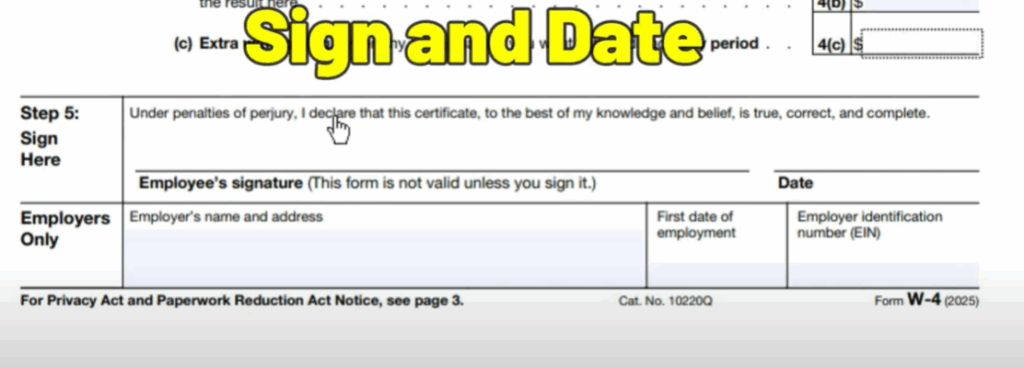
Step Five: Sign and Date
This is the final step. Just sign and date the form.
This confirms that the information you provided is true and that you understand how it affects your tax withholding. If you don’t sign it, the form is invalid. Your employer will then default to the highest withholding rate, treating you as single with no dependents.
What Happens Next?
Once completed, submit the form to your employer. Usually, this goes to HR or payroll. They’ll update your tax settings, and you’ll see the changes in your next paycheck.
You can update your W4 anytime, especially if:
- You get married or divorced,
- Have a child,
- Start or stop a second job,
- Your spouse’s job changes,
- Or you want to adjust your withholding.
Tips for Success
- If you’re unsure, use the IRS W4 estimator tool. It’s free and accurate.
- After submitting the form, check your pay stubs to see how much tax is being withheld.
- If you usually get a big refund or owe taxes, adjusting your W4 now can help fix that early.
And that’s it for today’s video. I hope this walkthrough helped you understand the W4 form in clear, simple language.
If this video helped you, let me know in the comments below. Thanks for watching. Don’t forget to like, share, and subscribe to Tech Gitter Official.






