
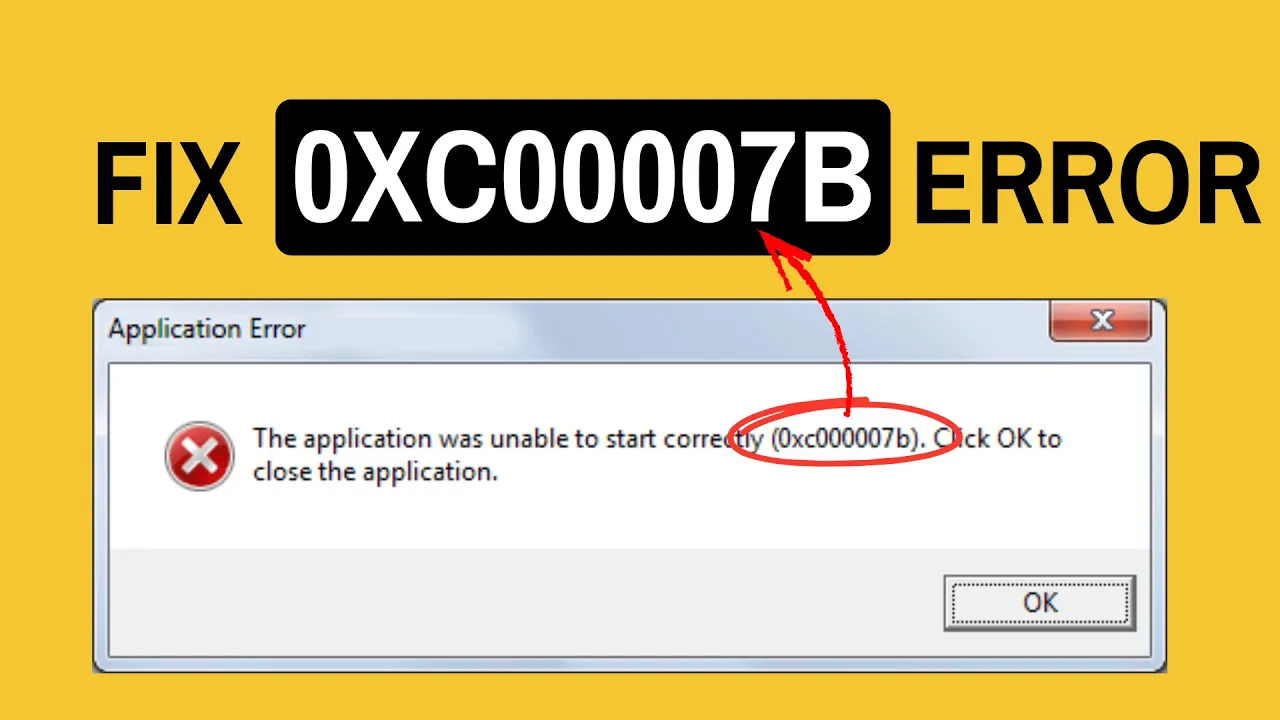
The 0xc00007b application error is a common problem that many Windows 10 and Windows 11 users face. It usually appears when you try to open a program or game, and instead of starting, it shows this error message. This can be frustrating, but the good news is that it’s often caused by simple issues like missing files, wrong versions of software, or corrupted system components. In this blog, we’ll explain in easy language how to fix the 0xc00007b error step by step, so you can get your apps and games running smoothly again.
This error usually happens when there’s a mismatch in 32-bit versus 64-bit system files, missing or corrupted system libraries like DLLs or required components such as .NET Framework, Microsoft Visual C++ Redistributable or DirectX are missing or damaged.
Now, let’s jump into the working steps. Quick, safe, and no risky downloads.
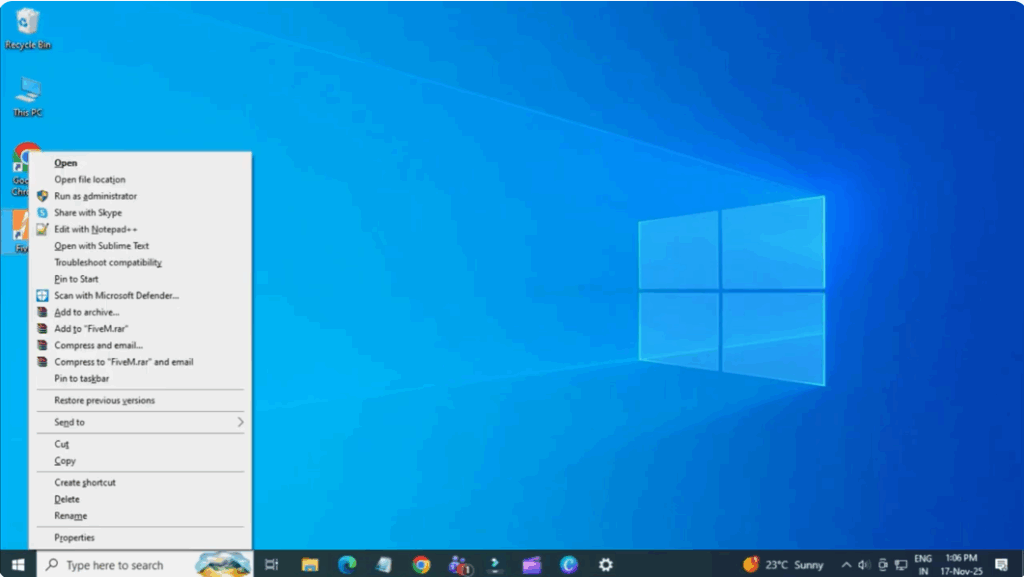
Step one: Run as administrator
Right-click the app/game causing the error. Run as administrator. This simple step ensures permission issues aren’t blocking the launch.
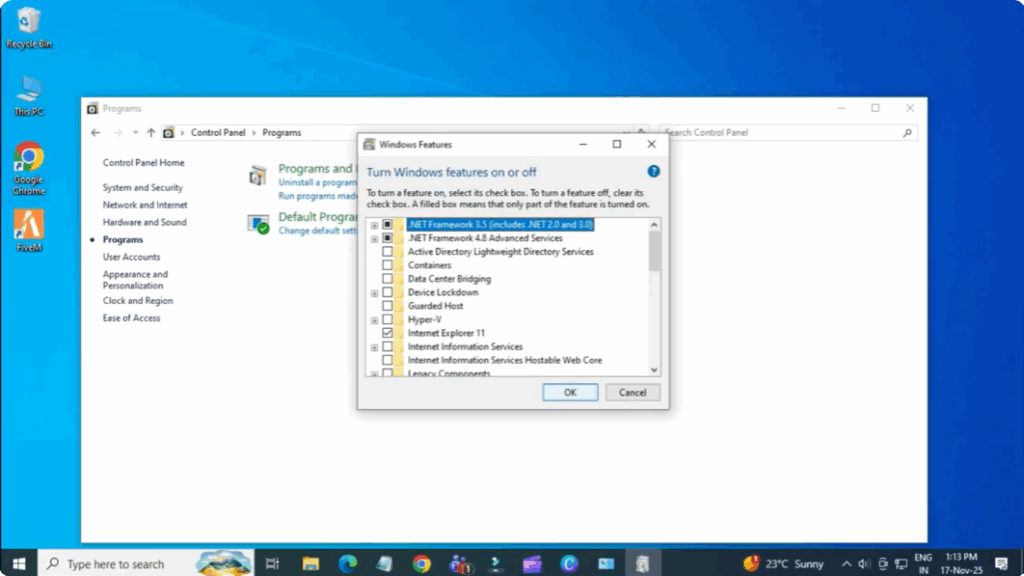
Step two: Reinstall/repair .NET Framework
Go to Control Panel → Programs → Turn Windows features on or off. Enable the latest .NET Framework. For example, 3.5 + 4.x. Restart. Many times the missing .NET component triggers 0xc00007B.
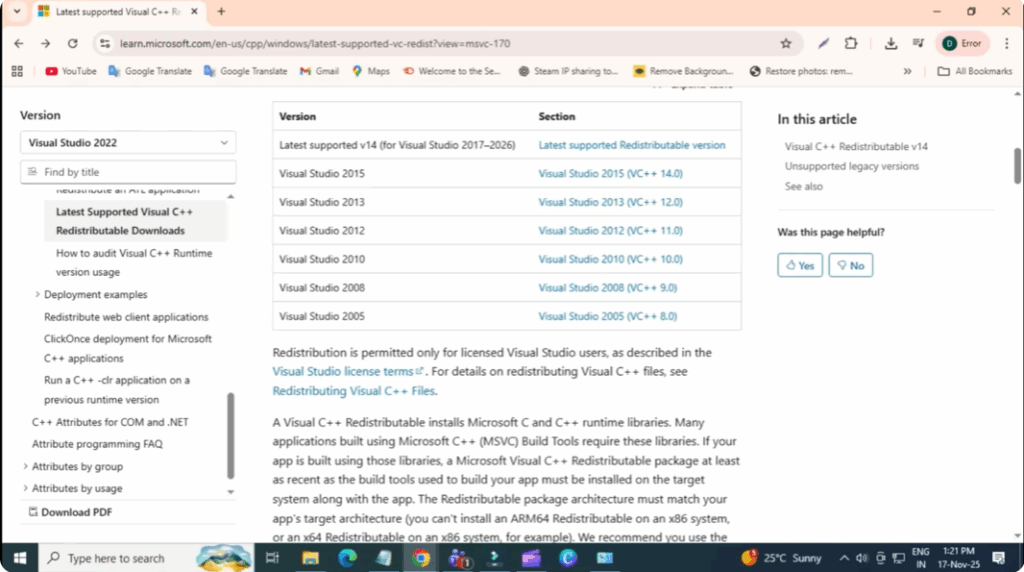
Step three: Install/repair Visual C++ redistributables
Visit Microsoft’s site and install both x86 and x64 versions of Visual C++ redistributable packages 2005 to 2022. If you already have them, choose repair. This resolves architecture mismatches.
Step four: Update DirectX and run SFC
Download and install the latest DirectX end user runtime.
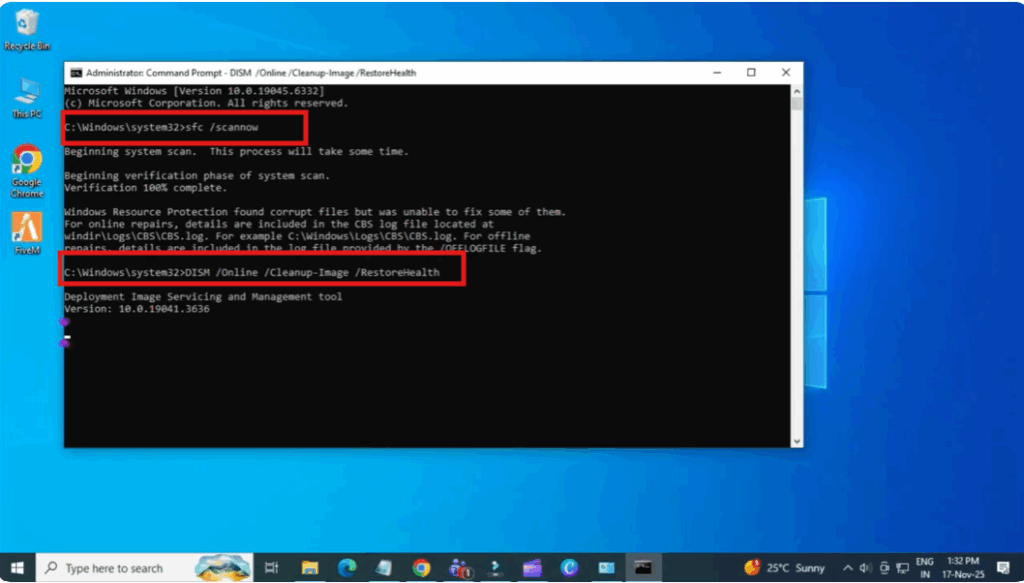
Open Command Prompt as administrator.
Type sfc /scannow.
This will take some time.
Then dism /online /cleanup-image /restorehealth.
This scans and repairs corrupt system files.
Step five: Reinstall the app/game and check bit version
Uninstall the troubled application/game. Reinstall it, making sure you choose the correct 32-bit or 64-bit version to match your operating system. Architecture mismatch for example 64-bit app on 32-bit OS often causes this error.
Step six: Last resort – create new user profile or clean boot
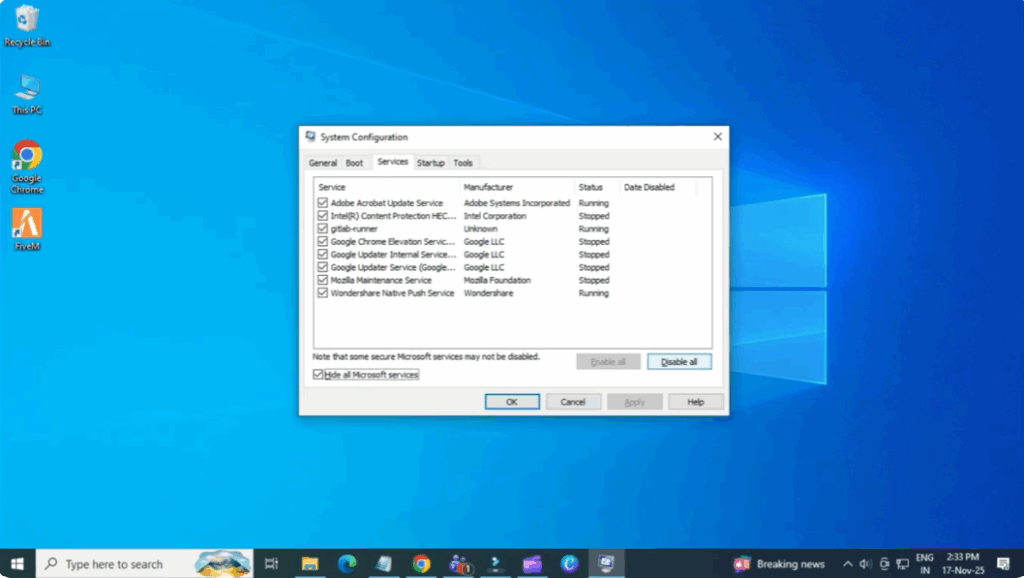
If it still fails, try creating a new user account and launch the app there or perform a clean boot.
For this, press Win + R key, type msconfig and click on OK.
Go to Services tab → Choose Hide all Microsoft services → Click on Disable rest, and then restart.






