

Encountering the error code 0xC004F015 while trying to activate Windows is frustrating—especially when it interrupts access to important features and personalization. This error often appears in environments using Microsoft’s Key Management Service (KMS) for volume licensing (like Enterprise or Education editions), and usually signals that the licensing system cannot validate your key against the KMS host because of misconfiguration, corrupted files, or mismatched keys. Fortunately, there are several proven methods to troubleshoot and resolve this error, restoring proper Windows activation.
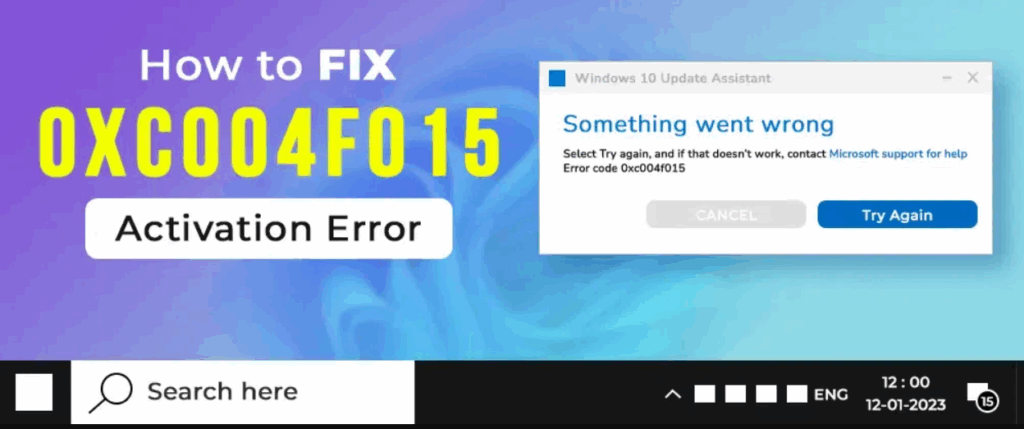
How to Fix Error 0xC004F015
Here are step-by-step guides to resolve the activation error. Try them in sequence; some may solve the issue for you without needing others.
- Run the Windows Activation Troubleshooter
- Open Settings → System → Activation (or Settings → Update & Security → Activation in Windows 10).
- If Windows reports that activation has failed, click Troubleshoot. Let it scan and attempt auto-fixes.
- Restart your PC afterward and check if activation now succeeds.
- Verify or Change the Product Key
- Make sure the key you’re using matches your Windows edition. If you have the wrong edition (for example, Enterprise vs Pro), it won’t activate correctly.
- To view current activation / key info, open Command Prompt as Administrator, then run:
slmgr.vbs /dlvThis shows details of the current licensing state. - If needed, uninstall the current key:
slmgr.vbs /upkthen enter the correct key:slmgr.vbs /ipk <your-product-key>then attempt activation:slmgr.vbs /ato ``` :contentReference[oaicite:10]{index=10}
- Rebuild the Activation Token File
- Navigate to
C:\Windows\System32\SPP\Store\2.0\. Rename the file tokens.dat (for example, totokens.old). You may need to take ownership of the folder/file. - Open Command Prompt as Administrator. Run:
net start sppsvc cscript.exe slmgr.vbs /rilc - Restart your PC afterward and try activation again.
- Navigate to
- Run System Checks: SFC and DISM
- Open Admin Command Prompt. Run:
sfc /scannow - After that completes, run DISM to repair the Windows image:
DISM /Online /Cleanup-Image /RestoreHealth - Reboot and retest activation. These tools help repair corrupted files that might interfere with activation.
- Open Admin Command Prompt. Run:
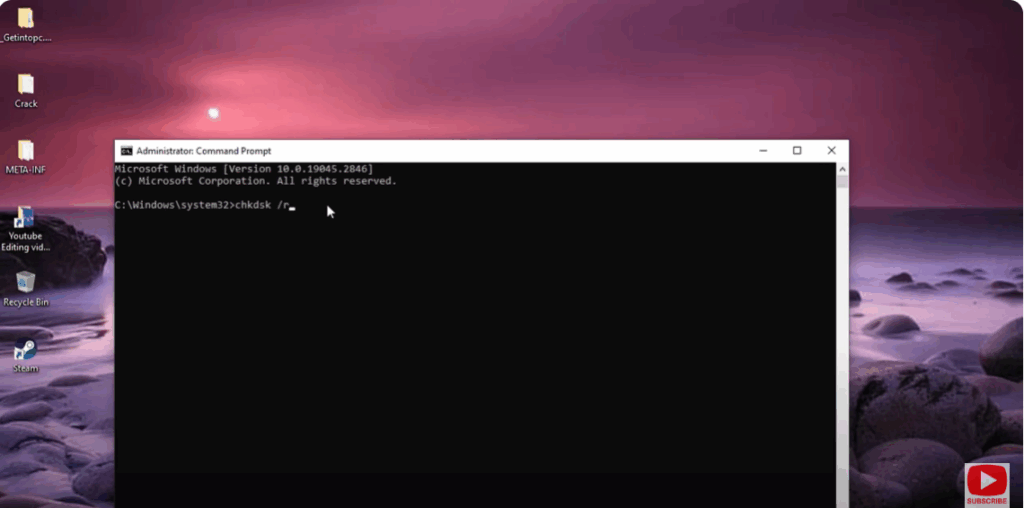
- Check Hard Drive for Errors (CHKDSK)
- Sometimes drive errors corrupt licensing files. Open Command Prompt (Admin) and run:
chkdsk /r - Let it scan and repair any disk issues. Reboot after the scan.
- Sometimes drive errors corrupt licensing files. Open Command Prompt (Admin) and run:
- Ensure KMS Host Key is Proper & Compatible
- If your environment uses KMS (Volume Licensing), verify that the KMS host is correctly configured and using the appropriate product key. Mismatched KMS host version or wrong key type often causes error.
- Contact Microsoft Support
- If none of the above works, it might be a deeper issue with licensing servers, or special cases (e.g. the key was revoked or already in use). Contact Microsoft Support for assistance.






