
If you encounter Error 1603, with a message like “A general error has occurred during the installation of the AMD Software Package”, don’t worry—it’s one of the most common issues during AMD driver installations. Here’s how to resolve it effectively.
1. Update Windows Before Installing AMD Drivers
AMD recommends running Windows Update first to install all critical and important updates. The AMD software package works best on fully up-to-date operating systems.
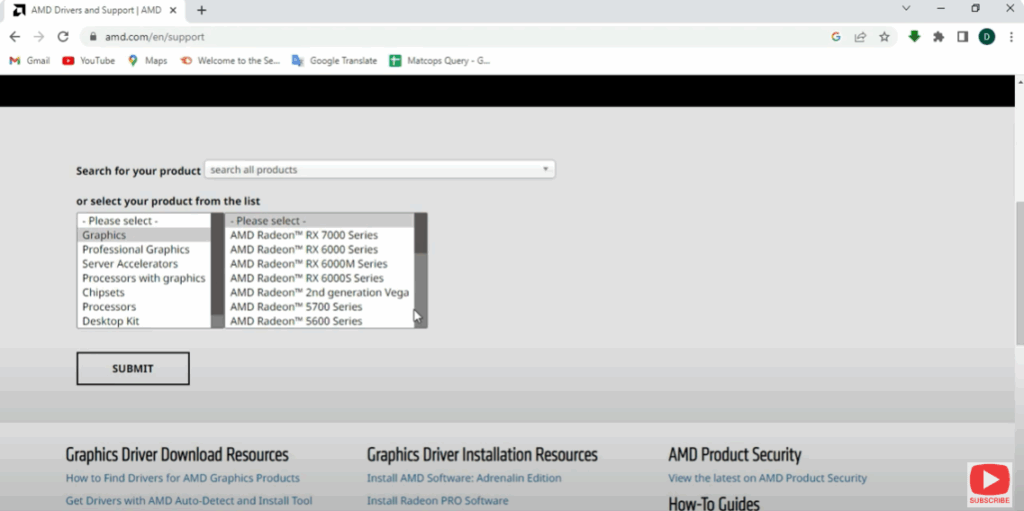
2. Use the Official Full Radeon Software Package
Always download and install the full AMD Radeon Software package from the official AMD website instead of bare-minimal setups. This ensures compatibility and includes all necessary components.
3. Temporarily Disable Antivirus or Security Software
Real-time antivirus or security tools can block the installer from accessing required files. Temporarily disable any non-Microsoft security software, then retry installing the AMD software.
4. Ensure Required Windows Services Are Running
Confirm that necessary services—like Plug and Play—are active:
- Press Win + R → type
msconfig→ go to Services tab → check Hide all Microsoft services, then disable other non-essential ones. - Restart your device and retry the installation.
This creates a clean environment for AMD setup.
5. Repair System Files via DISM and SFC
Corrupted system files can prevent the installer from executing properly:
- Open Command Prompt as Administrator.
- Run:
DISM /Online /Cleanup-Image /RestoreHealth - Follow with:
sfc /scannow
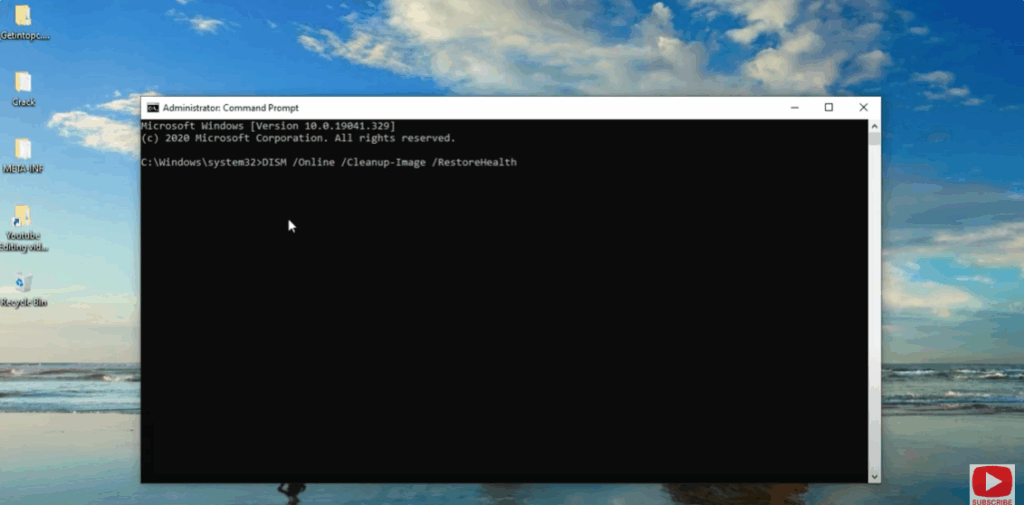
These commands fix damaged system files, which often resolve installation errors.
6. Clean Up Existing AMD Drivers
Conflicts with previous installations could be the culprit. Use the AMD Cleanup Utility or Microsoft’s Program Install and Uninstall troubleshooter to fully remove old AMD software components before attempting a reinstall.
7. Use OEM-Specific Drivers if Needed
In some configurations, especially systems with integrated AMD graphics (like an APU) and a separate AMD GPU (e.g., RX 7700 XT), driver package conflicts may arise. If standard installs fail repeatedly, consider using OEM-provided drivers validated for your hardware.
Insights from the Community
A user shared on Reddit how Error 1603 was resolved after using a full driver package and performing a clean installation using Display Driver Uninstaller (DDU) in Safe Mode—a method especially useful during GPU driver conflicts.
Final Thoughts
By following each step carefully—updating Windows, disabling interfering software, repairing system files, and running a clean driver installation—you can resolve AMD Error 1603 and get your Radeon software running smoothly. If the issue persists, testing OEM-specific driver packages or contacting AMD support with install logs can provide additional clarity. Let me know if you’d like direct links to the cleanup tool or OEM driver resources!






