
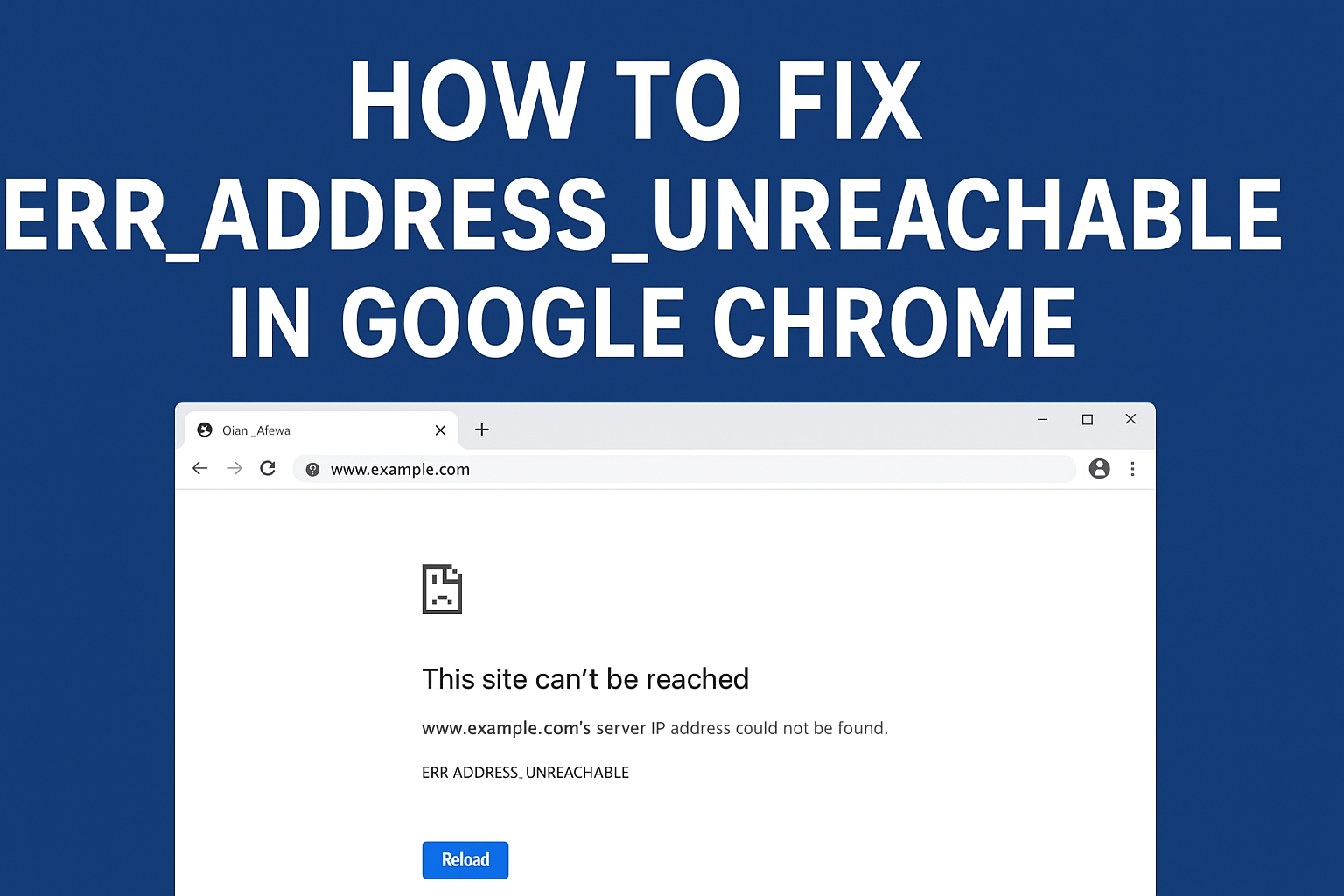
Getting the ERR_ADDRESS_UNREACHABLE error in Google Chrome can be frustrating, especially when you’re trying to open a website and it just won’t load. This error usually means that Chrome can’t connect to the address you entered—either because of network issues, incorrect settings, or problems with your device. But don’t worry! In this blog, we’ll explain what causes this error and show you easy ways to fix it, so you can get back to browsing without any trouble. Let’s solve it step by step!
🧰 Step-by-Step Fixes
Try these methods in order until the error is fixed.
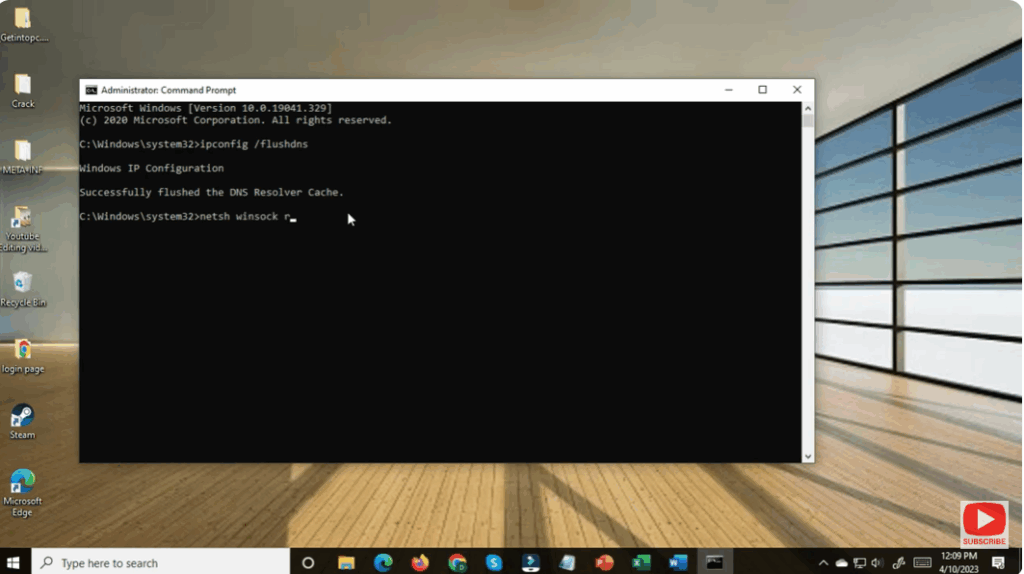
1. Flush DNS Cache & Renew IP
- Open Command Prompt (as Administrator).
- Run these commands one by one:
ipconfig /flushdns ipconfig /release ipconfig /renew flushdnsclears cached DNS entries,releasedrops current IP configuration, andrenewrequests a fresh IP address from your router/ISP.- After these commands complete, try loading the website again.
2. Reset TCP/IP & Network Settings
- Still in the elevated Command Prompt, run:
netsh int ip reset netsh winsock reset - The
netsh int ip resetcommand resets the TCP/IP stack, restoring network configuration to default. netsh winsock resetresets the Windows Sockets API, which fixes socket issues.- After running, reboot your system and test again in Chrome.
3. Check Proxy Settings & Disable Proxy
- Open Settings → Network & Internet → Proxy (or equivalent location in your Windows version).
- Ensure that “Use a proxy server” is turned off (unless you intentionally use one).
- Also check “Automatically detect settings” is enabled.
- After adjusting, restart Chrome and see if the error is resolved.
4. Try an Alternate DNS Server
- Open Network Connections → right-click your network adapter (e.g. Ethernet, Wi-Fi) → Properties.
- Select Internet Protocol Version 4 (TCP/IPv4) → Properties.
- Choose “Use the following DNS server addresses” and enter a public DNS (for example:
8.8.8.8and8.8.4.4for Google DNS). - Click OK, close dialogs, then refresh the browser.
This helps if your ISP’s DNS isn’t resolving addresses properly.
5. Clear Chrome Host Cache & DNS
- In Chrome’s address bar, type
chrome://net-internals/#dnsand press Enter. - Click “Clear host cache”.
- Then go to
chrome://net-internals/#socketsand click “Flush socket pools”. - These steps clear Chrome’s internal DNS and socket caches, which might have stale or broken entries causing the unreachable error.






