
Is your FiveM not opening or launching on your PC? Don’t worry — you’re not alone. Many users face this issue, but fortunately, there’s a 100% working solution to fix the problem. Follow these simple steps to get FiveM up and running again.
Step-by-Step Guide to Fix FiveM Not Launching
1. Open AppData Folder
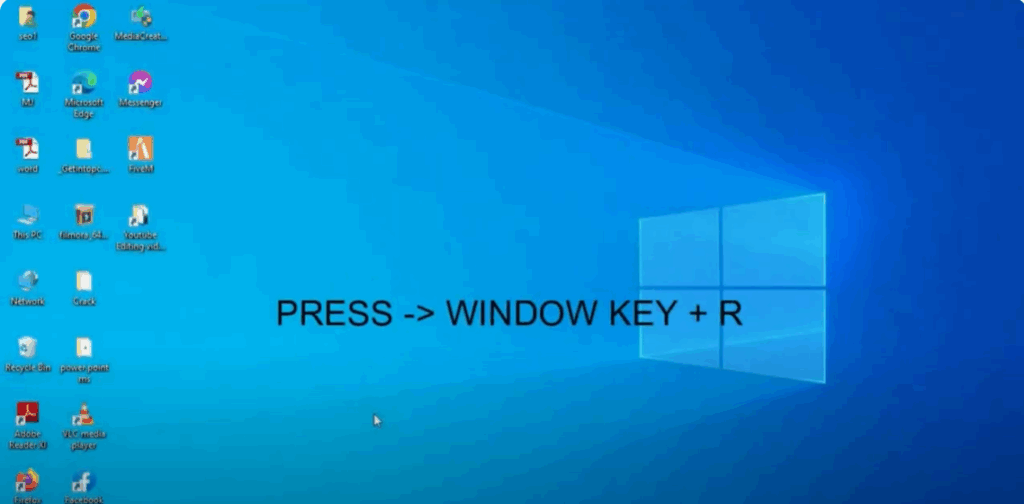
- Press Windows + R on your keyboard to open the Run dialog box.
- Type:
**%appdata%**and hit OK. - A folder will open. At the top, click on AppData to go back.
- Now open the Local folder.
- Look for and open the folder named FiveM.
2. Edit Configuration File
- Inside the FiveM folder, navigate to:
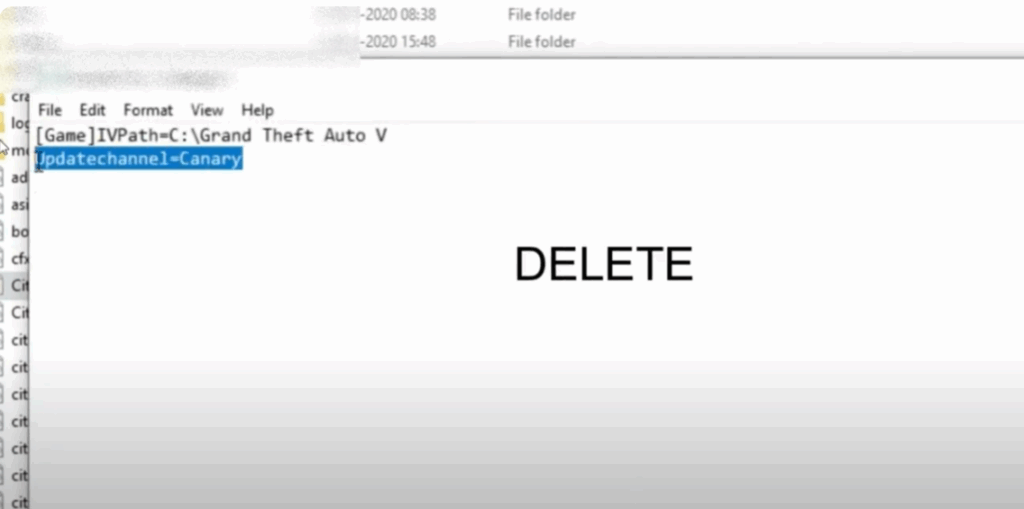
FiveM > FiveM Application Data. - Locate the file named citizenfx.ini.
- Right-click on the file and select Edit.
- A Notepad window will open. Look for the line:
updateChannel=canary. - Delete this line.
- Save and close the Notepad file.
3. Modify Rockstar Games Launcher Settings
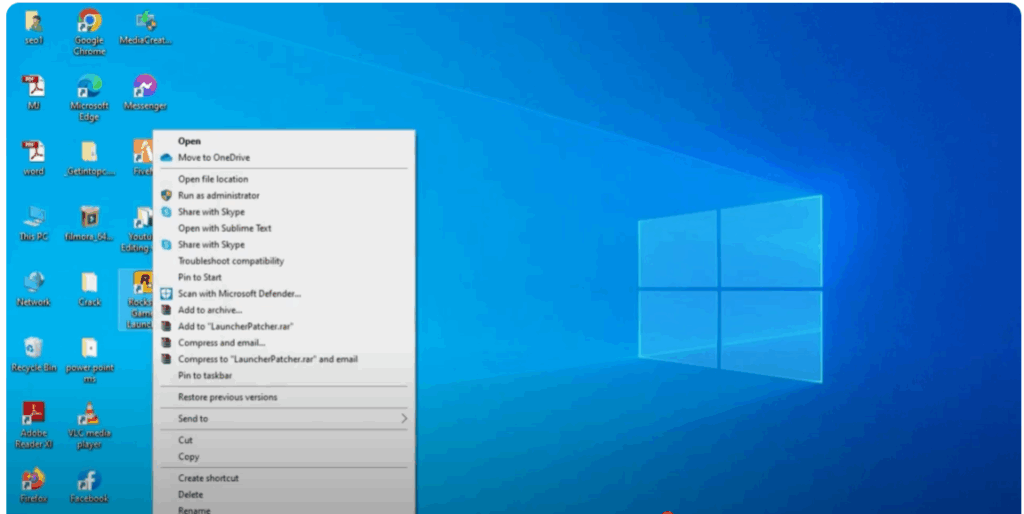
- Go to your desktop and right-click on the Rockstar Games Launcher shortcut.
- Select Properties.
- Click on the Previous Versions tab.
- If you see any checkboxes enabled, uncheck them and click OK.
- If no options appear, that’s okay — just proceed to the next step.
4. Restart Your PC
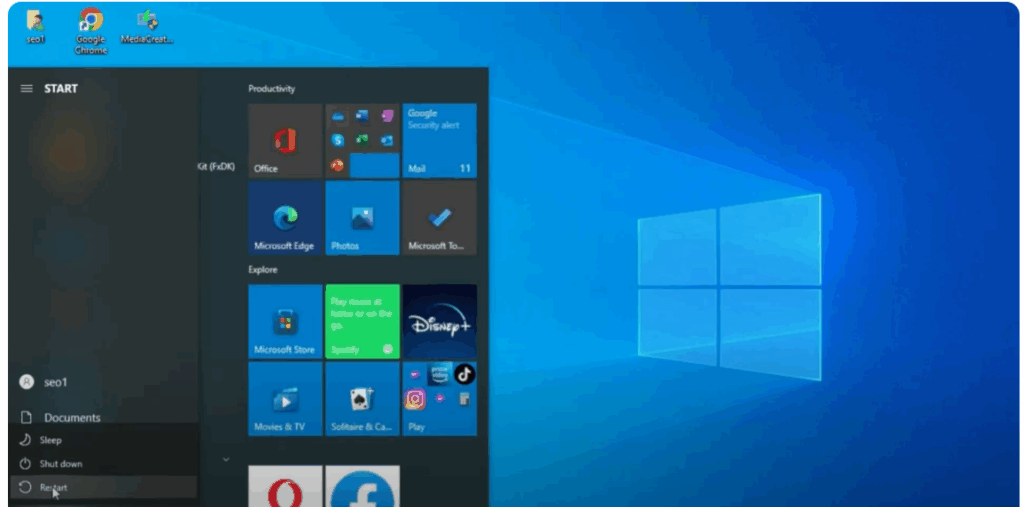
- Once all the above steps are completed, restart your computer.
- Try launching FiveM again. It should now open without any issues.
Final Thoughts
By following this quick and easy method, you should be able to resolve the issue of FiveM not launching on your PC. If this guide helped you, don’t forget to like, share, and subscribe to the channel for more tech solutions.
If you still face problems, feel free to leave a comment for further assistance.
Thanks for reading — see you in the next guide!






