
Getting an HTTP 431 error on Google Chrome? It usually means your browser is sending too much information to a website, like oversized cookies or headers. This can stop the page from loading and leave you stuck. But don’t worry—this error is common and easy to fix! In this blog, we’ll explain what causes the HTTP 431 error and show you simple steps to solve it, so you can get back to browsing without any trouble.
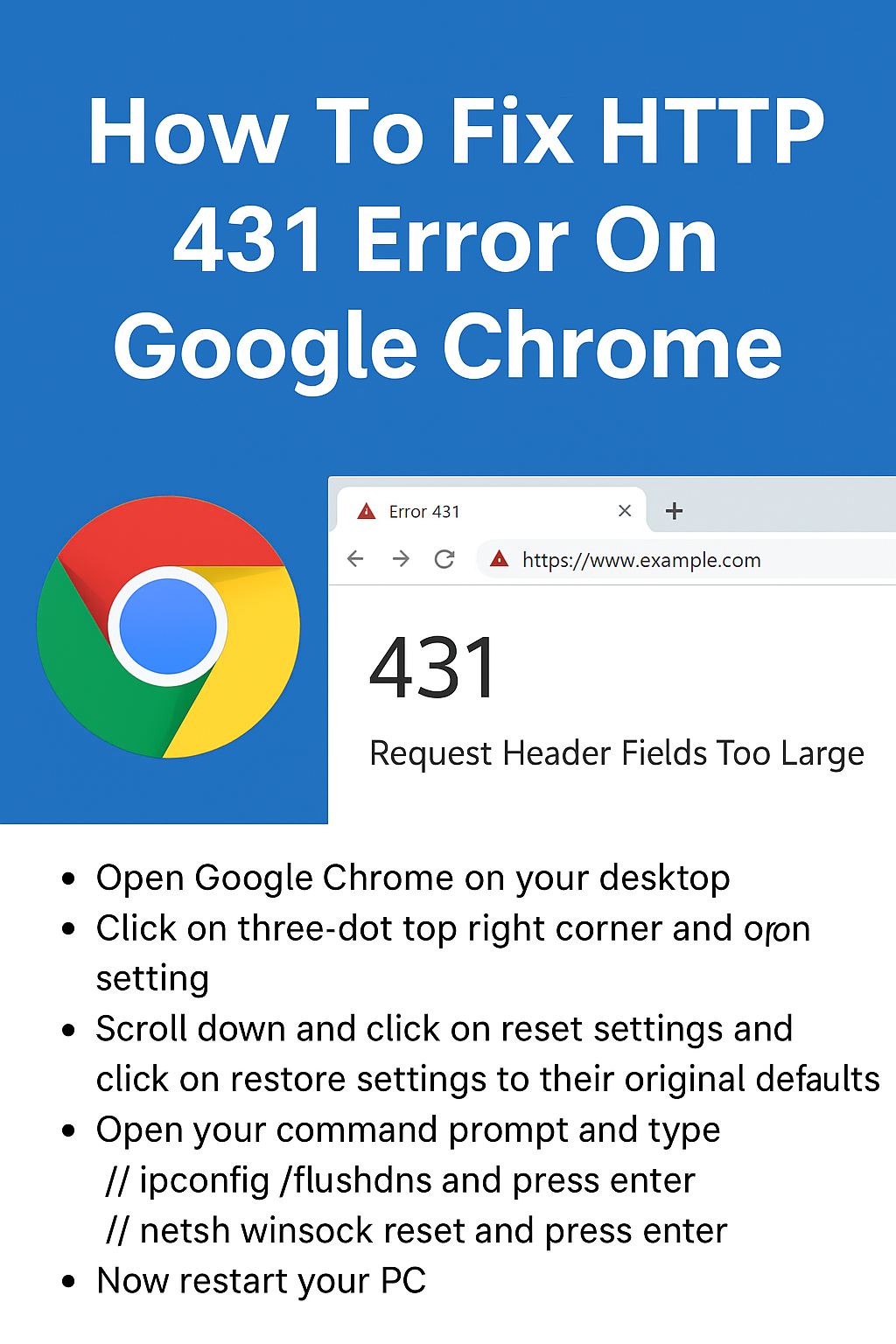
Step 1: Open Google Chrome on your desktop.
Step 2: Click on the three dots at the top right corner and open Settings.
Step 3: Scroll down and click on Reset Settings and then click on Restore settings to their original defaults.
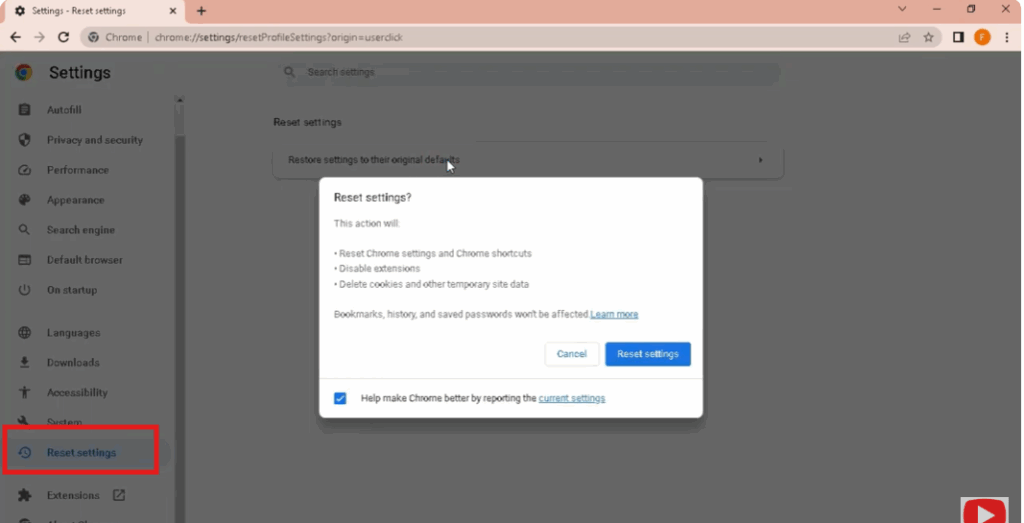
Step 4: Reset settings here.
Step 5: Now open your Command Prompt and type the following commands one by one:
ipconfig /flushdns
Press Enter
netsh winsock reset
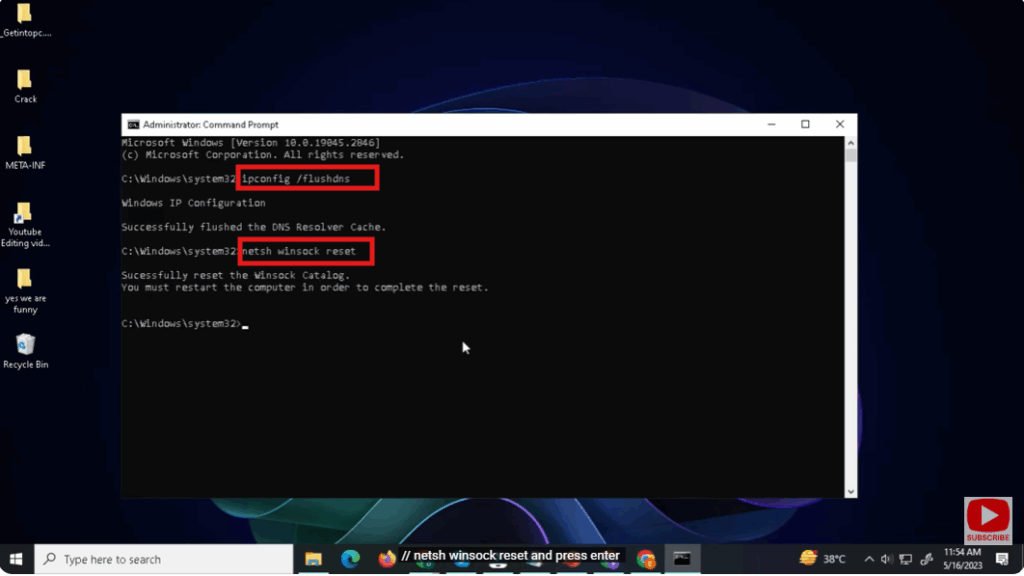
Press Enter
Step 6: Now restart your PC.






