
Welcome back to my channel Tech Gitter Official. In today’s guide, we will learn how to fix the keyboard not working issue in Windows 10 with simple steps.
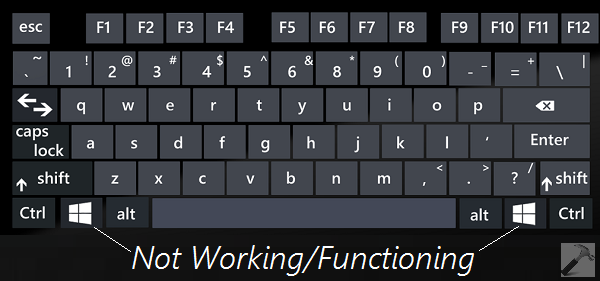
Step 1: Update or Reinstall the Keyboard Driver
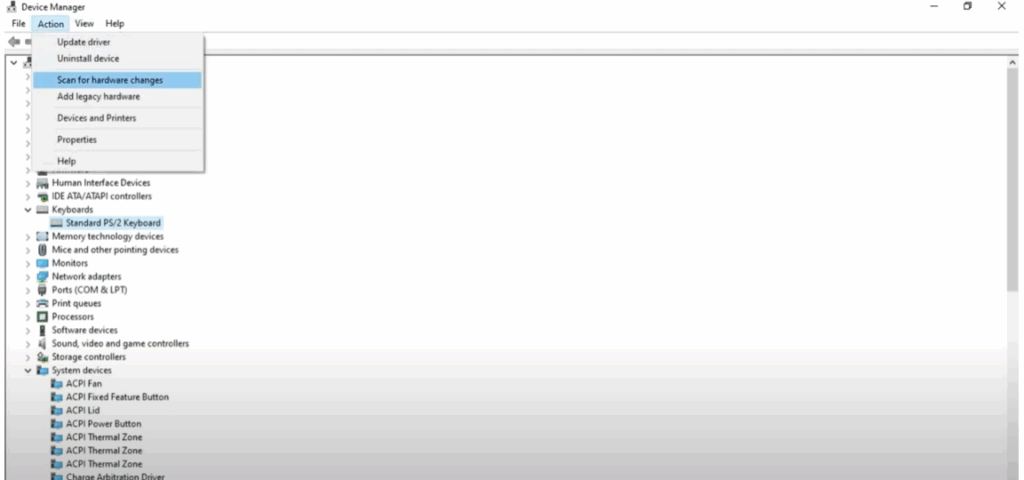
- Right-click on the Start menu and select Device Manager.
- Click on the Keyboard option, then select your keyboard name.
- Click on Driver and then click on Update Driver.
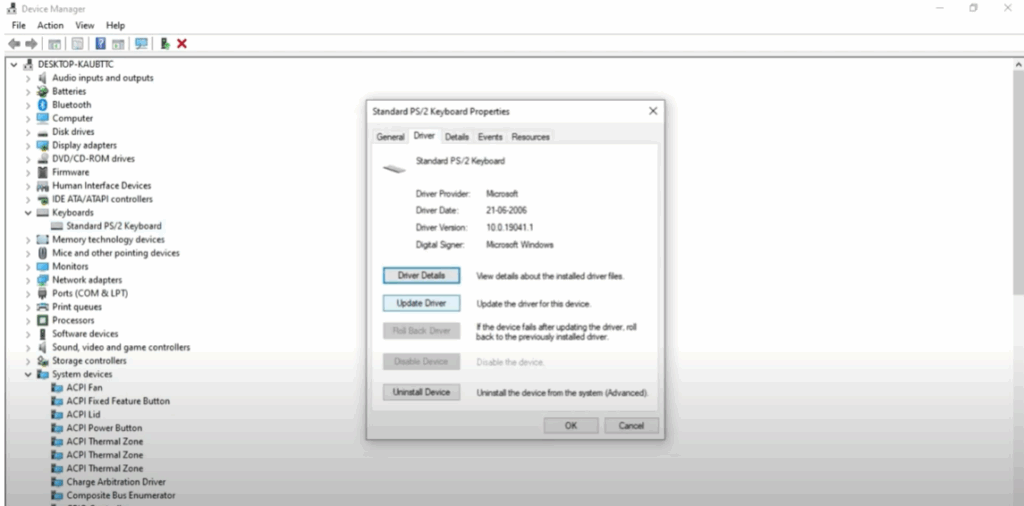
- Select Search automatically for drivers.
- If you see the message “The best drivers for your device are already installed,” just close it.
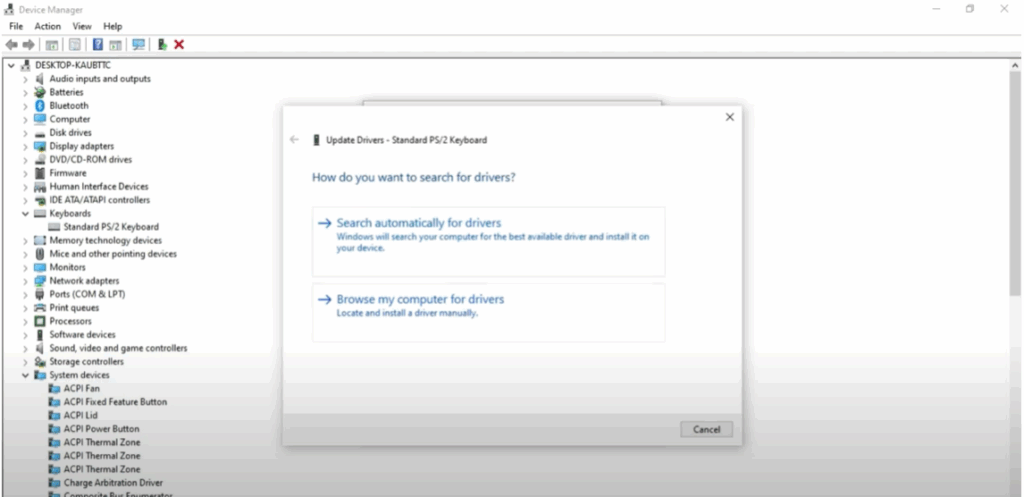
- Next, click on Uninstall Device and again click Uninstall to confirm.
- Restart your PC after this.
Alternative Option:
If you don’t want to restart your PC, click on Action at the top of Device Manager and select Scan for hardware changes. Windows will automatically reinstall the keyboard driver.
Step 2: Change Keyboard Settings
If the first method doesn’t work, try the following:
- Go to the search bar, type Settings, and click on it.
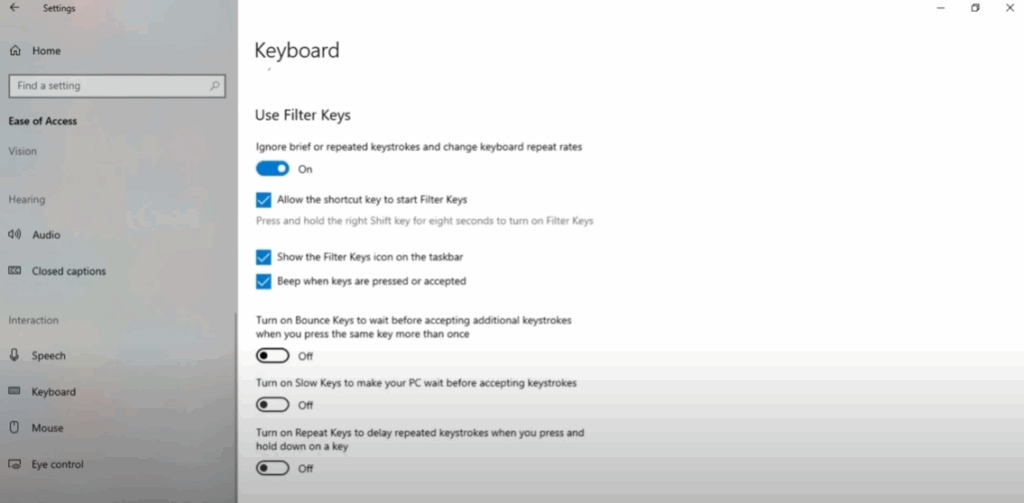
- Select Ease of Access.
- Click on the Keyboard option.
- Turn on Filter Keys and turn off other unnecessary options if they are enabled.
Now your keyboard should work properly.
Thanks for reading! If this helped you, like this video, share it, and subscribe to Tech Gitter Official.






