
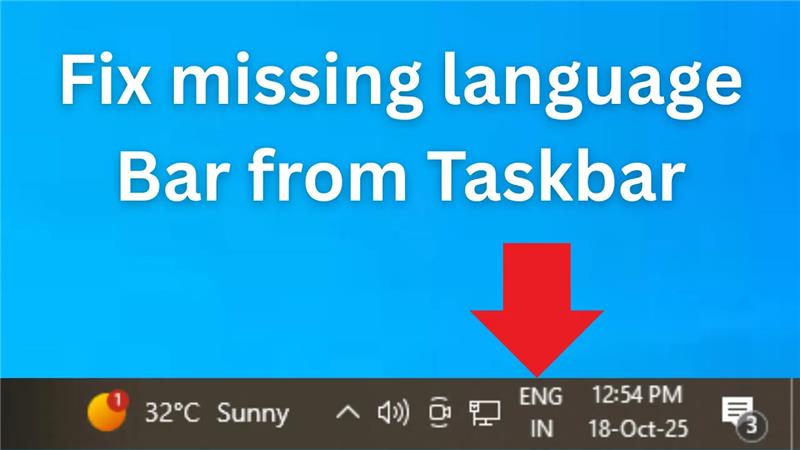
If the language bar has disappeared from your taskbar, it can make switching between keyboard layouts and input languages much harder. This issue often happens after a Windows update or changes in system settings, but you can easily bring it back. By making sure you have more than one input language installed and updating language bar options in Settings, you can restore the taskbar language bar in just a few steps. In this blog, you’ll learn fast methods to fix missing language bar on the taskbar and make typing in different languages easy again.
Method 1: Enable the Language Bar from Settings
- Open Settings
Press Windows Key + I to open Settings. - Go to Time & Language → Typing.
- Click on Advanced keyboard settings.
- Enable this option:
✅ “Use the desktop language bar when it’s available”
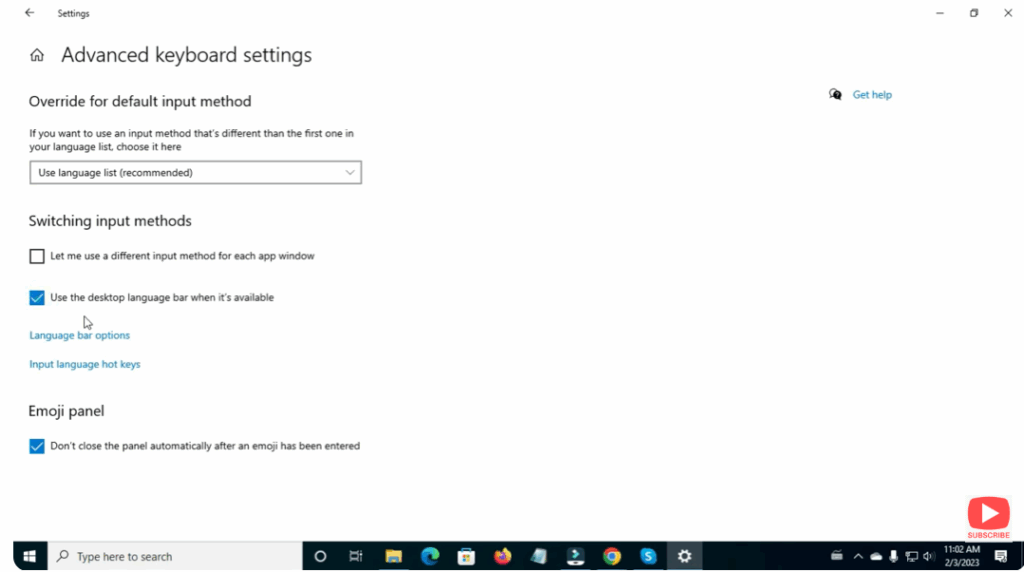
- Then click Language bar options below.
- Select:
- Docked in the taskbar
- And check Show text labels on the Language bar
- Click Apply and OK.
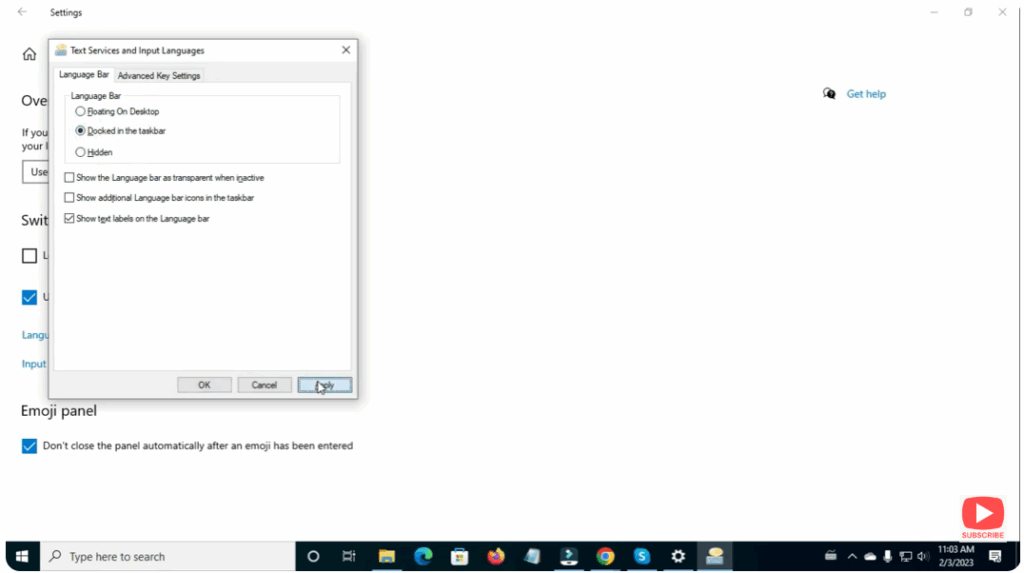
Now check your taskbar—the Language Bar should appear.
Method 2: Check Language Services Are Running
- Press Windows + R, type services.msc, and press Enter.
- Look for the service:
Touch Keyboard and Handwriting Panel Service - If it’s Stopped, right-click → Start
- Set Startup Type to Automatic
- Click Apply → OK
This ensures the Language Bar runs automatically every time your PC starts.
Method 3: Add Another Language (If Only One Exists)
- Open Settings
- Go to Time & Language → Language & Region
- Click Add a language
- Install any additional language (e.g., Hindi, English (US), Japanese, etc.)
After installation, the Language Bar should reappear automatically.
Method 4: Restore the Language Bar via Control Panel
- Press Windows + R, type control, and press Enter.
- Go to:
Clock and Region → Language → Advanced settings - Enable:
✅ “Use the desktop language bar when it’s available” - Save and restart your computer.
Final Words
The missing Language Bar issue is very common but also very easy to fix. Most of the time, enabling Desktop Language Bar or restarting the Touch Keyboard Service solves the problem instantly. By following the above methods, you can easily restore your Language Bar on both Windows 10 and Windows 11.






