
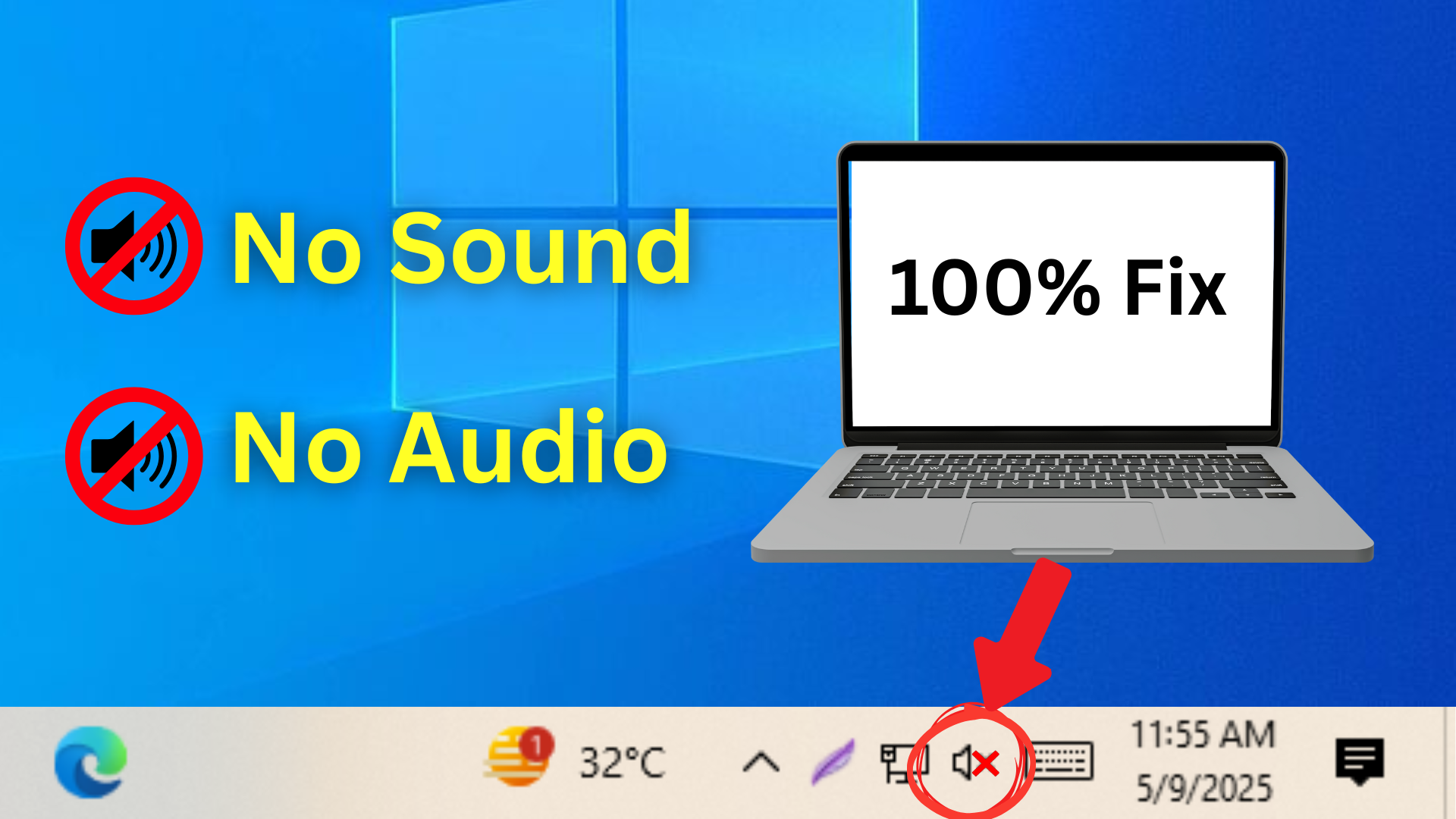
Are you facing sound issues on your Windows PC or laptop? If you can’t hear anything, see a cross (❌) icon on the sound option, or the sound icon is missing altogether, don’t worry. This guide will walk you through step-by-step solutions to resolve audio issues on your device.
Solution 1: Run the Windows Troubleshooter
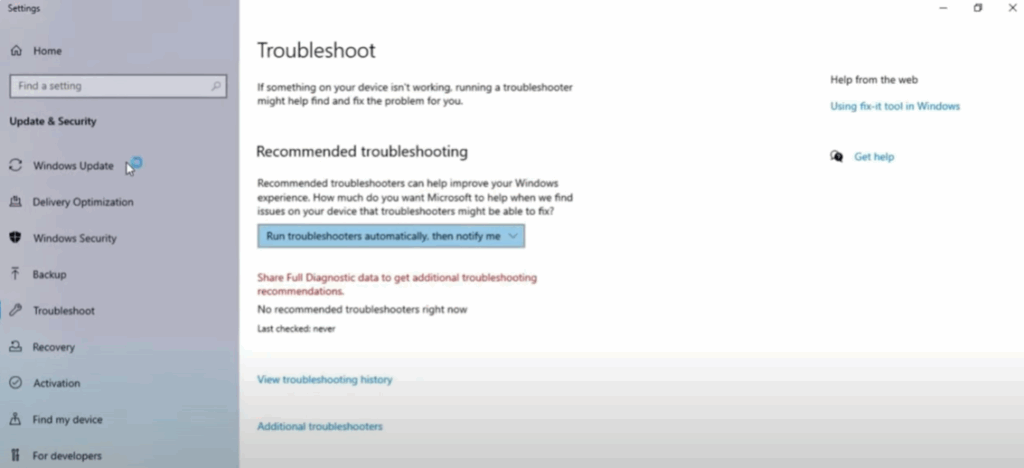
- Open Troubleshooting Settings
Click on the Windows search bar and type “Troubleshoot Settings”, then open it. - Access Additional Troubleshooters
Scroll down and click on “Additional troubleshooters”. - Run the ‘Play Audio’ Troubleshooter
Under the “Get up and running” section, click “Playing Audio” and then “Run the troubleshooter.”
- Follow On-Screen Instructions
The troubleshooter will detect and fix common audio issues automatically.- If prompted, click “Yes, open audio enhancements.”
- If a new window opens, you can close or cancel it.
- Wait until you see “Fixed” or similar confirmation.
Solution 2: Update the Audio Driver
- Open Device Manager
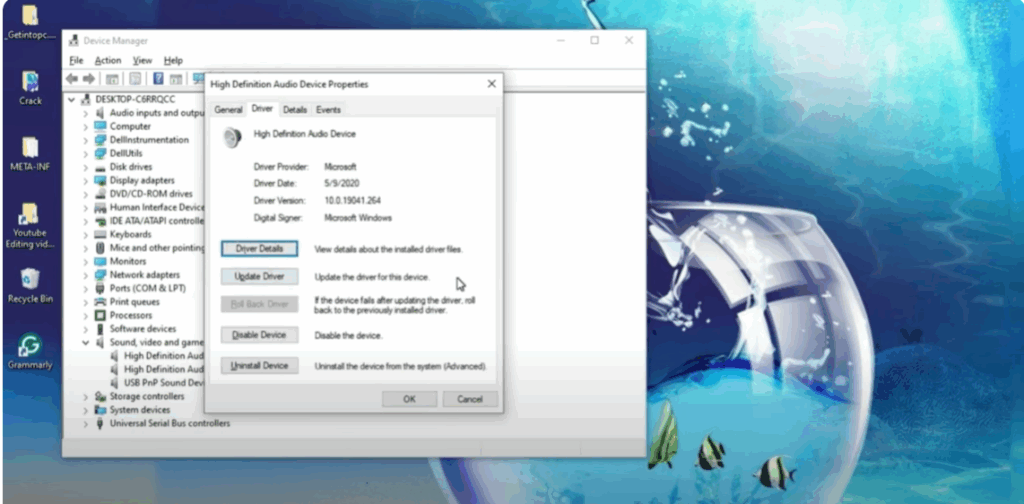
Use the search bar to find and open Device Manager. - Find the Audio Driver
Expand the “Sound, video and game controllers” section.
Right-click on “High Definition Audio Device” and choose Properties. - Update the Driver
- Go to the Driver tab and click “Update Driver.”
- Choose “Browse my computer for driver software.”
- Select “Let me choose from a list of available drivers on my computer.”
- Choose “High Definition Audio Device”, then click Next and Yes to proceed.
- Restart Your PC
Once the update is complete, restart your computer and check if the sound is working.
Solution 3: Reinstall the Audio Driver
Use this method only if updating the driver doesn’t fix the problem.

- Open Device Manager
Navigate back to Device Manager and expand the “Sound, video and game controllers” section. - Uninstall the Audio Driver
Right-click on “High Definition Audio Device” and choose Uninstall device. - Restart Your Computer
Upon reboot, Windows will automatically reinstall the audio driver. This often fixes stubborn sound issues.
Solution 4: Enable and Configure Sound Settings
- Open Control Panel
Type “Control Panel” in the Windows search bar and open it. - Access Sound Settings
Click on “Sound” to open the sound configuration window. - Enable Disabled Speakers
If your speakers are disabled:- Right-click on the disabled speaker and choose Enable.
- Then select the enabled speaker and click Properties.
- Adjust Sound Levels
- Go to the Levels tab.
- Adjust the volume slider as needed and ensure the speaker icon isn’t muted.
- Restore Default Settings
- Navigate to the Enhancements, Advanced, and Spatial Sound tabs one by one.
- Click on “Restore Defaults” in each tab.
- Click Apply and then OK to save the changes.
Final Thoughts
Following the above methods step by step should resolve most sound problems on your Windows computer. Whether it’s a minor setting or a driver issue, these solutions are simple to follow and effective.
If the problem still persists after trying all these steps, consider consulting a hardware technician or reaching out to Windows support.






