
The Roblox crashing problem is something many players face, and it can be really annoying when the game suddenly closes in the middle of playing. 🎮❌ Whether you’re building, exploring, or just having fun with friends, a crash can spoil the experience. This usually happens because of issues with your computer settings, outdated drivers, or small glitches in the game itself. The good news is, fixing it is not too hard. In this beginner-friendly blog, we’ll explain in easy language how to stop Roblox from crashing step by step, so you can get back to playing smoothly without interruptions. ✅
✅ Step-by-Step: Fixes That Often Resolve Roblox Crashes
Here’s a checklist of solutions, from easiest to more thorough. Try them in order — many times the simple fixes work right away.
1. Restart PC & Close Background Apps
- Restarting clears temporary glitches and frees up memory or locked processes.
- Open Task Manager (Ctrl + Shift + Esc) → end tasks for resource-heavy or unnecessary apps (overlays, recorders, browsers, etc.).
2. Clear Roblox Cache
Old or corrupted cache files often break game startup or cause in-game crashes. Clearing cache forces Roblox to rebuild fresh data.
How to clear cache (Windows):
- Close Roblox completely
- Press Win + R, type
%localappdata%→ Enter - Locate the Roblox folder → delete or rename (e.g. to
Roblox_old) - Restart PC, launch Roblox — new cache will be created automatically
3. Update or Reinstall Graphics Drivers
Outdated / corrupt GPU drivers are a frequent cause of crashes, especially during rendering or heavy graphic loads.
- Open Device Manager → Display adapters
- Right-click GPU → Update driver (or download latest from manufacturer website)
- After update, restart PC and launch Roblox
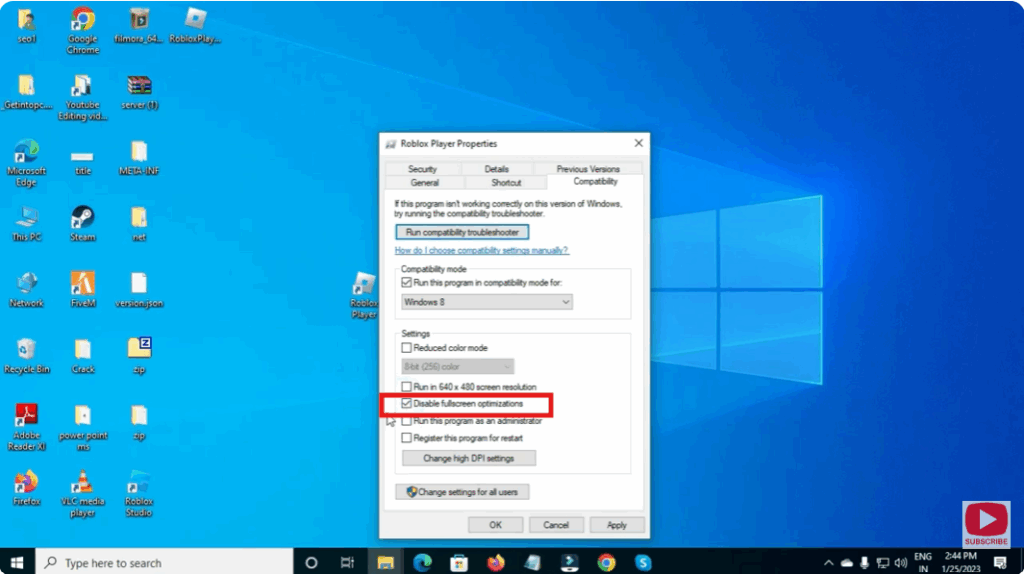
4. Run Roblox as Administrator & Disable Full-Screen Optimization
Granting admin privileges ensures Roblox can access required system resources. Full-screen optimization sometimes conflicts with game rendering.
- Right-click Roblox shortcut → Properties → Compatibility tab
- Check “Run this program as administrator”
- Check “Disable fullscreen optimizations” → Apply, OK → Launch game
5. Lower Roblox’s Graphics Settings
For older or modest PCs, high graphics settings can overwhelm the system and cause crashes. Lowering them improves stability.
- Open Roblox → Settings → Graphics Mode → set to Manual
- Reduce Graphics Quality slider (lower resolution/quality)
- Optionally disable advanced graphics features or effects
6. Temporarily Disable Antivirus / Firewall or Whitelist Roblox
Security software or firewall sometimes blocks or interferes with Roblox — leading to crashes or unexpected exits.
- Temporarily disable antivirus/firewall
- Launch Roblox — if stable, add Roblox to exceptions/exclusions before re-enabling protection
7. Uninstall & Reinstall Roblox (Clean Install)
If corrupted installation or broken files are the root cause, a clean reinstall often fixes crash loops.
- Uninstall Roblox via Control Panel → Programs & Features
- Clear cache folders as described earlier
- Download latest Roblox installer from official site and install fresh






