
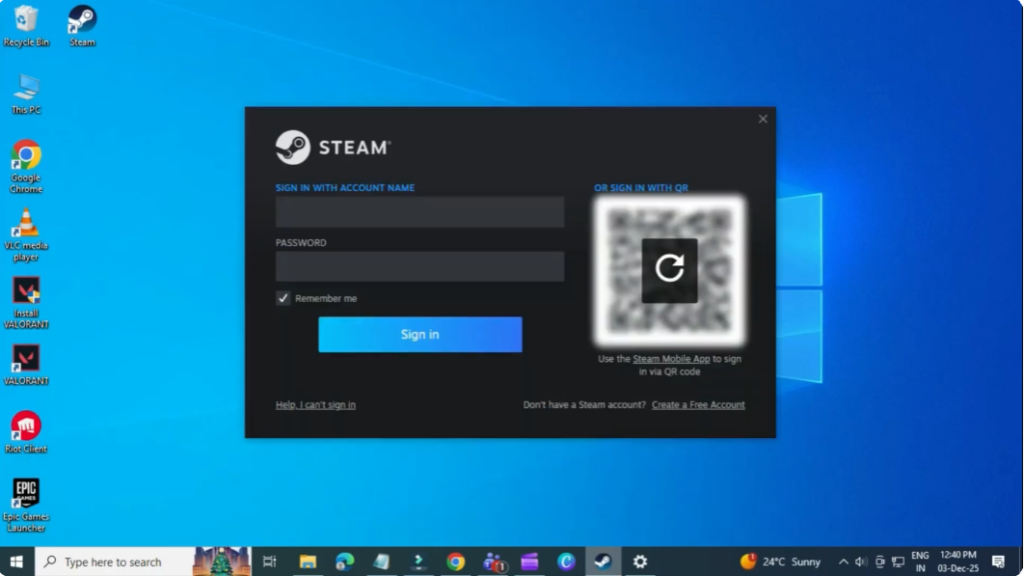
Facing Steam login issues even when your password is correct can be really frustrating. You type in the right details, but Steam still refuses to let you in, leaving you stuck outside your account. This problem is more common than you might think and usually happens because of small glitches, connection problems, or settings that need a quick fix. The good news is, you don’t need to panic—there are simple solutions that can get you back into your account in no time. In this beginner-friendly blog, we’ll explain in easy language how to fix Steam login issues when your password is correct, step by step, so you can start gaming again without delays.
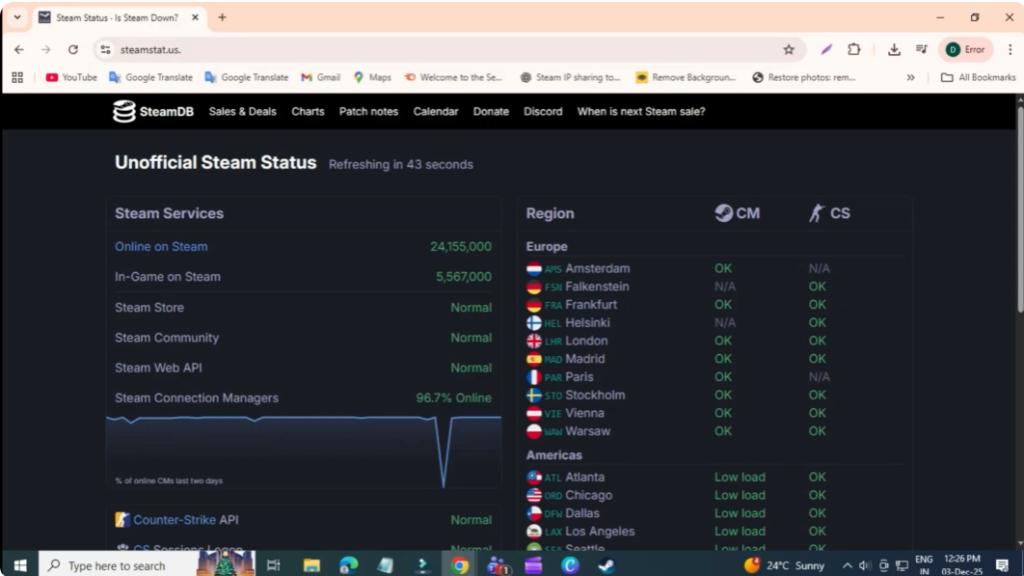
Step one, check Steam server status
First, open any internet browser and visit steamstat.US. If the servers are down or under maintenance, that’s likely the reason you can’t log in. In that case, wait. It usually takes about 1 to 2 hours. If everything looks normal, close the browser and move to the next step.
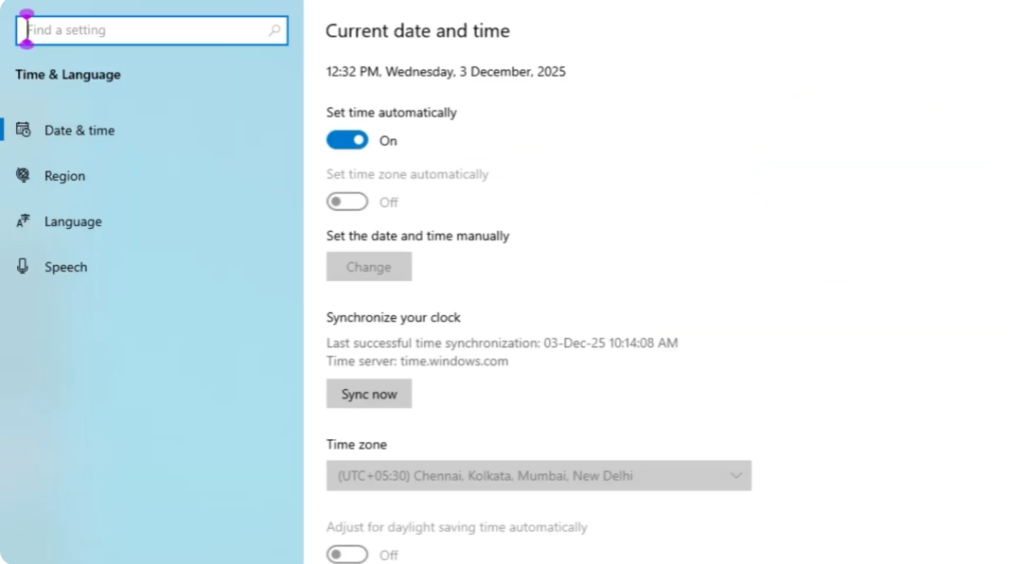
Step two, verify date and time settings
Open the Start menu, search for settings, go to time and language. Make sure set time zone automatically is turned on.
Step three, disable VPN if enabled
Go to network and internet. Click on VPN. Make sure the VPN is disconnected. Steam sometimes blocks login from VPNs.
Step four, run Steam as administrator
Go to the start menu again. Search Steam. Right click and select run as administrator and then try logging in.
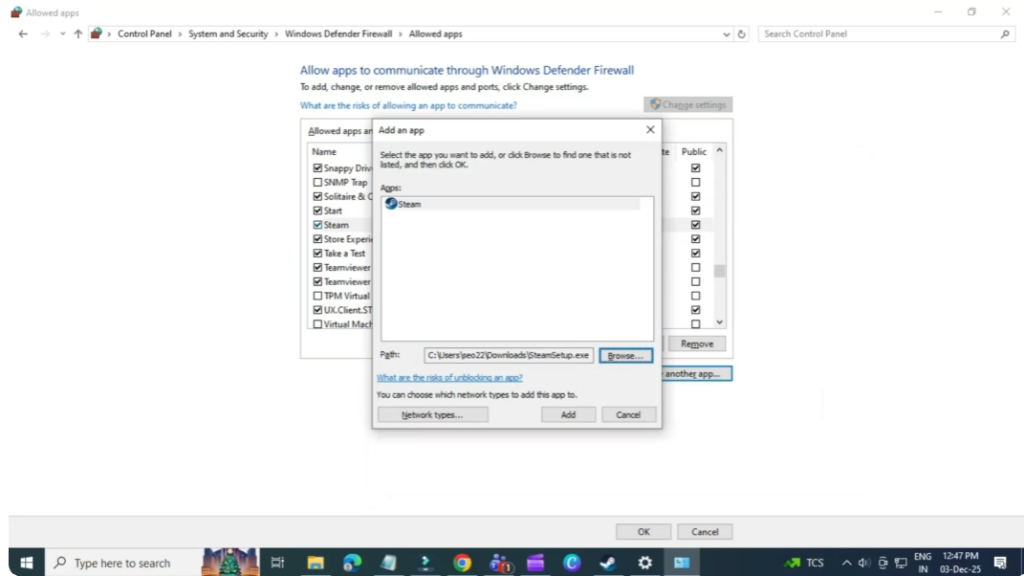
Step five, allow Steam in Firewall
Search Windows Defender Firewall. Click allow an app through firewall. Click change settings. Find Steam in the list and make sure both private and public boxes are checked. If Steam isn’t listed, click allow another app. Browse to Steam installation folder. Select Steam.exe. Add it and allow both network types.
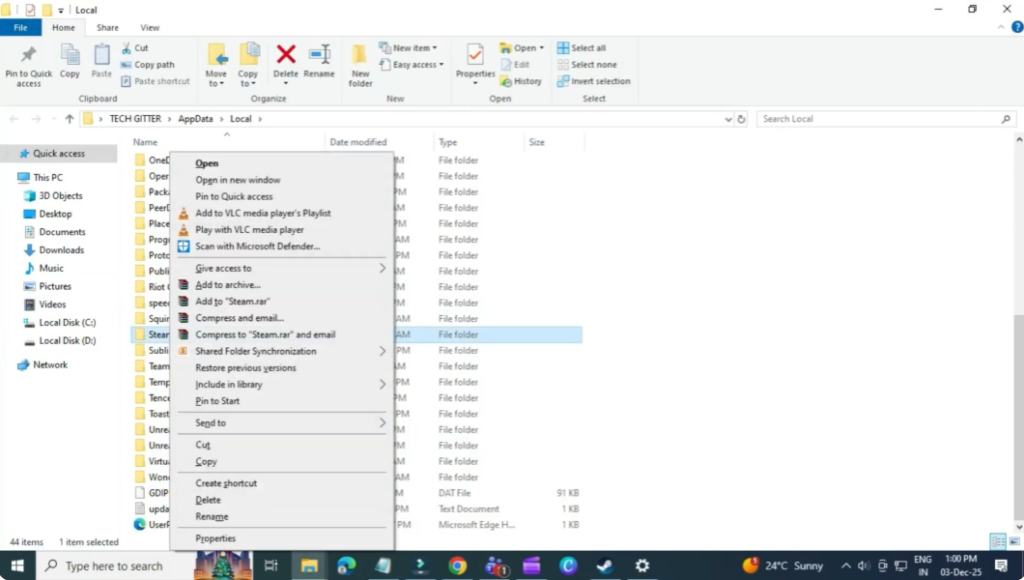
Step six, clear local app data
Press Windows plus R. Type percent local app at a percent. Hit enter. Find the Steam folder, right click, and delete. If it doesn’t delete, make sure Steam is completely closed.
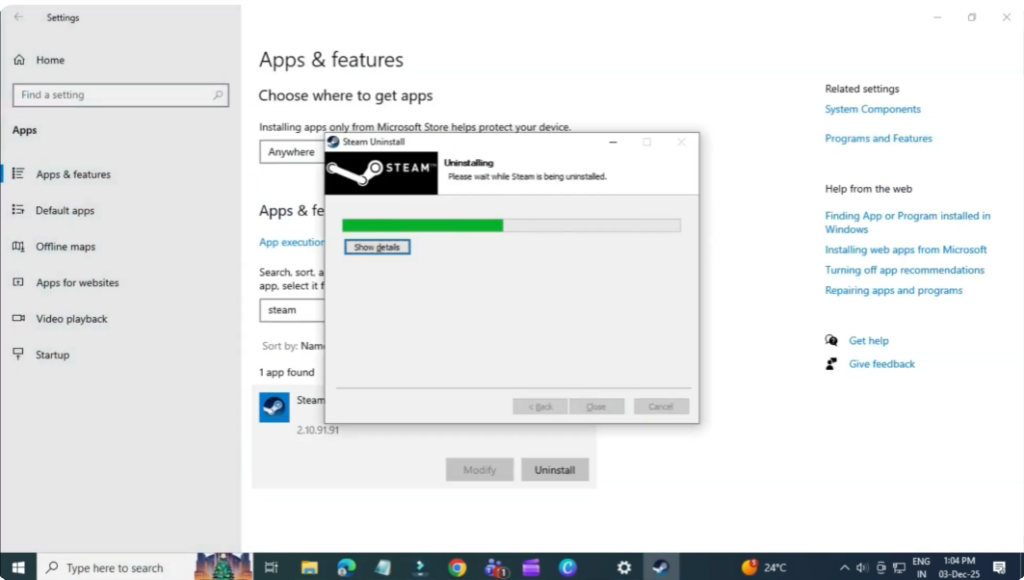
Step seven, reinstall Steam
If nothing worked, open add or remove programs. Find Steam. Click uninstall. Then go to the official site store.st steampower.com. Download and reinstall Steam.
That’s it. After following these steps, Steam should now let you log in without any issues.






