

Getting the VAN 9001 error while trying to play Valorant on your Windows 10 or 11 PC? You’re not alone—it’s a common issue that stops the game from launching and usually has to do with Secure Boot or TPM settings. The good news is, it’s fixable with a few simple steps. In this blog, we’ll explain what causes the VAN 9001 error and guide you through easy ways to fix it, so you can get back to gaming without any headaches. Let’s solve this and get you back in the match!
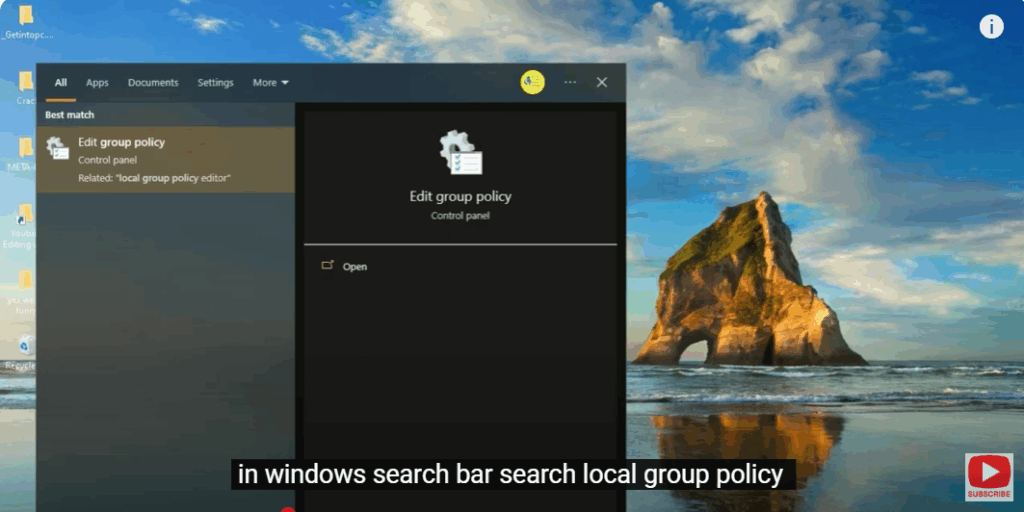
Step 1: Open Local Group Policy
In the Windows search bar, search Local Group Policy.
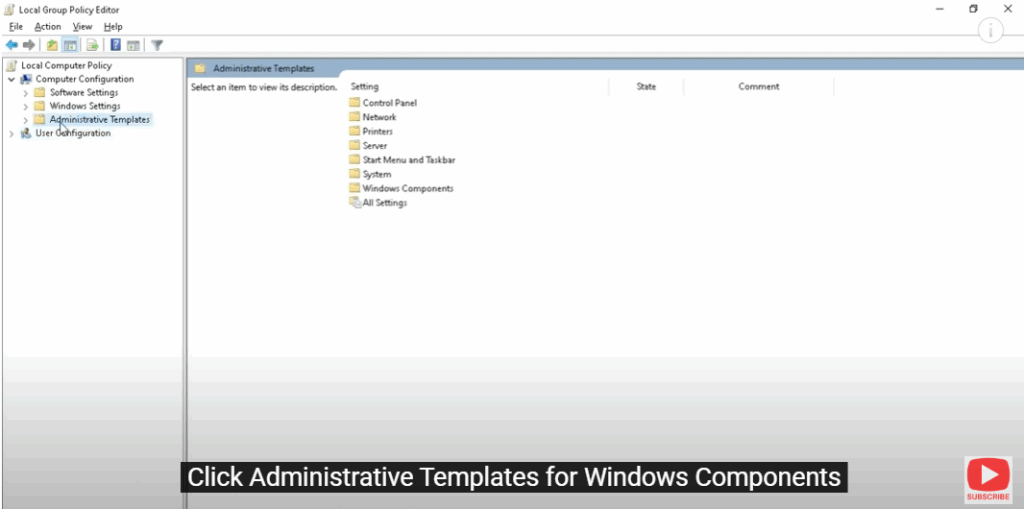
Step 2: Navigate to Administrative Templates
Click Administrative Templates for Windows Components.
Step 3: Find BitLocker Drive Encryption Settings
Click Operating System Drivers for BitLocker Drive Encrypt.
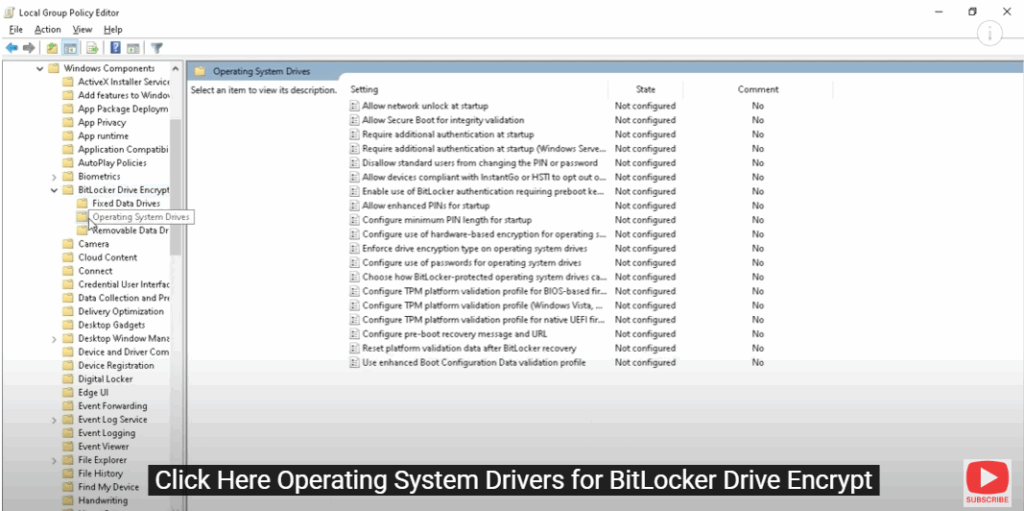
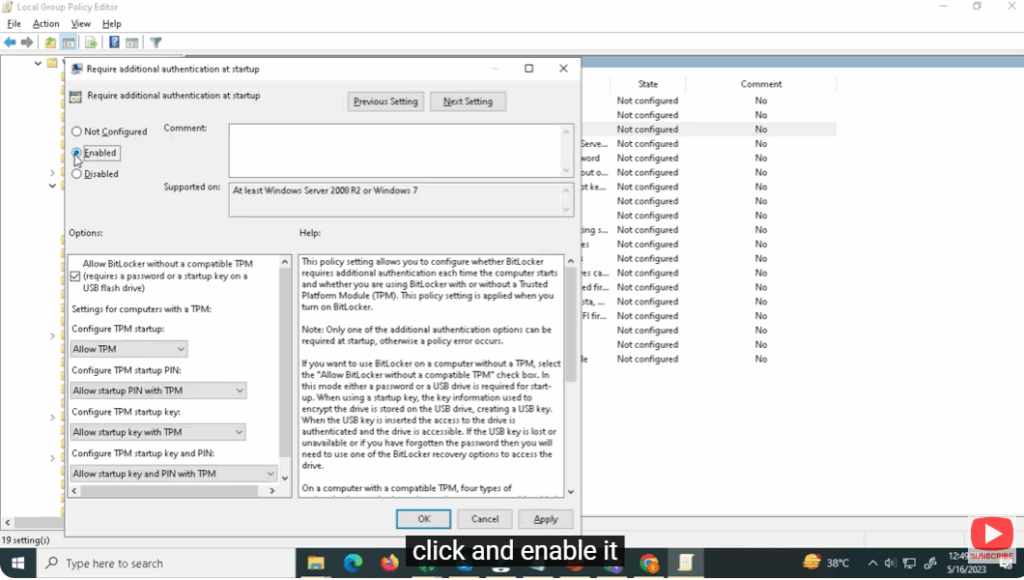
Step 4: Edit the Policy
You will see the edit policy “Require additional authentication at startup.”
Click and enable it.
Step 5: Final Step
Now, close all programs.






