
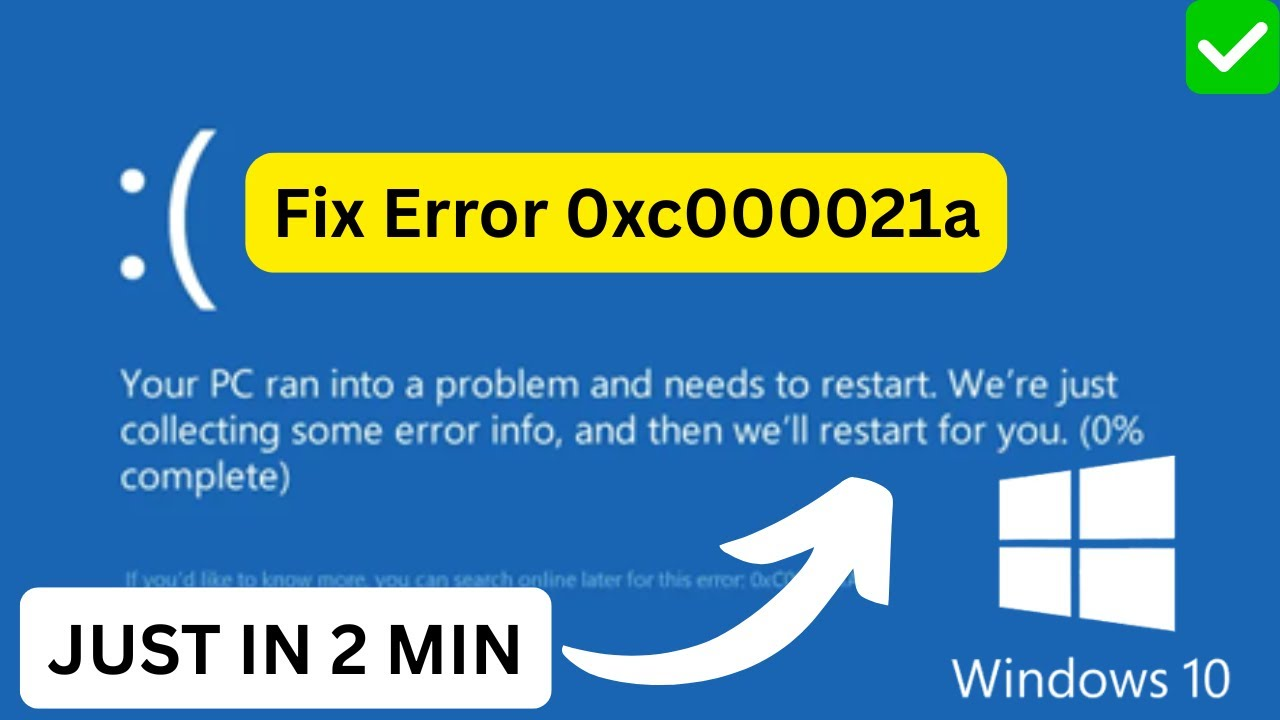
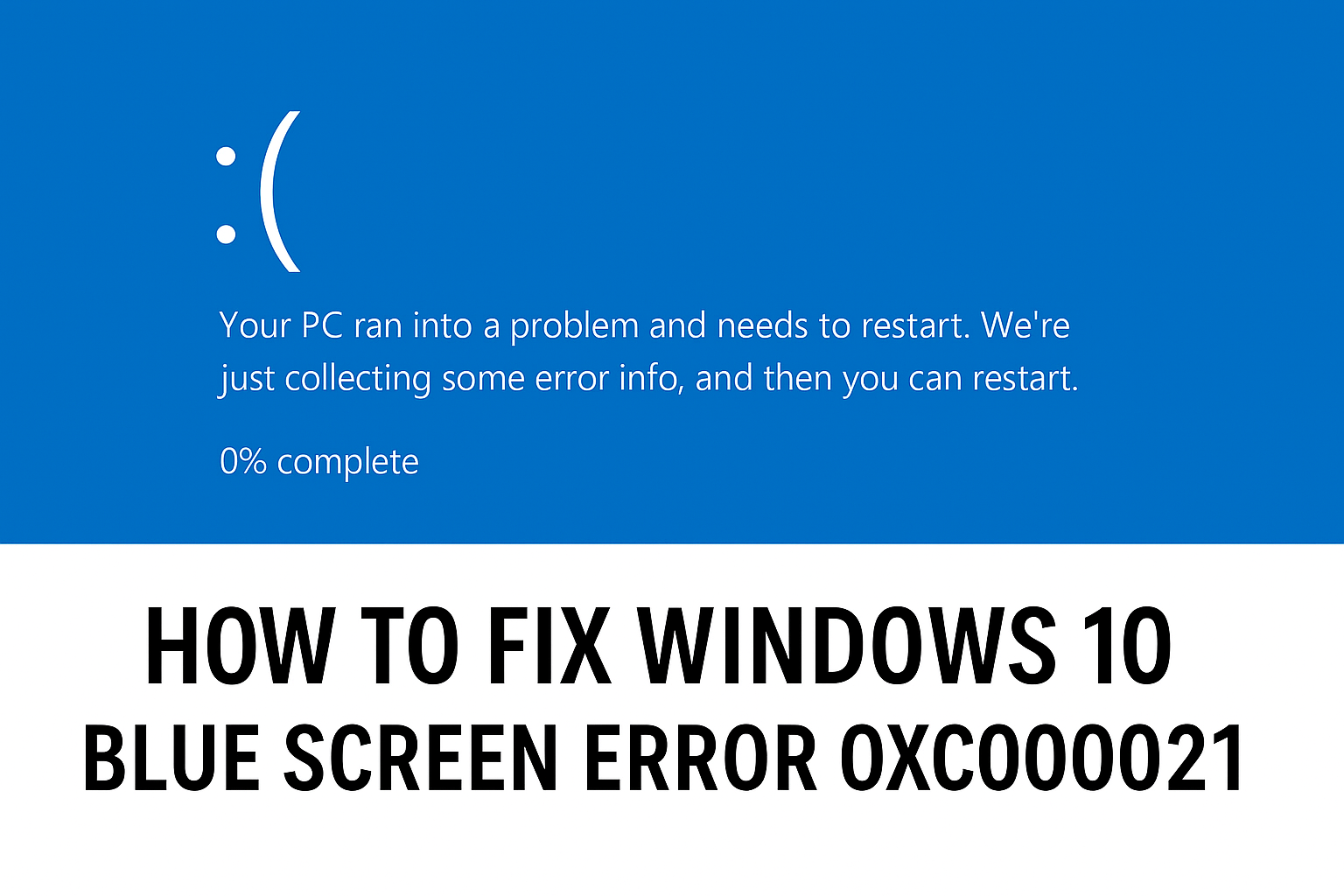
Seeing a blue screen with the error code 0xc000021a on your Windows 10 computer can feel scary, but don’t panic—it’s a common issue that many users face. This error usually appears when there’s a problem with system files, drivers, or updates, causing your PC to crash and restart. The good news is that you can fix it with a few simple troubleshooting steps. In this guide, we’ll explain why this error happens and show you easy methods to get your Windows 10 running smoothly again.
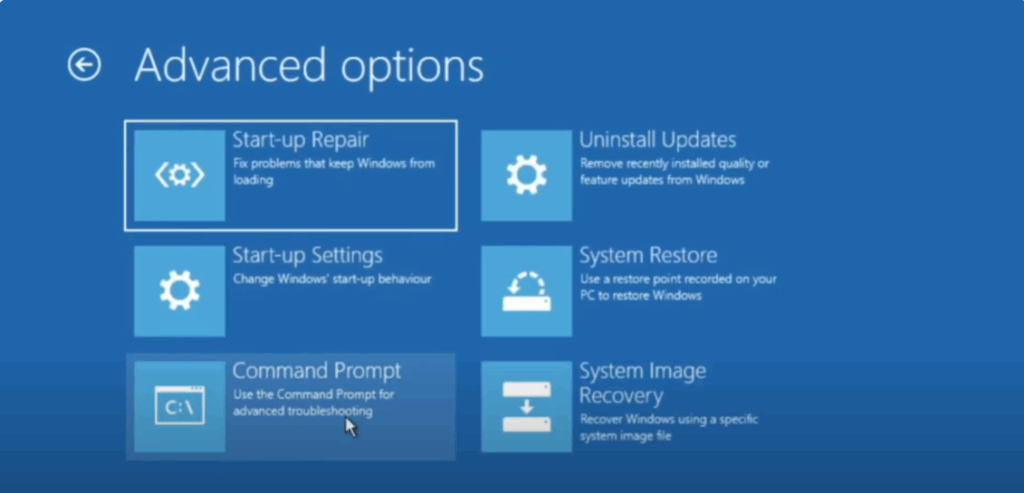
So, let’s begin. To fix this issue, you need to access the startup repair options. If you cannot reach this screen directly, here’s what you can do. Restart your computer and as soon as the Windows logo appears, force a restart. Repeat this process two to three times and eventually your system will boot into the advanced startup menu.
Once you are on this screen, click on advanced options, then select troubleshoot followed by advanced options again and finally click on command prompt.
Now choose your account. In my case, I don’t have a password, so I’ll just click continue.
Here we are in the command prompt. First, we need to switch to the drive where Windows is installed. Usually, it’s the C drive, but let’s confirm. Type C and press enter. Then type dir and check the files. If you don’t see Windows related folders, it means Windows is not installed on this drive.
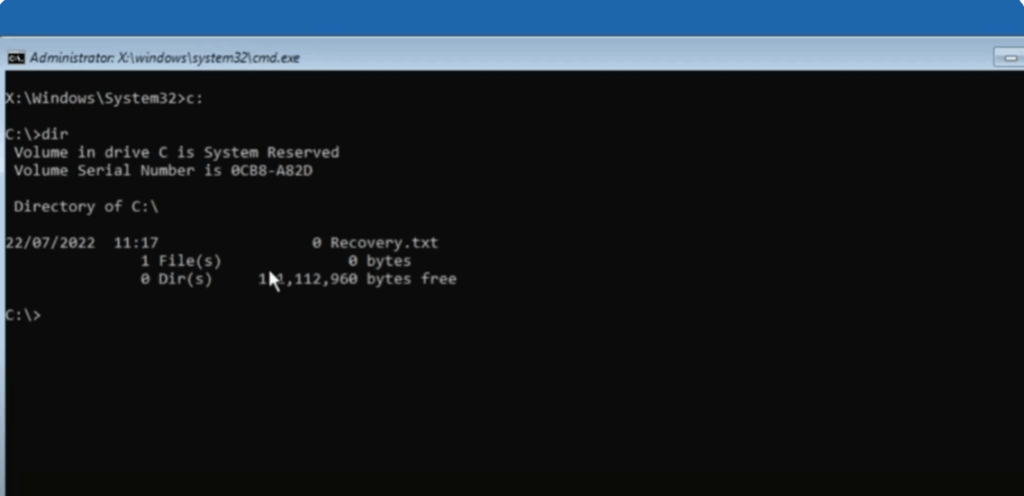
In my case, nothing appeared on C. So I switched to the D drive by typing D and pressing enter. Then I typed dir again. And here we can clearly see folders like program files and windows which confirms this is the correct directory.
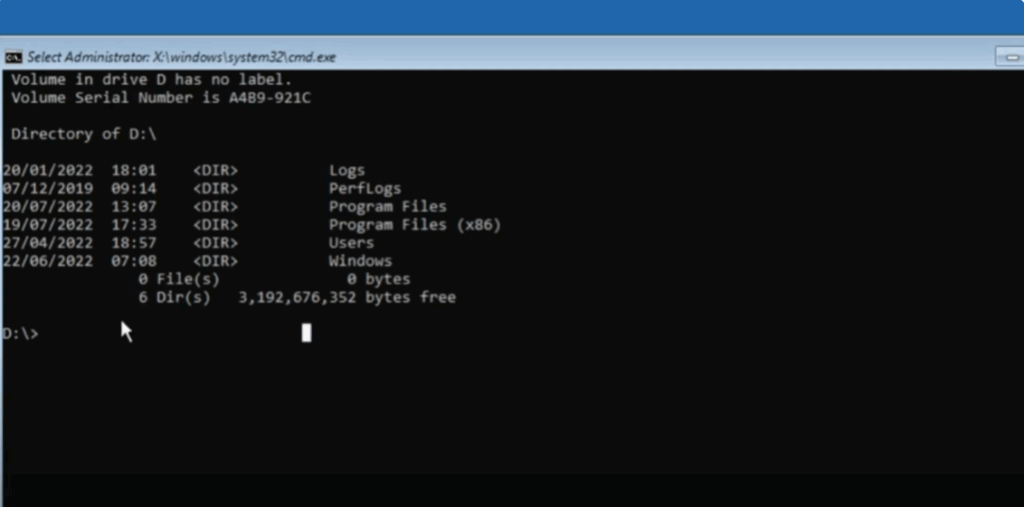
Now from this directory type the following command:
dism laughing face col backslash/cleanup image/revert pending actions
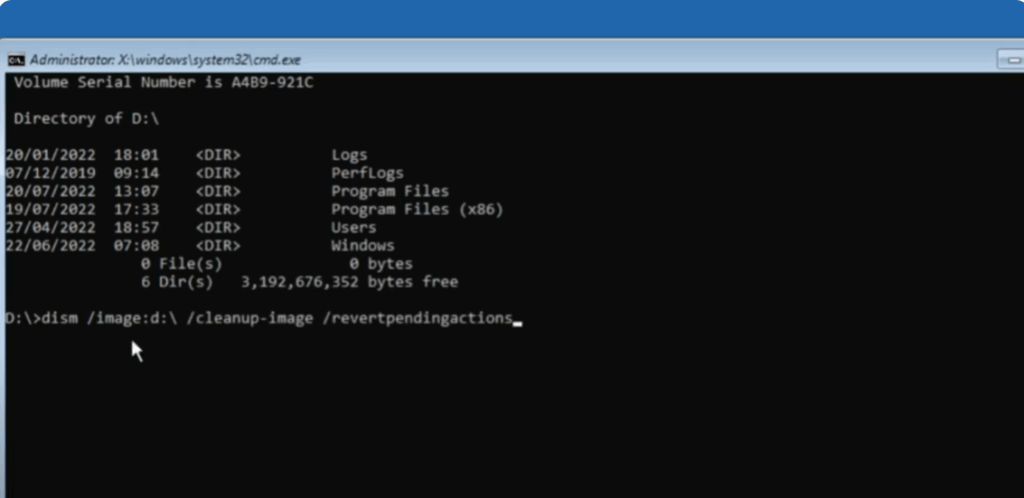
This command uses the Deployment Image Servicing and Management tool to clean up pending actions that may be causing the issue. Remember, if your Windows is on a different drive, replace D with the correct letter. Press enter and wait for the process to complete.
Once it’s done, type exit and close the command prompt. Go back to troubleshoot, then advanced options, and again open command prompt. Navigate to the drive where Windows is installed. Then type:
check disk/f/r
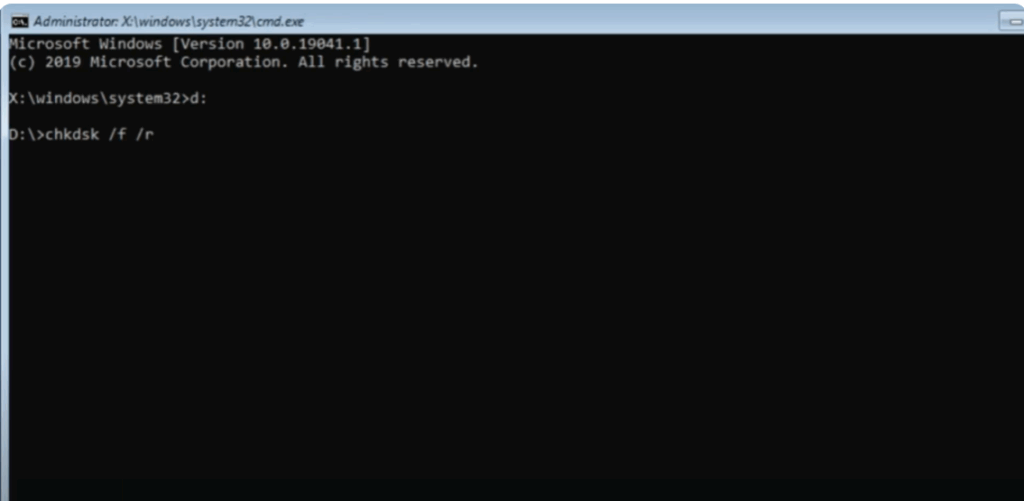
and press enter. If it asks, type y and press enter. This command will scan and fix any disk errors. It may take some time, so be patient.
After this, the next step is to run the system file checker:
sfc/canow
and hit enter. This will check for any corrupted system files and repair them. Again, this may take a while, so wait until the process is complete.
Once it’s finished, close the command prompt. Go back to the options and click on continue to exit and restart into Windows 10. Your system should now start without the error.






