
If the apps on your Windows 11 computer won’t open, freeze, or crash, you’re not alone—this is a common issue that many users face. It can happen due to corrupt system files, outdated software, or problems with the Microsoft Store and its settings. The good news is that you can fix this problem easily with simple methods like running system scans, resetting apps, or re‑registering Windows components. In this blog, you’ll learn step‑by‑step ways to fix Windows 11 apps not opening and get your favorite applications working smoothly again.
🛠 Step-by-Step Fixes
Try these methods in order, until your apps begin opening again.
1. Reinstall / Re-register All Built-in Apps via PowerShell
- Open Windows Terminal or PowerShell with Administrator privileges.
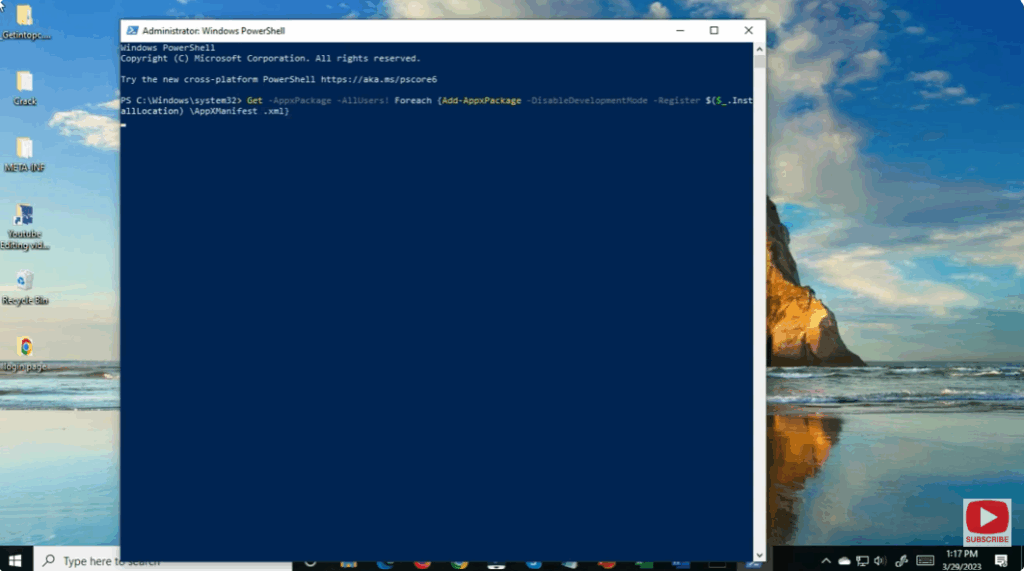
- Run this command to re-register all built-in Windows apps:
Get-AppxPackage -AllUsers | Foreach { Add-AppxPackage -DisableDevelopmentMode -Register "$($_.InstallLocation)\AppXManifest.xml" }
- This command forces Windows to re-register all the app packages for every user, which often fixes broken registrations.
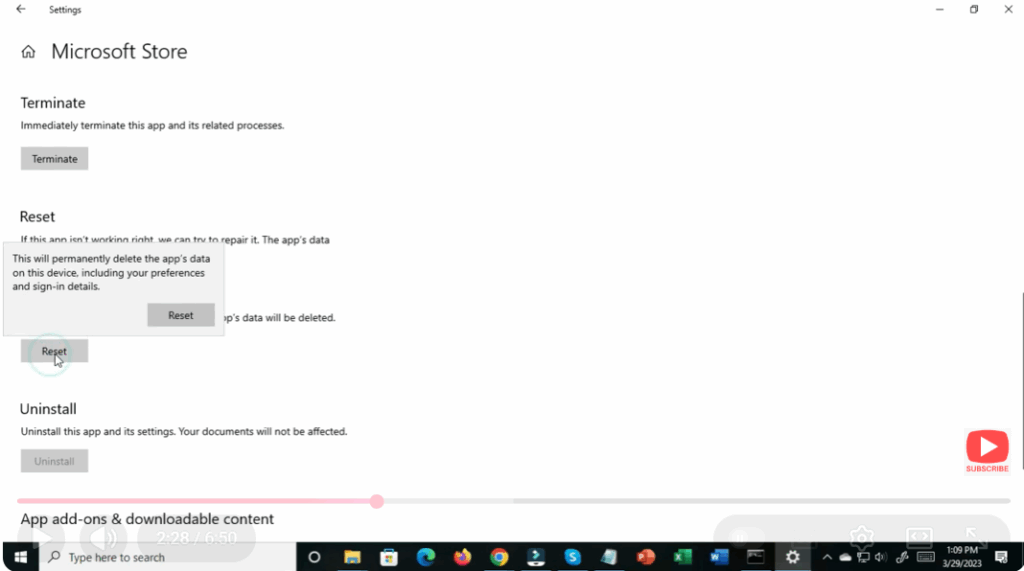
2. Reset the Specific App (via Settings)
- Open Settings → Apps → Installed apps (or Apps & Features).
- Locate the app that won’t open.
- Click the three dots (⋮) next to the app → select Advanced options.
- Scroll and click Reset.
- The app’s data and cache are cleared, and it returns to default settings.
If the problem is isolated to a single app, this reset often resolves it.
3. Run the System File Checker (SFC) and DISM
- Open Command Prompt or PowerShell as Admin.
- Run:
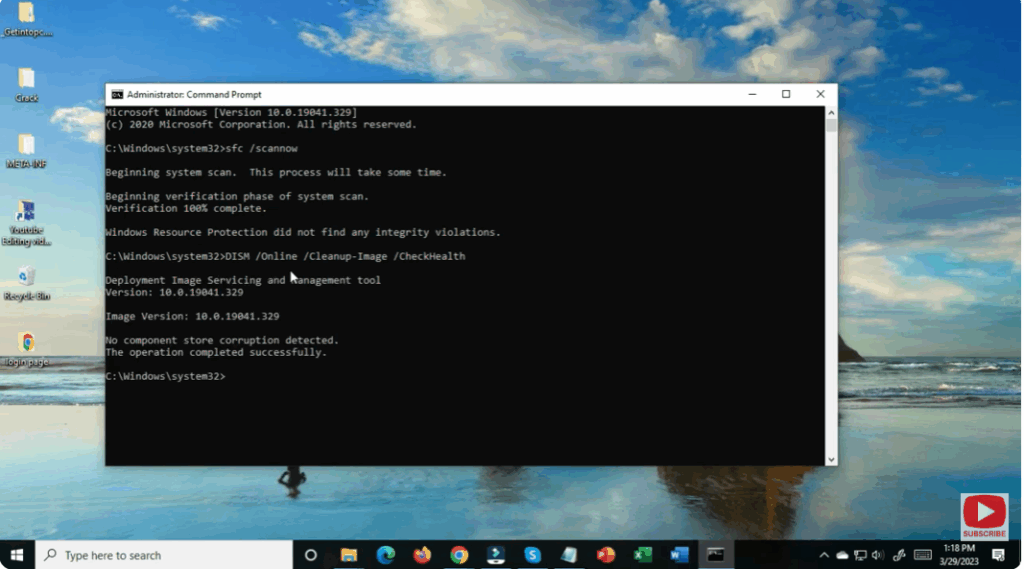
sfc /scannowto scan and repair corrupted system files. - After SFC completes, run:
DISM /Online /Cleanup-Image /RestoreHealthto repair Windows image and component store. - Reboot afterward, then check apps.
4. Check and Fix App Dependencies (Microsoft Store Framework)
- Sometimes, the underlying framework that other apps depend on is broken.
- In Settings → Apps → Optional features, look for “Microsoft Store Framework” or related frameworks.
- If missing or broken, reinstall or repair that feature.
This ensures core app infrastructure is intact.
5. Reinstall the App (Uninstall & Reinstall)
This gives you a clean install and often removes residual corruption.
If a particular app is still problematic, you can uninstall it (via Settings or PowerShell) and then re-install it from the Microsoft Store.






