

If you’ve encountered the Windows Backup Image Error 0x80780119, you’re not alone. This error typically appears when trying to create a system image backup in Windows, indicating that the backup process has failed due to issues with storage space, corrupted files, or conflicting system settings. Resolving this error is crucial to ensure your data is safely backed up and that you can restore your system when needed. In this guide, we’ll walk you through the most effective steps to fix Error 0x80780119 and get your Windows backup running smoothly again.
What Causes Error 0x80780119?
This error typically indicates there’s not enough free space in the System Reserved or Recovery partition to create the necessary volume shadow copy before backing up your system.
Steps to Resolve Error 0x80780119 (from the video and supported references)
1. Run System File Checker (SFC)
Open Command Prompt as Administrator and execute:
sfc /scannow
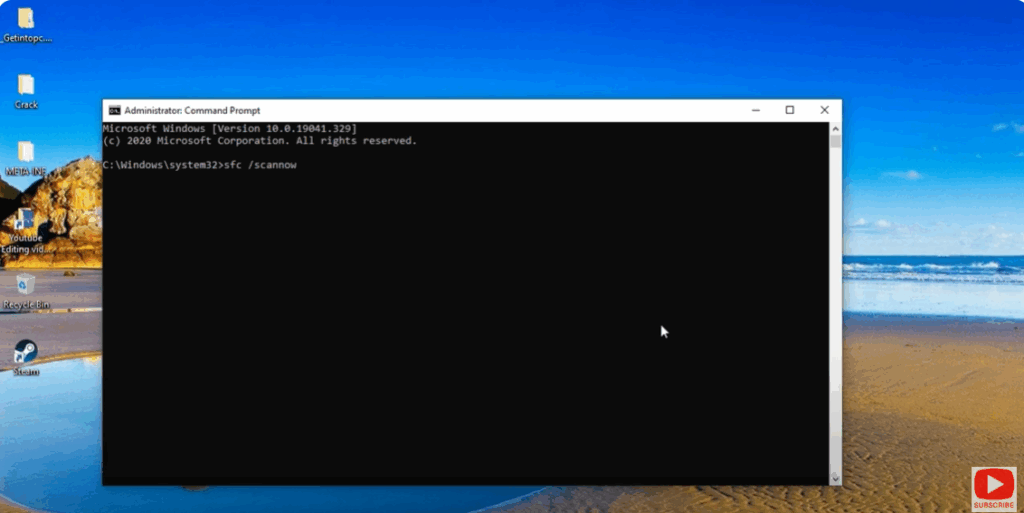
This scans and repairs corrupted system files that might interfere with backup functionality.
2. Ensure Partitions Have Enough Free Space
- System Reserved Partition: Needs at least 50 MB free if smaller than 500 MB; 320 MB if larger; ideally 1 GB for best results.
- Recovery Partition: Similar free space requirements apply.
6. Re-attempt the System Image Backup
After completing the above steps—running SFC, ensuring adequate free space, clearing USN journal, adjusting shadow storage—try creating the system image again through Windows’ built-in backup.
Bottom Line
Video tutorial steps (especially running sfc /scannow) reinforce the importance of preparing both system and reserved partitions for backup. The core issue usually stems from inadequate free space on the source partition—not necessarily the destination—even when your target drive has ample storage.
Let me know if you’d like guidance on how to use specific tools like MiniTool Partition Wizard or AOMEI Backupper, or further instructions for using vssadmin.
Happy to help you get that backup working smoothly!






