
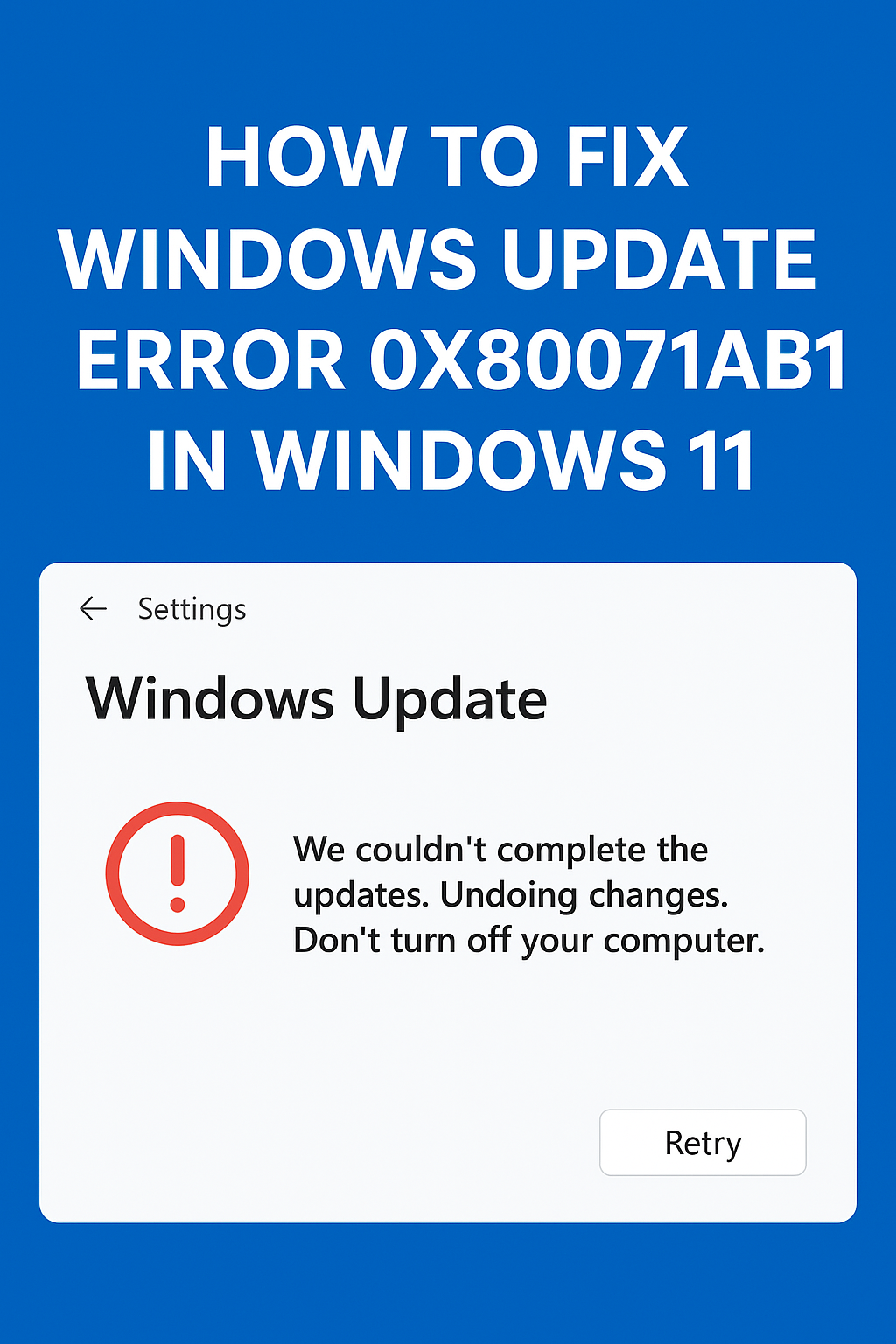
If you get Windows Update Error 0x80071ab1 in Windows 11, it means your computer is having trouble downloading or installing updates. This error can happen because of corrupted update files, missing system components, or problems with the update service. The good news is, you can fix it easily by running the Windows Update troubleshooter, resetting update components, or installing missing features like .NET Framework. In this blog, you’ll learn simple steps to resolve the error and update Windows 11 without hassle.
🛠 Step-by-Step Fix Guide
Follow this order of steps. If one doesn’t work, move to the next. Always back up important data before major repairs.
Step 1: Run Windows Update Troubleshooter
- Press Win + I → Settings → System → Troubleshoot → Other troubleshooters.
- Under Windows Update, click Run.
- Allow the troubleshooter to find and fix issues, then reboot and try updates again.
Step 2: Ensure Enough Free Disk Space
- Open Settings → System → Storage.
- Make sure your system drive (usually C:) has at least ~20-30 GB free for large feature updates. A lack of space is a common cause for this error.
- If needed: clean up files (Temp folder, old installations, etc.).
Step 3: Run SFC and DISM to Repair System Files
- Open Command Prompt as Administrator.
- Run:
sfc /scannow - After it finishes, run:
DISM /Online /Cleanup-Image /CheckHealth DISM /Online /Cleanup-Image /ScanHealth DISM /Online /Cleanup-Image /RestoreHealth ``` :contentReference[oaicite:12]{index=12} - Reboot your computer and try updating again.
Step 4: Reset Windows Update Components
In an elevated Command Prompt, run the following commands one by one:
net stop bits
net stop wuauserv
net stop appidsvc
net stop cryptsvc

ren C:\Windows\SoftwareDistribution SoftwareDistribution.old
ren C:\Windows\System32\catroot2 Catroot2.old

net start bits
net start wuauserv
net start appidsvc
net start cryptsvc
Then reboot. This forces Windows to rebuild update folders.
Step 5: Check .NET Framework Components
Because the error often arises when applying .NET updates:
- Press Win + R, type
appwiz.cpl, hit Enter. - On the left, click Turn Windows features on or off.
- Ensure .NET Framework 3.5 (includes .NET 2.0 & 3.0) is checked, and also expand it to ensure WCF HTTP/Non-HTTP Activation are checked.
- Click OK, let Windows configure, reboot, then try updates.
Step 6: Manually Install the Failing Update or Use Media Creation Tool
- Note the KB number of the failing update (from Update history). Visit the Microsoft Update Catalog, download the standalone .msu installer and run it manually.
- If the update still fails, you can use the Windows 11 Media Creation Tool (from Microsoft) to perform an in-place upgrade repair: this reinstalls Windows 11 while keeping your files/apps but resets core system components. Many users reported this fixed the 0x80071AB1 issue when other steps failed.
Step 7: Temporarily Disable Third-Party Antivirus or Encryption Software
Temporarily disable/uninstall them, reboot, then retry update. Don’t forget to re-enable them afterwards.
Some third-party antivirus or full-disk encryption tools interfere with update processes, especially transactional logs.






