
The Windows Update error 0x800f080a appears when your PC fails to install updates due to missing or corrupted files. To fix it, run the Windows Update Troubleshooter, then use the commands Health in Command Prompt to repair system files. You can also clear the Software Distribution folder or download the update manually from the Microsoft Update Catalog. These steps usually fix the error let Windows update smoothly again.
Step 1: Run the Windows Update Troubleshooter
- The first thing you should try is the Windows Update Troubleshooter.
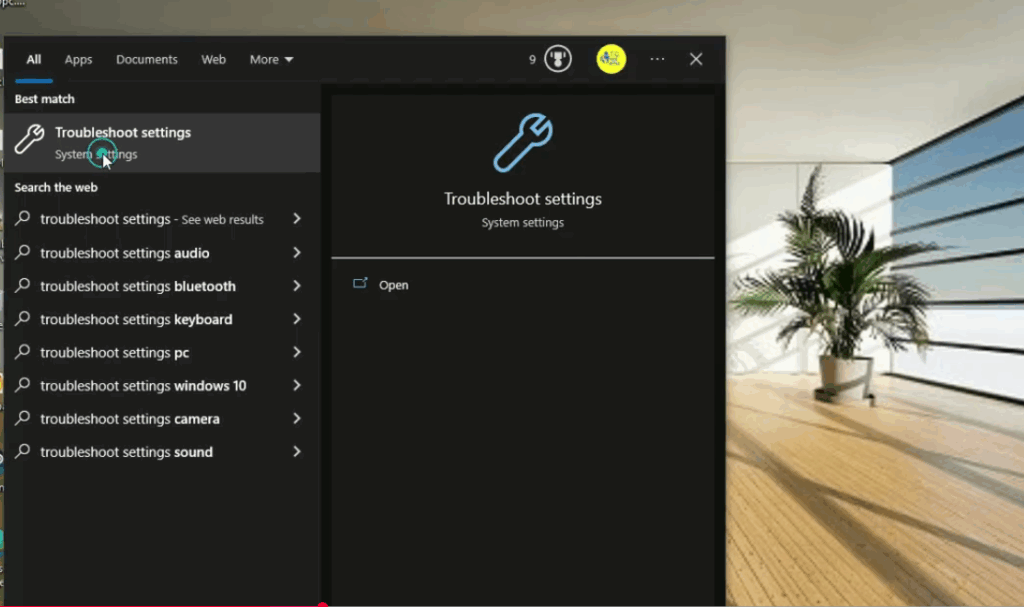
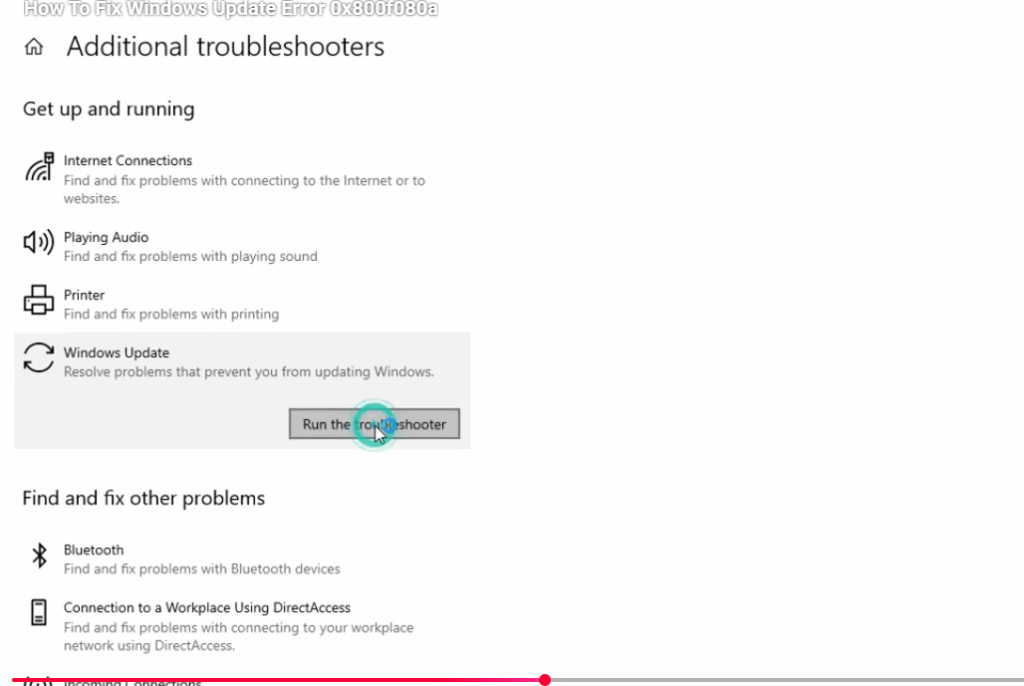
- Open Settings → System → Troubleshoot → Other troubleshooters.
- Find Windows Update and click Run.
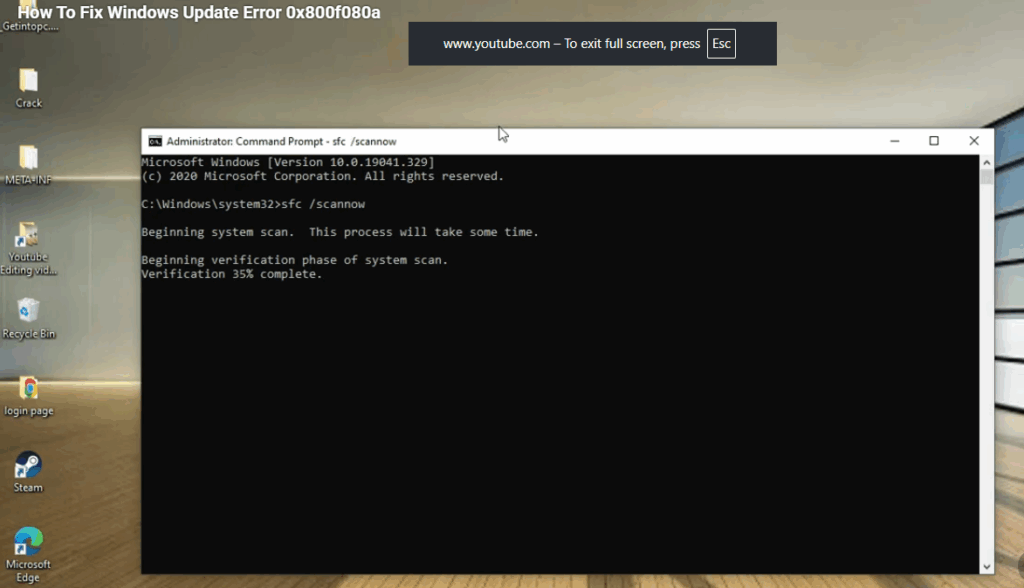
Step 2: Run the System File Checker
- If update components are fine, your system files may be corrupted.
- To fix this, run the System File Checker:
- Open Command Prompt as administrator.
- Type the command: sfc /scannow
- Wait for the process to complete, then restart your PC.
Conclusion
You’ve successfully fixed the Windows Update error 0x800f080a by using built-in troubleshooters, repairing system files with SFC and DISM, and resetting Windows Update components. These steps help eliminate corrupted files or misconfigurations that block updates. Now your system can install updates smoothly, improving stability, performance, and security. Keeping Windows up to date ensures you always have the latest features, bug fixes, and protection against vulnerabilities. Regular maintenance and timely updates are key to maintaining a reliable and optimized PC experience.






