
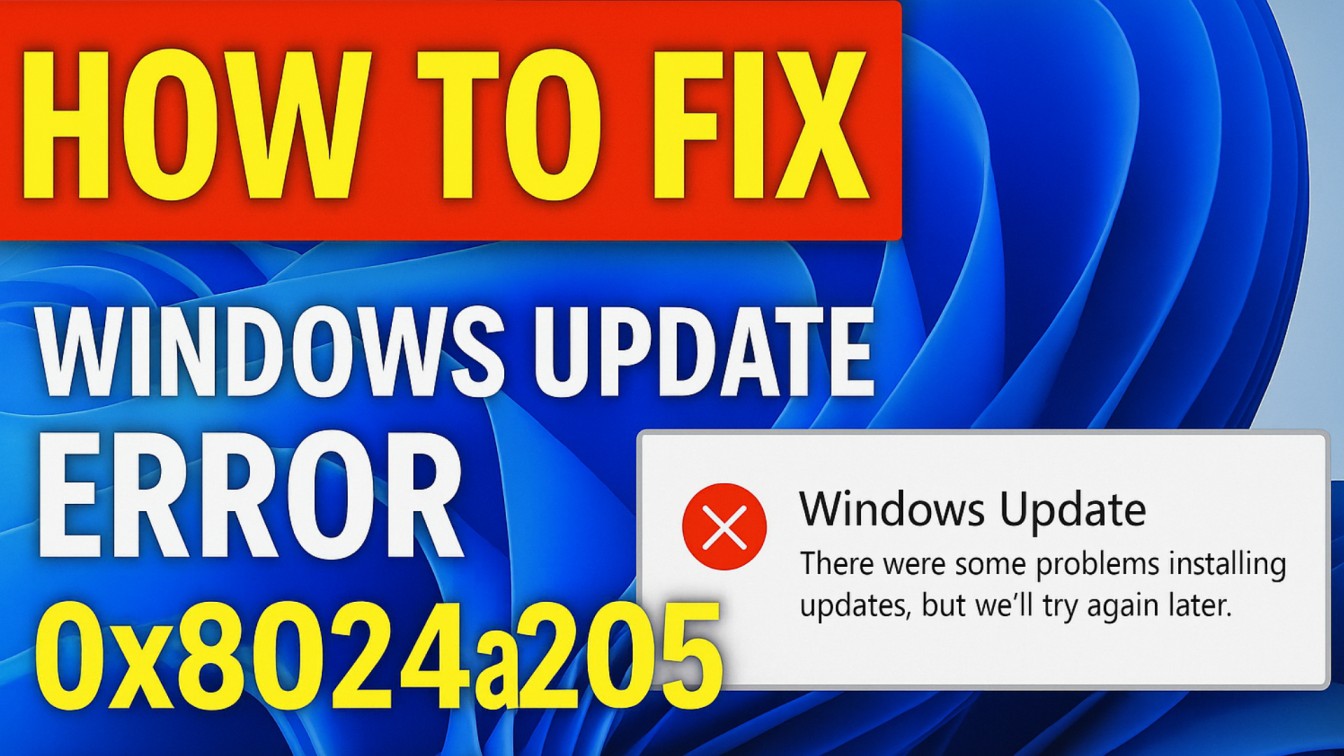
If you see the Windows Update Error 0x8024a205 on your Windows 11 or 10 PC, it usually means something went wrong while installing a new update or feature upgrade. This error can be caused by corrupted system files, network problems, or issues with Windows Update components. The good news is that it can be fixed quickly with a few simple methods. In this blog, you’ll learn step‑by‑step solutions to troubleshoot and fix Windows Update Error 0x8024a205 so your system can update smoothly and stay secure.
🧰 Step-by-Step Fix from the Video
Here are the steps shown in the the video:
- Open Command Prompt (Administrator mode)
- Press Win + X, then choose Command Prompt (Admin) or Windows Terminal (Admin). This ensures you have elevated privileges.
- Stop the Windows Update and related services
- Run commands to stop key services used by Windows Update. For example:
net stop wuauserv net stop bits net stop cryptsvc - Stopping these services ensures the update components are not running or locked.
- Run commands to stop key services used by Windows Update. For example:
- Rename the SoftwareDistribution and Catroot2 folders
- These folders store downloaded updates and cryptographic information. The video suggests renaming them to force Windows to reinitialize them.
- Example commands:
ren C:\Windows\SoftwareDistribution SoftwareDistribution.old ren C:\Windows\System32\catroot2 catroot2.old- Renaming prevents Windows from using legacy or potentially corrupted files.
- Restart the previously stopped services
- After renaming the folders, restart the services you stopped earlier:
net start wuauserv net start bits net start cryptsvc - This restores the update infrastructure but now with freshly created folders / data stores.
- After renaming the folders, restart the services you stopped earlier:
- Reboot the computer
- Once the services are restarted, perform a full restart. This ensures all changes are applied and components are re-initialized.
- Check for Windows Updates again
- After reboot, go to Settings → Update & Security → Windows Update (or equivalent in Windows 11).
- Run “Check for updates” again. The update process should now no longer get stuck with error 0x8024a205, and updates should download and install properly.






