
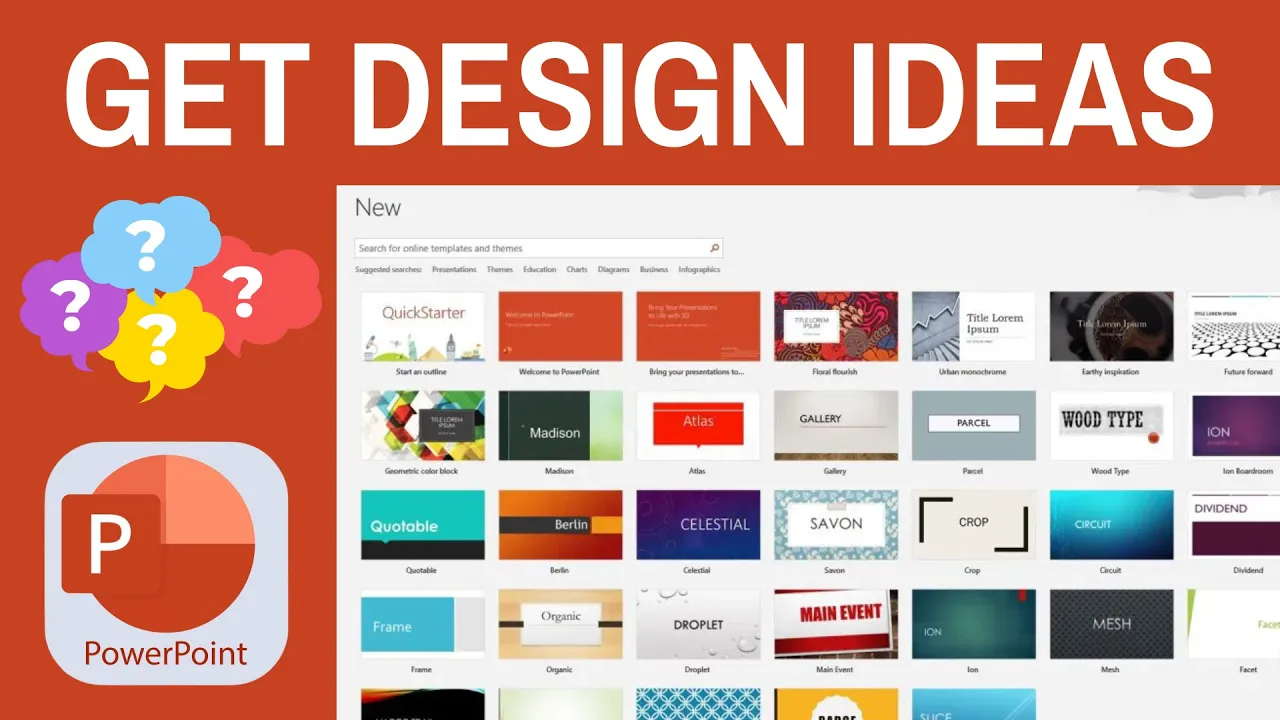
Getting design ideas in PowerPoint is a quick way to make your slides look professional without spending hours on formatting. Whether you’re a student making a project, a teacher preparing lessons, or a professional creating a business presentation, PowerPoint’s built-in Design Ideas feature helps you turn plain slides into eye-catching ones. The good news is, it’s very simple to use and doesn’t require any design skills. In this beginner-friendly blog, we’ll explain in easy language how to get design ideas on PowerPoint, so you can create beautiful presentations with just a few clicks.
Step-by-Step Guide: How to Get Design Ideas in PowerPoint
1. Open PowerPoint & Create a Slide
- Launch Microsoft PowerPoint and open a new presentation (or an existing one).
- Add a new slide with a layout that includes a title, text box, or image — as Design Ideas usually depends on content.
2. Use the “Design Ideas” Feature
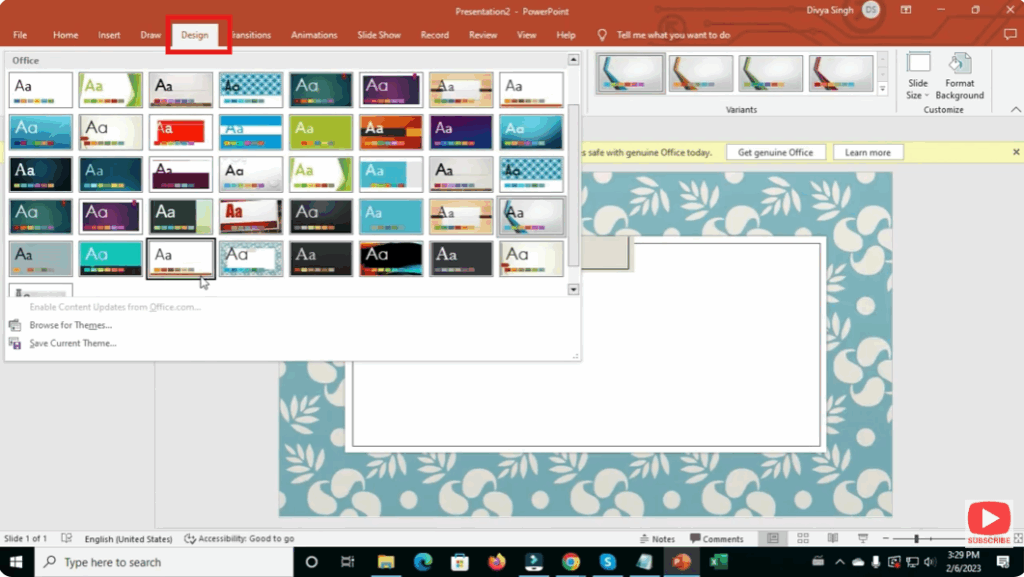
- With your slide selected, go to the Design tab in the Ribbon.
- Click on Design Ideas (sometimes labeled Designer) on the far right.
- PowerPoint will display suggested slide layouts based on the elements you’ve added (text, images, icons).
- Scroll through the suggestions and click one to apply it to your slide.
3. Customize the Suggestions
- After selecting a design idea, you can still change things:
- Move or resize text boxes and images.
- Swap colors, fonts, or background to match your branding or style.
- Insert more content and re-open “Design Ideas” for fresh suggestions.
- This gives you a base layout, but you retain full control over the styling.
4. Use Themes & Variants
- On the Design tab, browse built-in Themes — these are pre-made design packages (colors, fonts, effects).
- Once you apply a theme, use Variants (next to the theme gallery) to choose different color schemes or styling options.
- This combination of Themes + Design Ideas gives you a wide range of design flexibility.
5. Insert Icon / Image / Graphic & Re-run Designer
- Add icons or graphics to your slide: Insert → Icons / Pictures / Online Pictures.
- Once added, re-click Design Ideas — PowerPoint’s Designer may propose new layout suggestions to integrate your visuals.
- This is especially helpful for creating infographics or visually-rich slides.
6. Use PowerPoint Templates
- Instead of starting from scratch, use a template: Go to File → New, then choose a template from Microsoft’s library or third-party sources.
- Templates often come with suggested layouts already optimized for design.
- After choosing a template, you can still use Design Ideas to refine individual slides.
7. Apply Design Ideas Across Multiple Slides
- When you insert new slides, you can apply Design Ideas on each slide individually.
- For faster consistency: design one “master slide” using ideas, then duplicate it or reapply the layout to other slides.
- Alternatively, use Slide Master View (View → Slide Master) to create a custom design that applies to all slides.
Conclusion
PowerPoint’s Design Ideas feature is a powerful way to make your slides look more polished and professional — fast. By entering a little content and then letting Designer propose layouts, you save time and get consistent, visually appealing designs. Combine it with themes and high-quality graphics, and you’ve got a strong foundation for any presentation.






