
SideQuest is a popular app and platform that lets virtual reality (VR) users find and install games, apps, and tools that aren’t available on the official Quest store. If you want to get the most out of your Quest headset, setting up SideQuest on your Windows PC is a simple way to discover new VR experiences, try early-access titles, and install custom content easily. In this guide, you’ll learn how to download, install, and start setting up SideQuest on Windows so you can begin exploring even more fun VR apps and games right away.
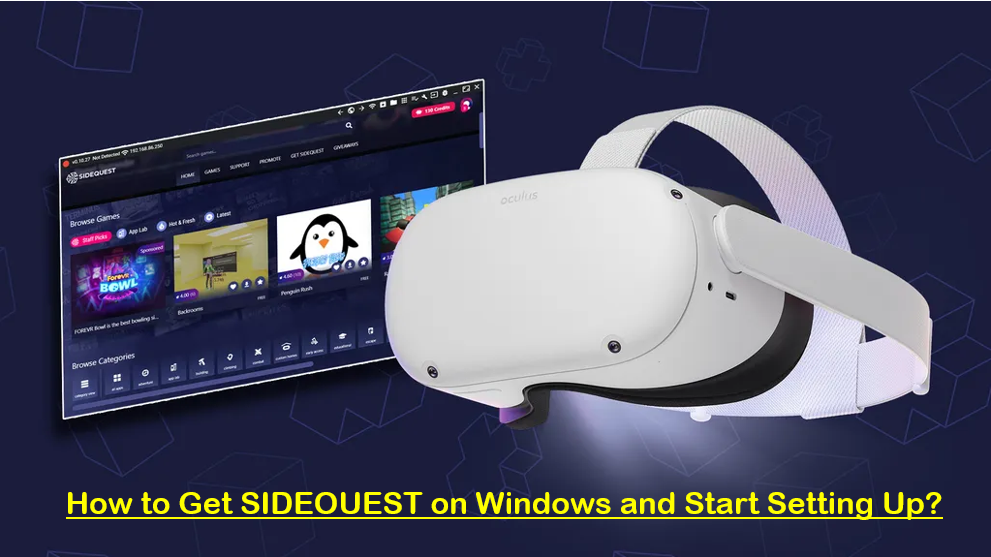
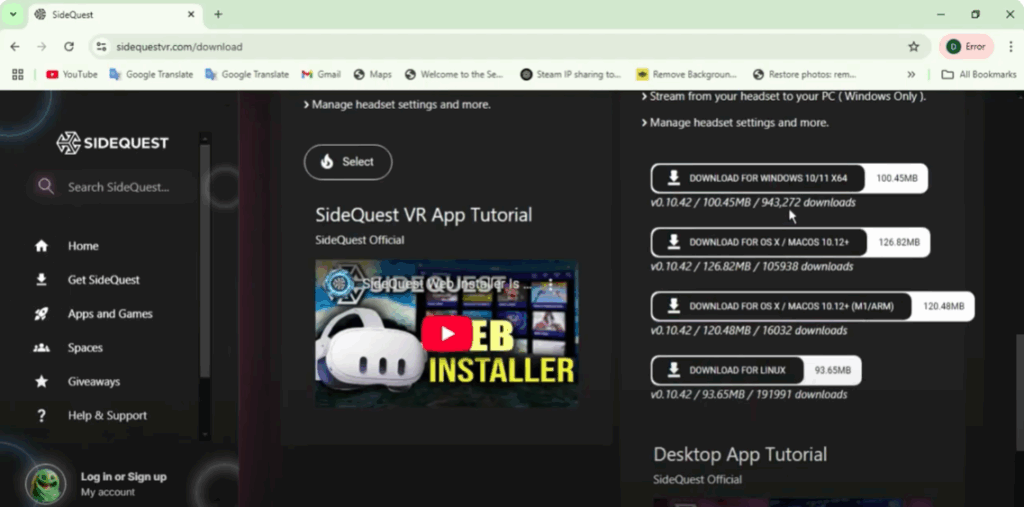
Step One: Install SideQuest on Your Computer
- Visit the SideQuest download page sidestvr.com/download and download the appropriate installer for your operating system.
- Run the installer and follow the onscreen instructions to complete the installation.
Step Two: Enable Developer Mode on Your MetaQuest Headset
- Open the Meta app on your smartphone.
- Go to Devices and select your headset.
- Go to Developer Mode and toggle it on.
Step Three: Connect Your Headset to Your Computer
- Use a USB-C cable to connect your MetaQuest headset to your computer.
- Put on your headset and when prompted, allow USB debugging and data access.
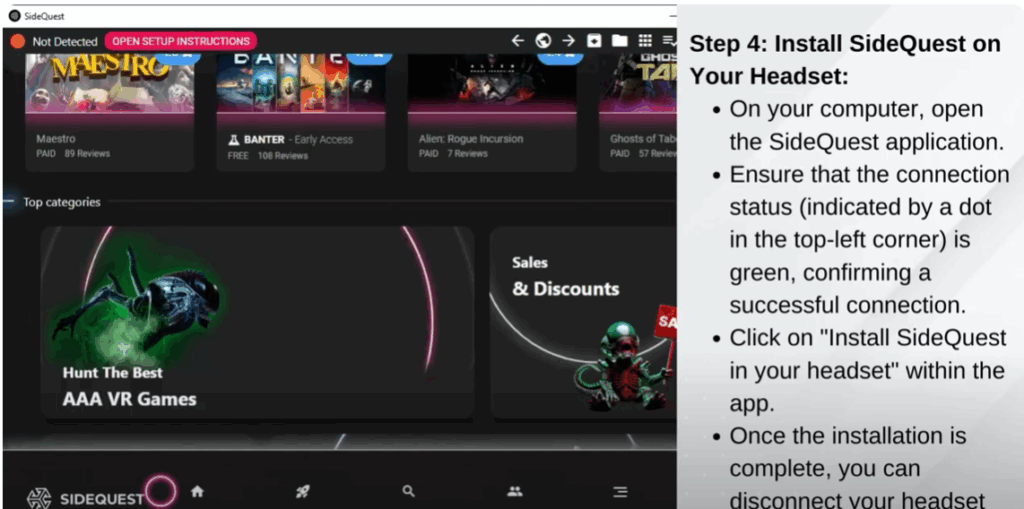
Step Four: Install SideQuest on Your Headset
- On your computer, open the SideQuest application.
- Ensure that the connection status indicated by a dot in the top left corner is green, confirming a successful connection.
- Click on Install SideQuest in your headset within the app.
- Once the installation is complete, you can disconnect your headset from the computer.
Step Five: Launch SideQuest on Your Headset and Link Your Account
- Put on your headset and navigate to Apps.
- Select Unknown Sources from the drop-down menu.
- Launch the SideQuest app.
- A six-digit code will appear on the screen.
- On your computer or mobile device, open a browser and go to https://sdq.st/link.
- Enter the six-digit code to link your SideQuest account to your headset.
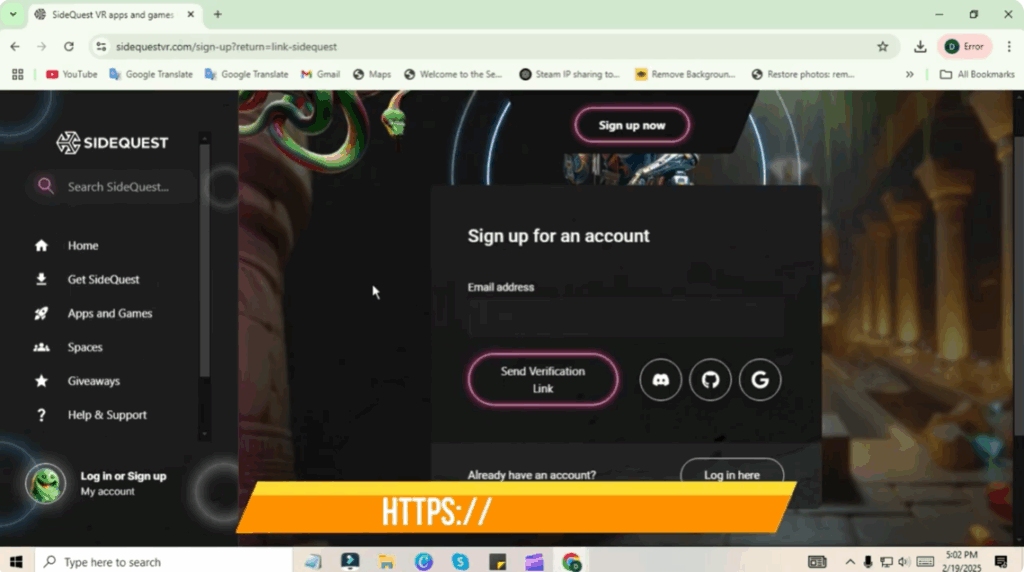
After completing these steps, your SideQuest account will be linked to your MetaQuest headset, allowing you to browse and install VR content directly from the SideQuest app on your device.
For additional assistance or troubleshooting, refer to the SideQuest setup guide at sidestvr.com/download.






