
Want to use WhatsApp right from your PC — no phone needed (except for initial setup)? You’re in luck. In this guide, I’ll walk you through how to install WhatsApp on Windows, link it to your phone, and some tips to make it work smoothly.
Method 1: Installing WhatsApp Desktop App
This gives you a standalone app on your Windows computer.
Step 1: Download the App
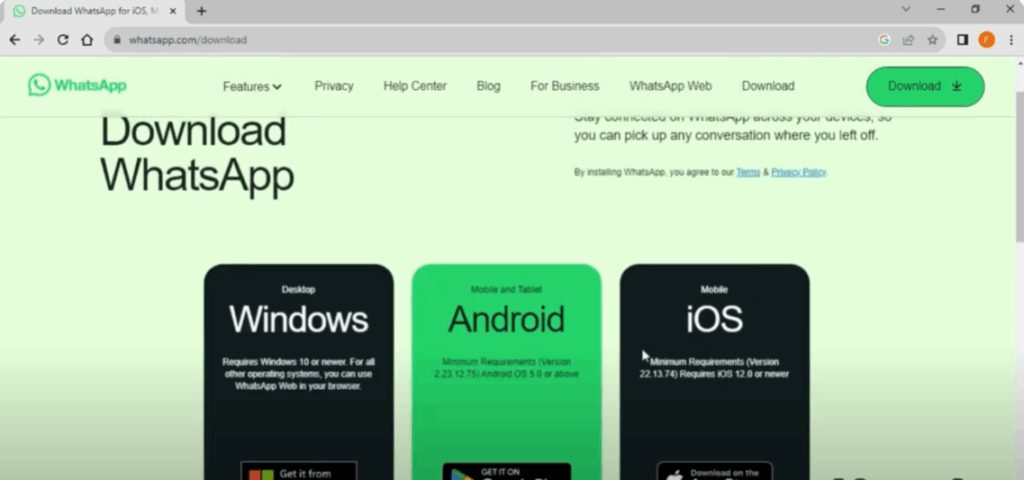
- Go to the official WhatsApp site and download the Windows Desktop version (64-bit or 32-bit, per your system).
- The official website usually provides this.
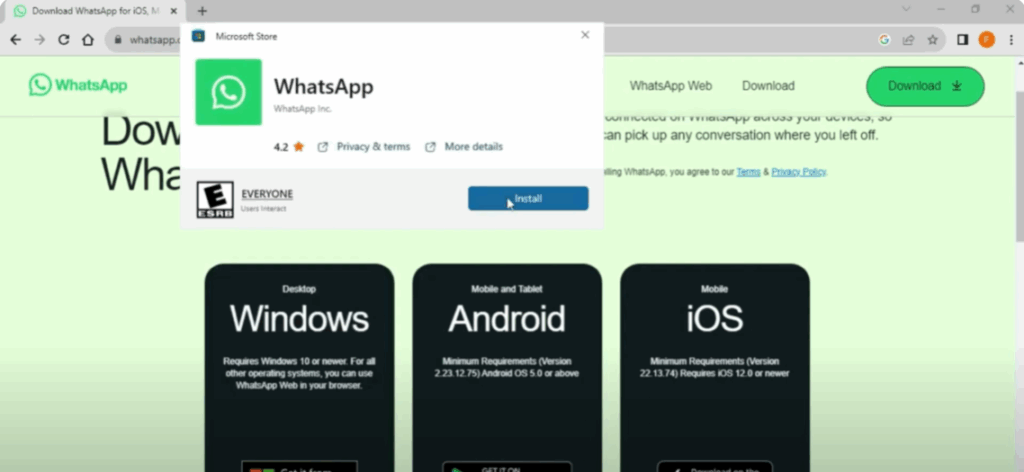
- Alternatively, for Windows 10/11, you can also download via Microsoft Store.
- You can also use the installer EXE if Store isn’t working.
Step 2: Install the App
- Run the installer file you downloaded (e.g.
.exe). - Grant necessary permissions (e.g. “Allow this app to make changes to your device”).
- Wait for installation to complete.
Step 3: Link with Your Phone
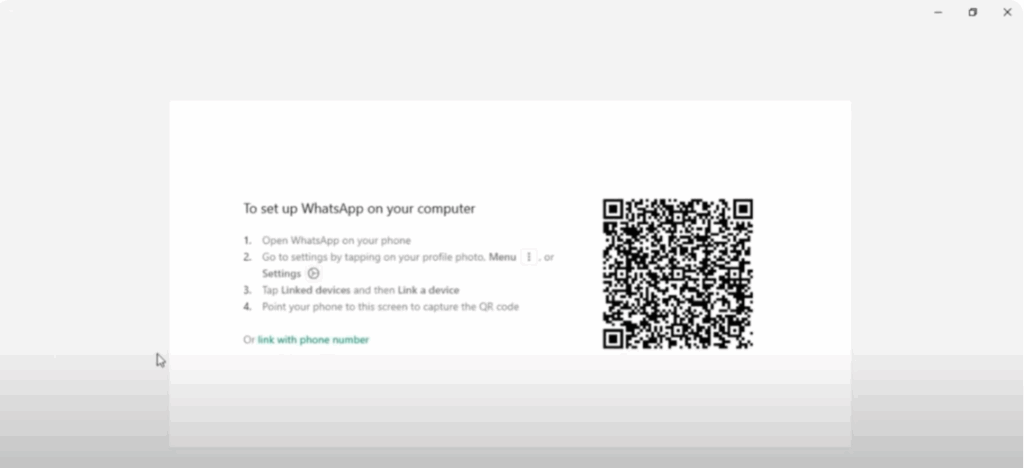
- Open the WhatsApp app on your phone → Go to Settings → Linked Devices (or similar option).
- In the PC app, you’ll see a QR code. Use your phone to scan that QR code.
- Once scanned, your WhatsApp account (messages, contacts) synchronizes with the desktop app.
Step 4: Start Using WhatsApp on PC
- You can now send/receive messages, share files, images, voice notes—just like on the phone.
- The app gives you features like notifications, dark mode, etc.
📌 Summary
- You can use WhatsApp on Windows via the Desktop App or WhatsApp Web.
- The desktop app gives a richer experience, while Web is quick and requires no installation.
- Link to your phone using QR code, and you’ll be up and running in minutes.






