
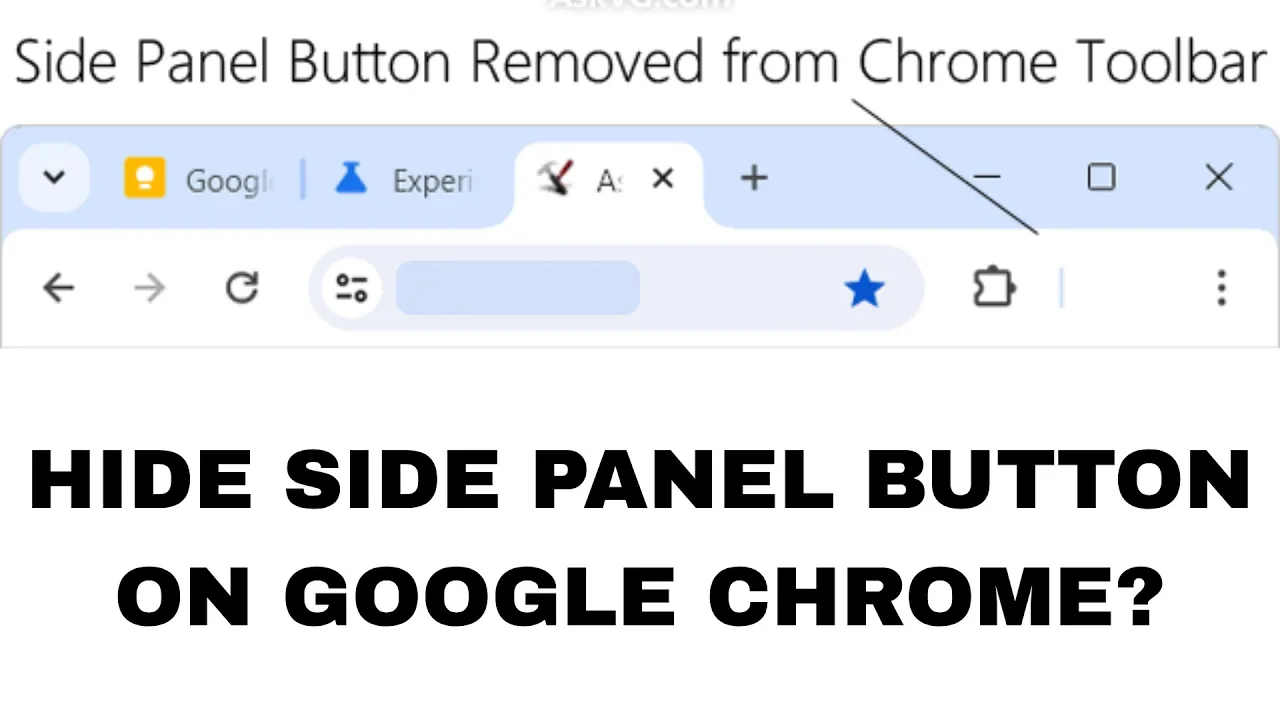
Not a fan of the side panel button on your Google Chrome browser? You’re not alone! That little button on the top-right corner can feel unnecessary or distracting, especially if you don’t use it often. The good news is—you can hide or remove the side panel button with just a few simple steps. In this blog, we’ll show you how to turn it off easily, so your Chrome toolbar looks cleaner and more focused. Let’s get started!
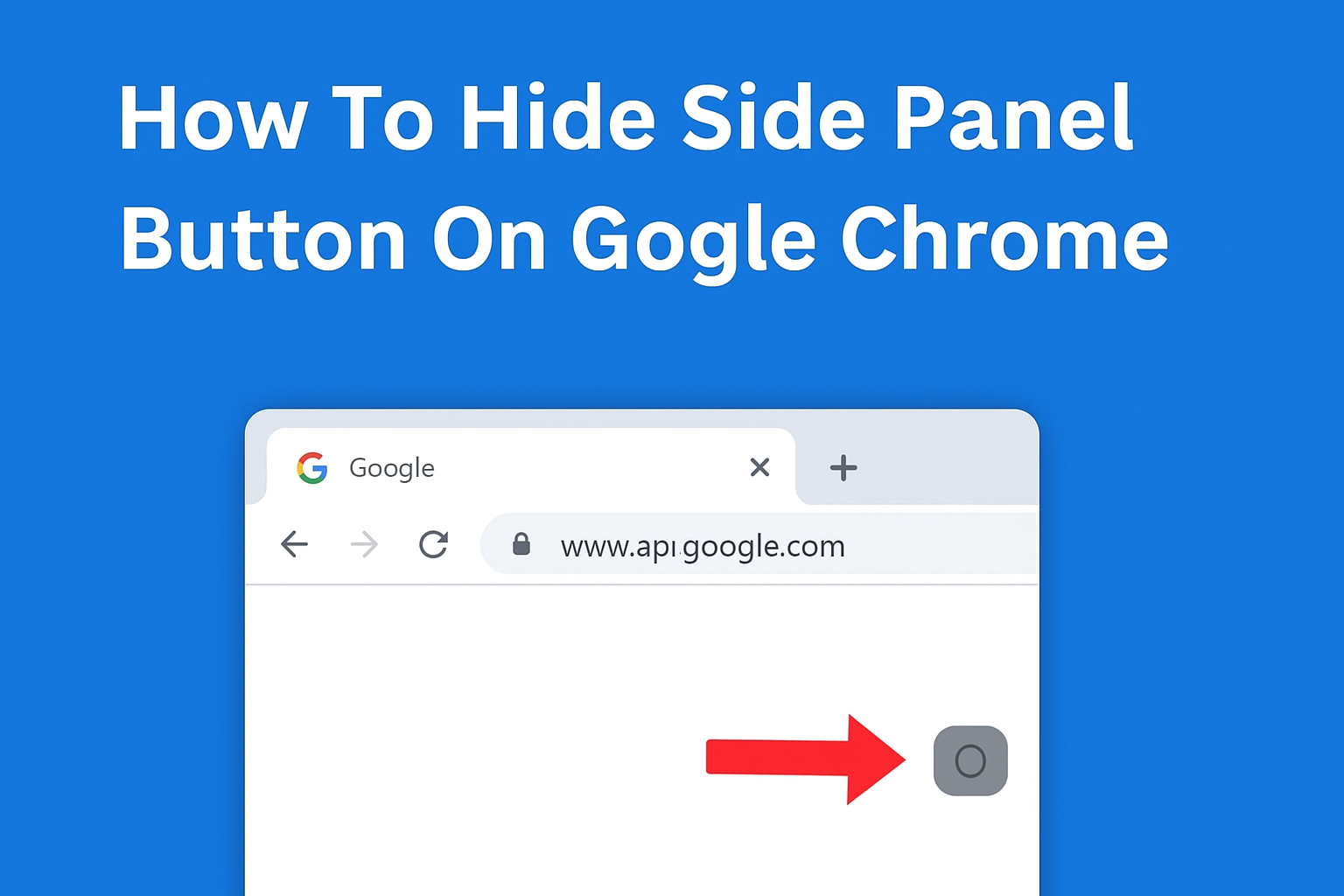
✅ Method 1: Disable Side Panel Button Using Chrome Flags
Chrome Flags are hidden experimental settings that allow you to customize Chrome features.
Follow These Steps:
- Open Google Chrome on your PC.
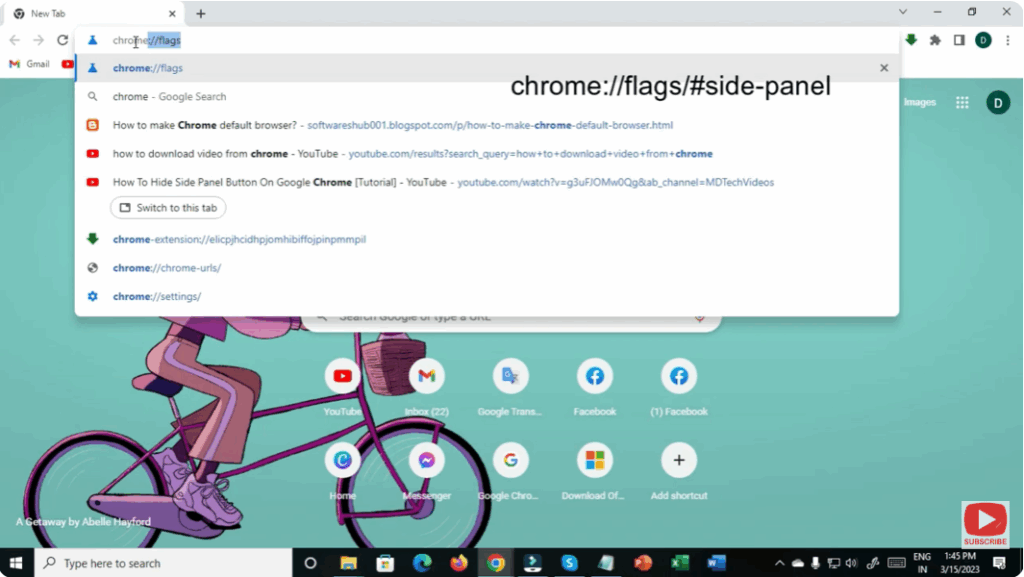
- In the address bar, type:
chrome://flagsand press Enter.
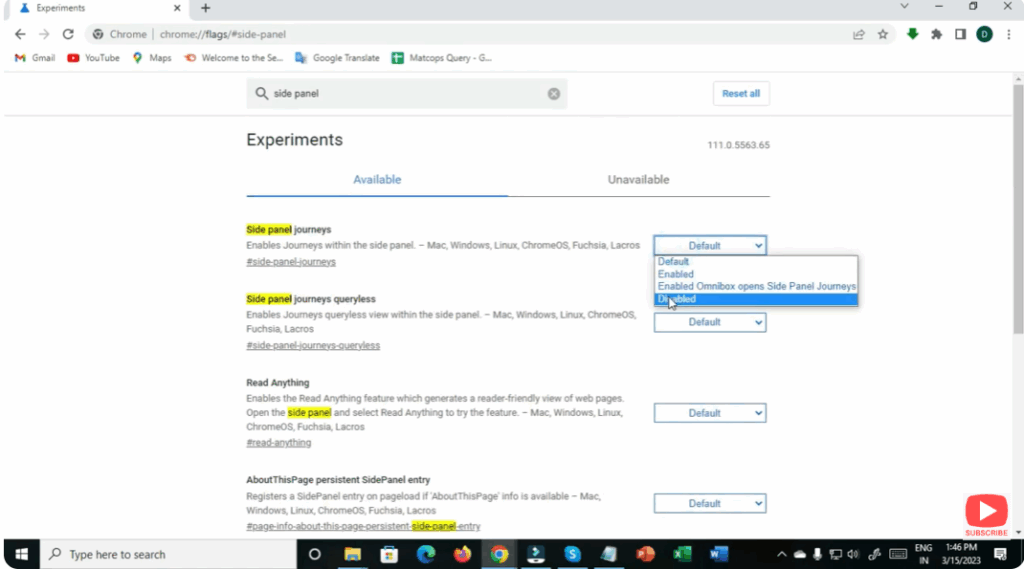
- In the Search Bar, type:
Side Panel - Look for:
- Side Panel
- Side Panel Improvement
- Change the setting to Disabled using the drop-down menu.
- After disabling, click on Relaunch to restart Chrome.
Once Chrome restarts, the Side Panel button will disappear.






