
Want a cleaner look on your Windows desktop or just need more space on your screen? Hiding the taskbar is a simple trick that can help! Whether you’re watching a video, working on a project, or just prefer a minimal setup, Windows lets you auto-hide the taskbar so it only shows when you need it. In this blog, we’ll walk you through easy steps to hide the taskbar on your Windows computer, so your screen looks neat and distraction-free. Let’s get started!
✅ For Windows
- Right-click on an empty area of the taskbar and select Taskbar settings.
- In the Settings window, find the toggle labeled “Automatically hide the taskbar in desktop mode”.
- Turn this toggle On.
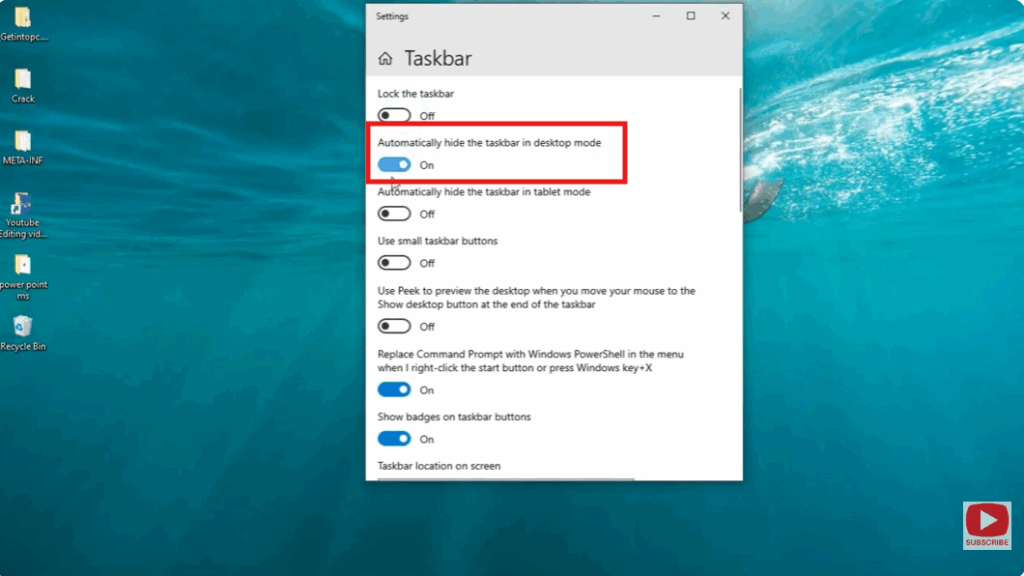
- If you use a tablet or 2-in-1 and want the taskbar hidden in tablet mode too, turn “Automatically hide the taskbar in tablet mode” On.
- Close the Settings. Now the taskbar will appear only when you move your mouse pointer to the bottom (or side) of the screen.






