
If you’re looking to maximize your screen space or simply want a cleaner desktop, hiding the taskbar in Windows is a breeze. Here’s how to do it:
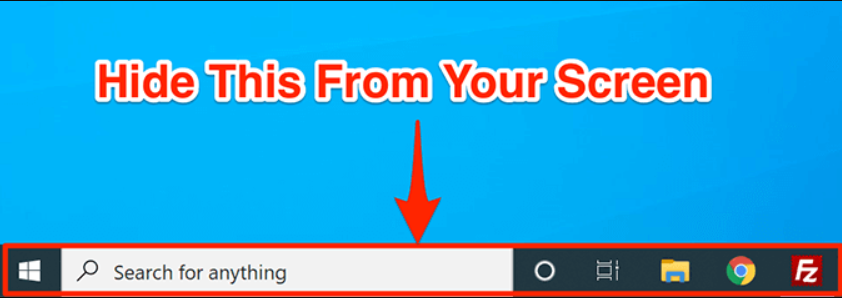
Method 1: Auto-Hide the Taskbar via Settings
This method works on both Windows 10 and Windows 11.
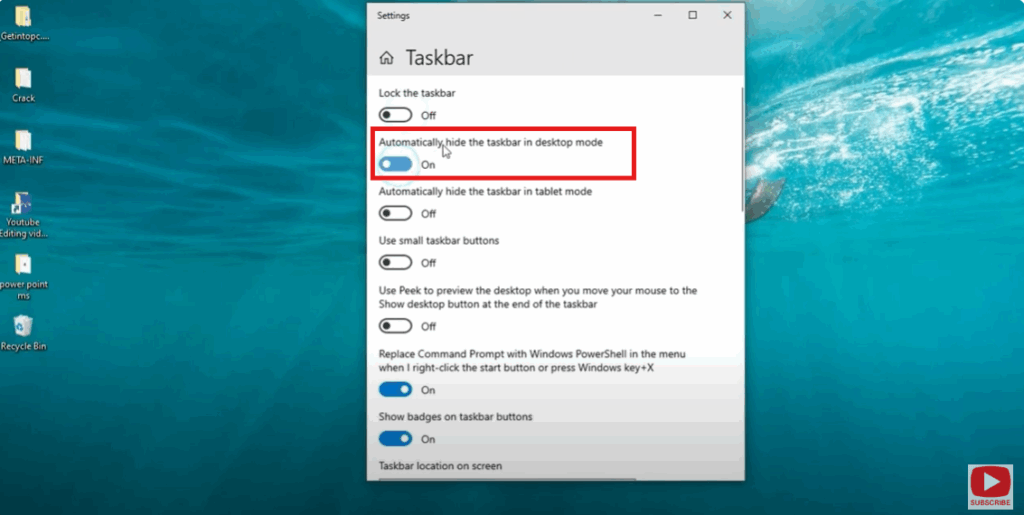
- Right-click on an empty area of the taskbar.
- Select Taskbar settings (or Settings > Personalization > Taskbar).
- Scroll to Taskbar behaviors.
- Enable the toggle for Automatically hide the taskbar.
Now, the taskbar will remain hidden until you hover your mouse at the bottom, clearing more screen space for your apps.
Method 2: Temporary Hide Using NirCmd (for Windows 10/11)
For more control, you can use a lightweight tool called NirCmd to manually hide or show the taskbar:
- Hide the taskbar:
nircmd.exe win hide class Shell_TrayWnd - Show the taskbar:
nircmd.exe win show class Shell_TrayWnd
You can create a batch file that runs at startup to keep the taskbar hidden by default.
Bonus Tip: Use Virtual Desktops as an Alternative
If your goal is to keep the taskbar from showing certain apps (not hide it completely), try using Virtual Desktops:
- Press
Win + Ctrl + Dto create a new desktop. - Move apps you want hidden to a different desktop.
- Switch between desktops as needed using
Win + Ctrl + Left/Right.
This keeps certain windows taskbar-free while navigating between desktops.
Pro Tips & Common Issues
- Maximizing screen space? Auto-hide is usually sufficient and easy.
- Keep productivity tools visible? Consider a third-party tool with toggle hotkeys.
- Using browsers like Firefox full-screen? Sometimes, the taskbar may not reappear properly. A workaround is toggling auto-hide in Taskbar settings.






