

The mouse pointer is one of the most important tools for navigating your computer, but sometimes it can be hard to spot—especially on large screens or when multitasking. If you often lose track of your cursor, Windows 10 and 11 offer built-in options to highlight or customize the pointer so it’s easier to see. This simple tweak can save time, reduce frustration, and even improve accessibility for users with vision challenges. In this beginner-friendly blog, we’ll explain step by step how to highlight the mouse pointer on Windows 10/11, so you can keep your workflow smooth and efficient.

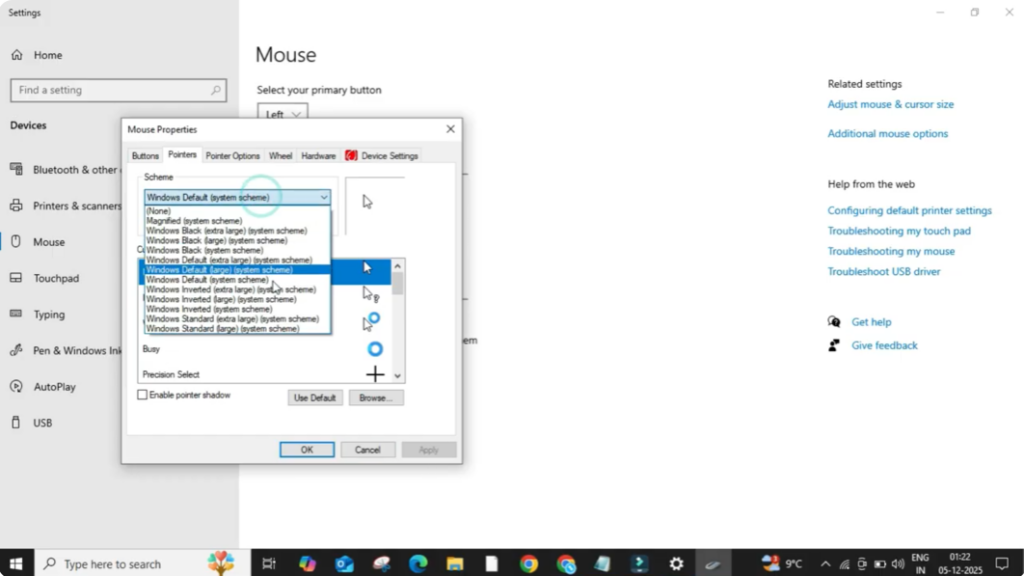
Firstly, click on the search bar and type mouse settings and then click on it from the results. Once the mouse settings window opens, look on the right side and click on additional mouse settings. A small window will appear.
Now, click on the pointers tab. Here you can change the type of cursor used on your system. You will see different cursor icons and schemes you can apply. Choose any scheme you like. After selecting it, click on apply and then click okay.
Now we will go to the RW designer website where you can find a variety of attractive custom mouse pointer designs. These highlighted pointers make your cursor more visible, especially for tutorials or screen recordings.
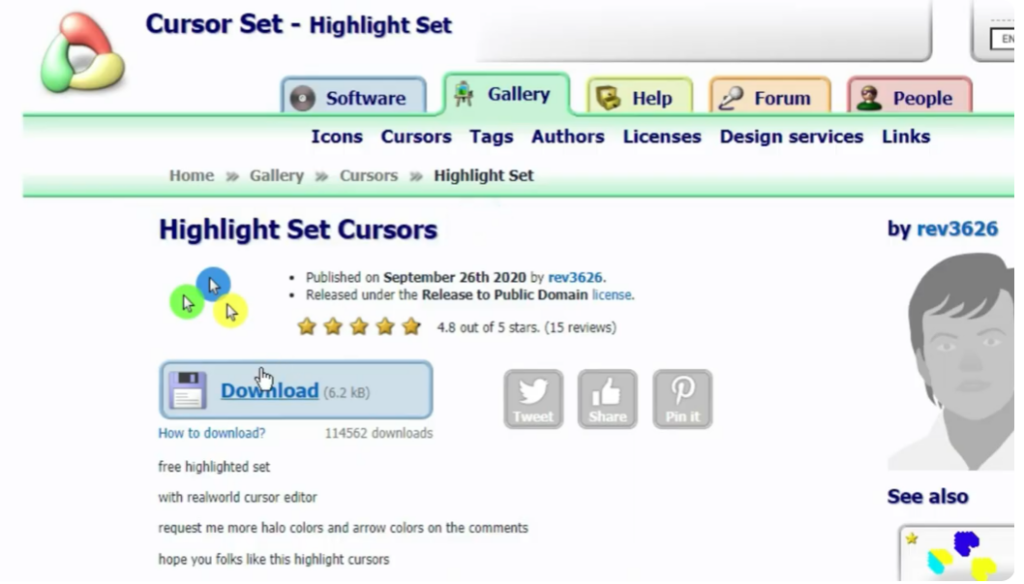
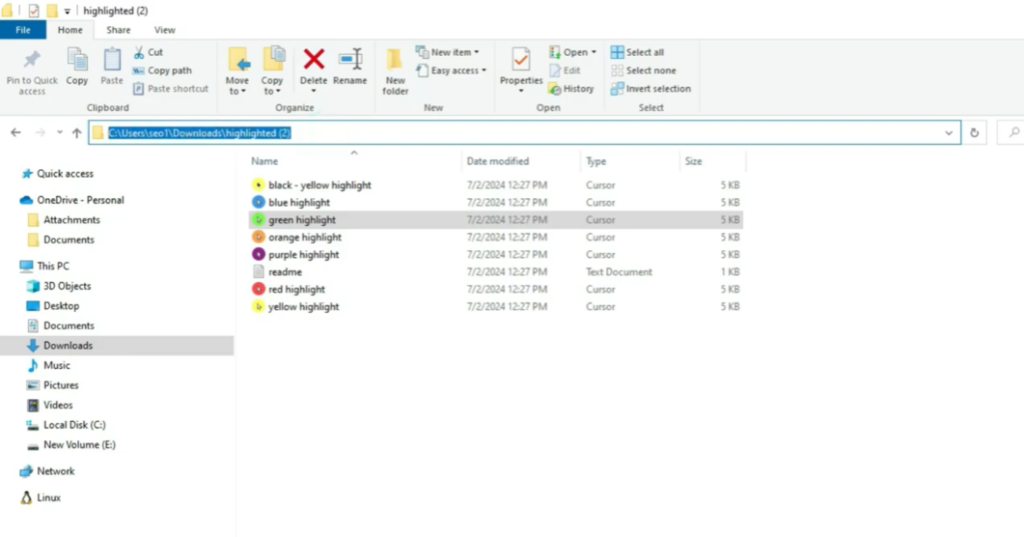
To apply these files to your computer, you first need to download them. After downloading you will get a zip file. Right click on the zip file and select the option extract here or extract to folder name. After extraction you will see the folders.
Now open the folder named green highlight. Inside it note the file location because we will use this path in a moment.
Next open additional mouse settings again. Click on the pointers tab one more time. Now click on the browse button at the bottom right. A window will open. Click on this PC then click on downloads and then open the folder named highlight 2 or whichever folder you extracted earlier.
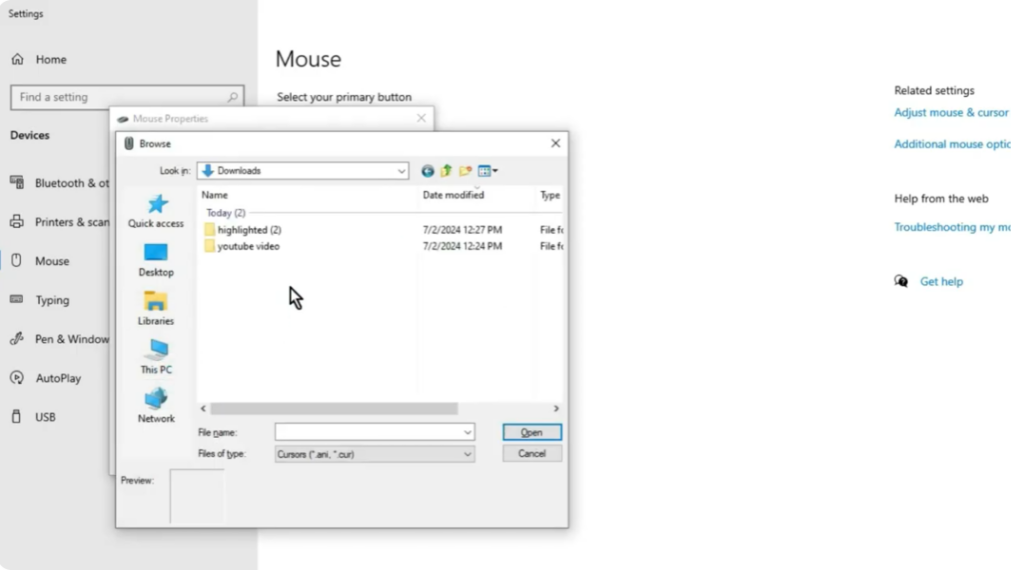
Now click on green highlight. Select the pointer file and then click on open. Once the pointer is selected, click on apply and then click okay to save the changes. Your mouse pointer will now have a green highlighted effect making it easier to see on the screen.






