

Ever wondered how to identify a font from an image, logo, or screenshot without guessing? Online font finder tools use AI to analyze text in pictures and match it to thousands of fonts instantly. In this blog, you’ll learn easy steps to upload your image to free tools like WhatTheFont, Font Squirrel Matcherator, or MyFontFinder and find the exact font name for your design projects.
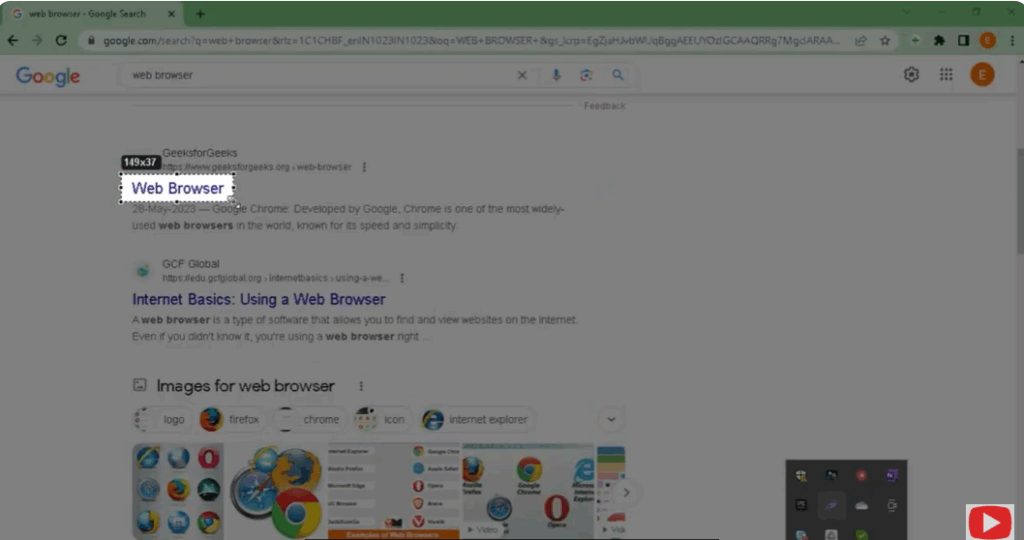
Step 1: Take a Screenshot of the Font
Take a screenshot of any font you want to detect and save it.
This image can be from your gallery or can be any font searched on Google.
You can save it by taking a screenshot.
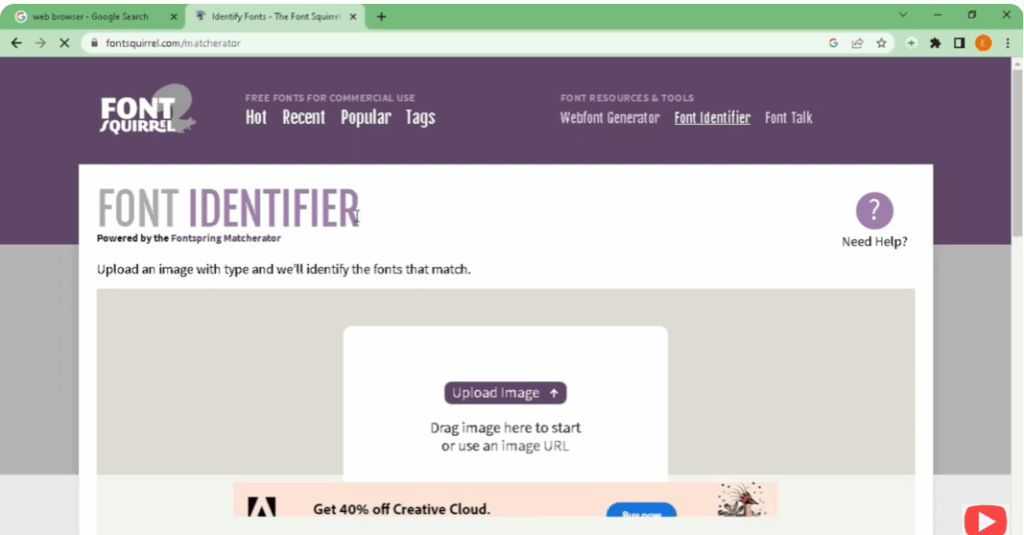
Step 2: Search for a Font Identifier Tool
Search font identifier in a new tab.
Open the website. Here you will see the option of Upload Image.
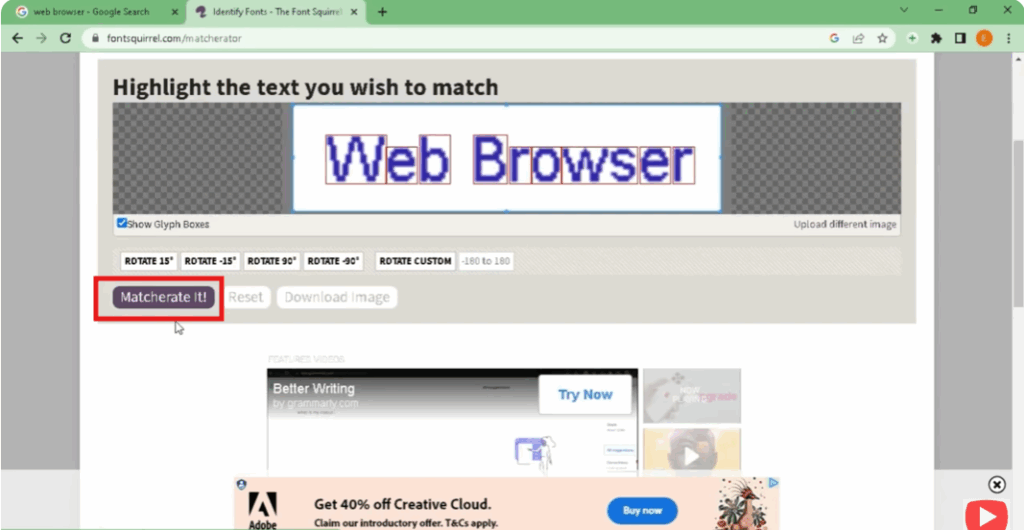
Step 3: Upload Your Image
Go to Upload Image and choose the image from your device.
This will detect your font.
Here you will see the option “Matcherate it!” — click on it.
Step 4: View the Detected Font
This will give you the according font of the image by detecting it.






