

Switching browsers can feel like a chore—especially when you want to bring all your important data (logins, favorites, history) along. The good news: Microsoft Edge supports importing from Firefox, making the transition smooth. Below is a clear step-by-step guide to get your Firefox data into Edge in just a few minutes.

🛠 Step-by-Step: Import Your Firefox Data into Edge
Here’s how to do it:
Step 1: Open Microsoft Edge Settings
- Launch Microsoft Edge.
- Click the three dots ( … ) in the top right (Settings and more).
- Go to Settings.
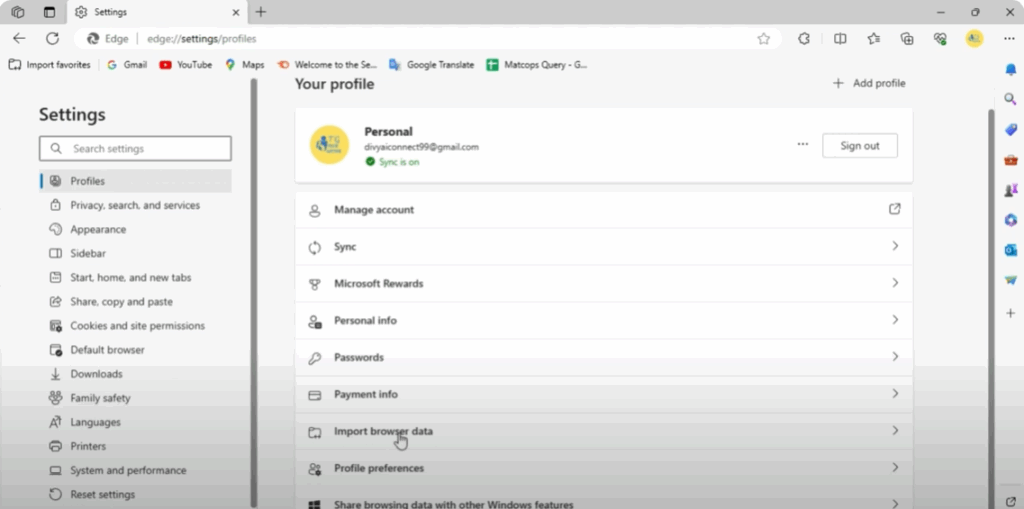
- In Settings, navigate to Profiles → Import browser data (or “Import browser data” directly).
- Alternatively, go to
edge://settings/importDatain the address bar.
- Alternatively, go to
Step 2: Choose Firefox as the Source
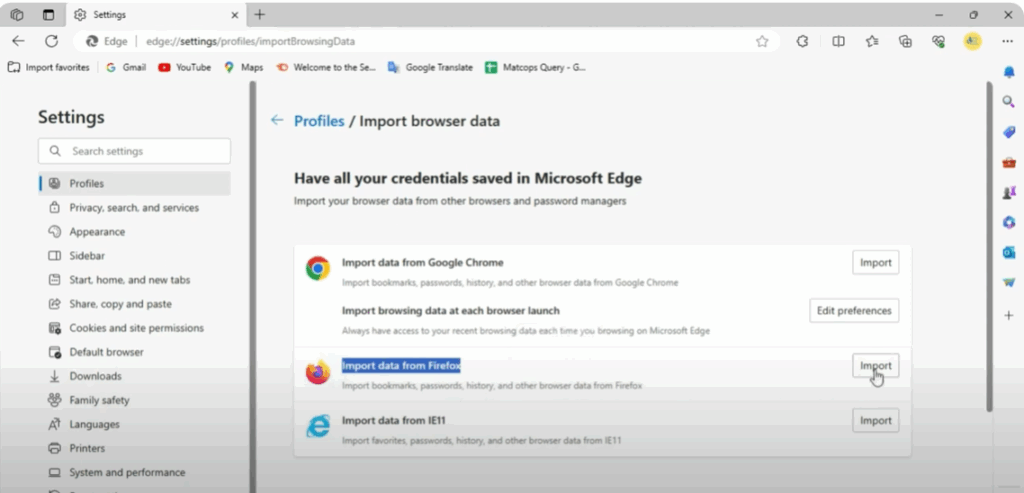
- In the Import browser data dialog, under “Import from”, select Mozilla Firefox (or “Firefox”) from the list of supported browsers.
- Edge will scan for available Firefox profiles and data.
Step 3: Pick What to Import
You will see a list of checkboxes such as:
- Favorites / Bookmarks
- Passwords
- Autofill / Address data
- Browsing history
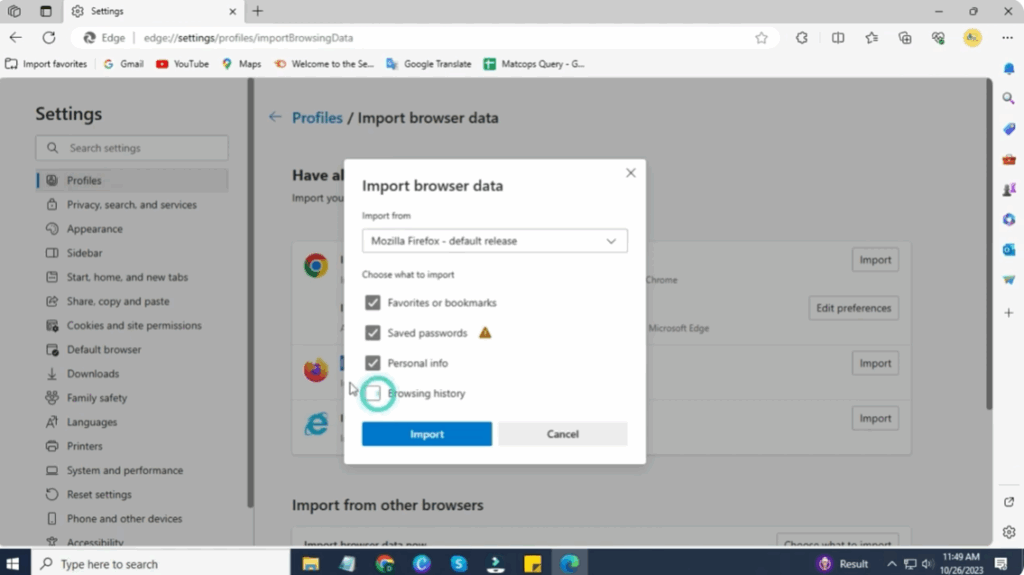
Check the ones you want to bring over (or all of them).
Step 4: Import & Wait
- After selecting, click Import.
- Edge will begin the import. Depending on the size of your Firefox data, this might take a few moments.
- Once done, Edge may show a confirmation message.
Step 5: Verify in Edge
- Bookmarks / Favorites: Check the Favorites menu or
edge://favoritesto see imported bookmarks. - Passwords: Go to
edge://settings/passwordsto view imported logins. - History: Open History in Edge to see your previously visited sites.
✅ Final Thoughts
Importing your Firefox data into Microsoft Edge is straightforward and lets you carry over your browsing life (bookmarks, passwords, history) in just a few clicks. Use the Import browser data tool in Edge’s settings, choose Firefox as the source, select what you want to move, and verify once complete.






