
Adding a calendar or date picker in Excel makes it much easier to select dates without typing them manually. Instead of worrying about formatting errors or typing mistakes, you can simply click and choose the right date from a calendar pop-up. This is especially useful for attendance sheets, project timelines, or any task where accurate dates matter. The good news is, Excel provides simple ways to insert a calendar using built-in tools or add-ins. In this beginner-friendly blog, we’ll explain how to insert a calendar in Excel step by step, so you can make your spreadsheets more interactive and error-free.
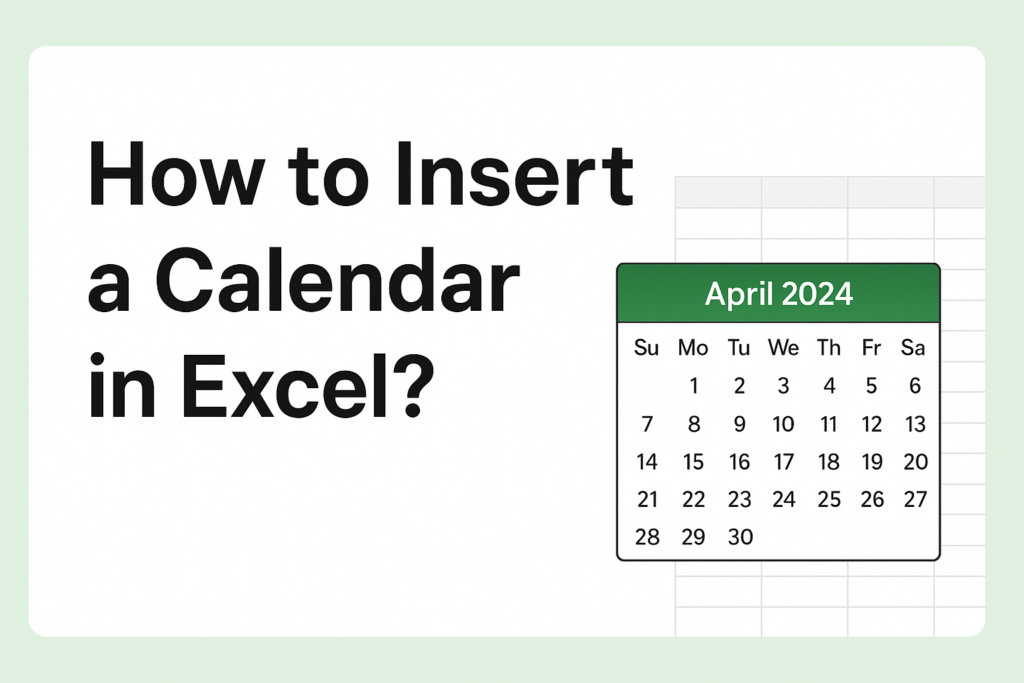
✅ Methods to Insert a Calendar / Date Picker in Excel
Depending on your version of Excel (32-bit vs 64-bit) and comfort with settings or add-ins, you have several methods. Here are the main ones:
🔹 Method 1: Use the Built-in (ActiveX) Date Picker Control [only in certain Excel versions]
- Enable the Developer tab:
- Go to File → Options → Customize Ribbon → check Developer.
- On the Developer tab, click Insert → More Controls under ActiveX Controls.
- In the list, select “Microsoft Date and Time Picker Control 6.0 (SP6)” (or similar) and click OK.
- Draw the control on the worksheet. In design mode you can resize or move it. Then link it to a cell using the control’s LinkedCell property (so that when you pick a date, it gets entered into that cell).
- Exit design mode; now clicking the calendar control lets you pick a date which gets populated into the linked cell.
Note / Limitation: This control works only in certain versions of Excel (mostly 32-bit). Many modern 64-bit versions of Excel no longer include this built-in date picker.
🔹 Method 2: Use a Third-Party Date Picker / Add-in or Popup Calendar
Because the built-in control may be unavailable in newer Excel versions, many use external add-ins or calendar tools. Popular choices include custom add-ins or tools like XLTools that offer a popup calendar / date-picker feature.
- After installing such add-in, you can often click a calendar icon/button to open a date picker and select a date.
- Works even on 64-bit Excel; no reliance on deprecated ActiveX controls.
Tip: Since add-ins often use macros or extra features, you may need to save your workbook as macro-enabled (.xlsm) and enable macros when opening the file.
🔹 Method 3: Use VBA + Custom Calendar (UserForm)
If you prefer not to rely on external add-ins but still want a date picker — you can build a custom popup calendar using VBA (macro) and a UserForm. On click (or via a button), the form shows calendar date options; selected date gets inserted in the target cell.
This method works across Excel versions (32-bit or 64-bit), but requires some coding and users must enable macros.
🧠 Final Thoughts
Inserting a calendar (date picker) in Excel can greatly improve data entry reliability and user-friendliness — especially for tasks like scheduling, record-keeping, attendance, or project tracking.
If your Excel version allows — use the built-in control. If not — third-party add-ins or a small VBA calendar offer good alternatives. Choose the method that best fits your Excel version and how you plan to share the workbook.






