
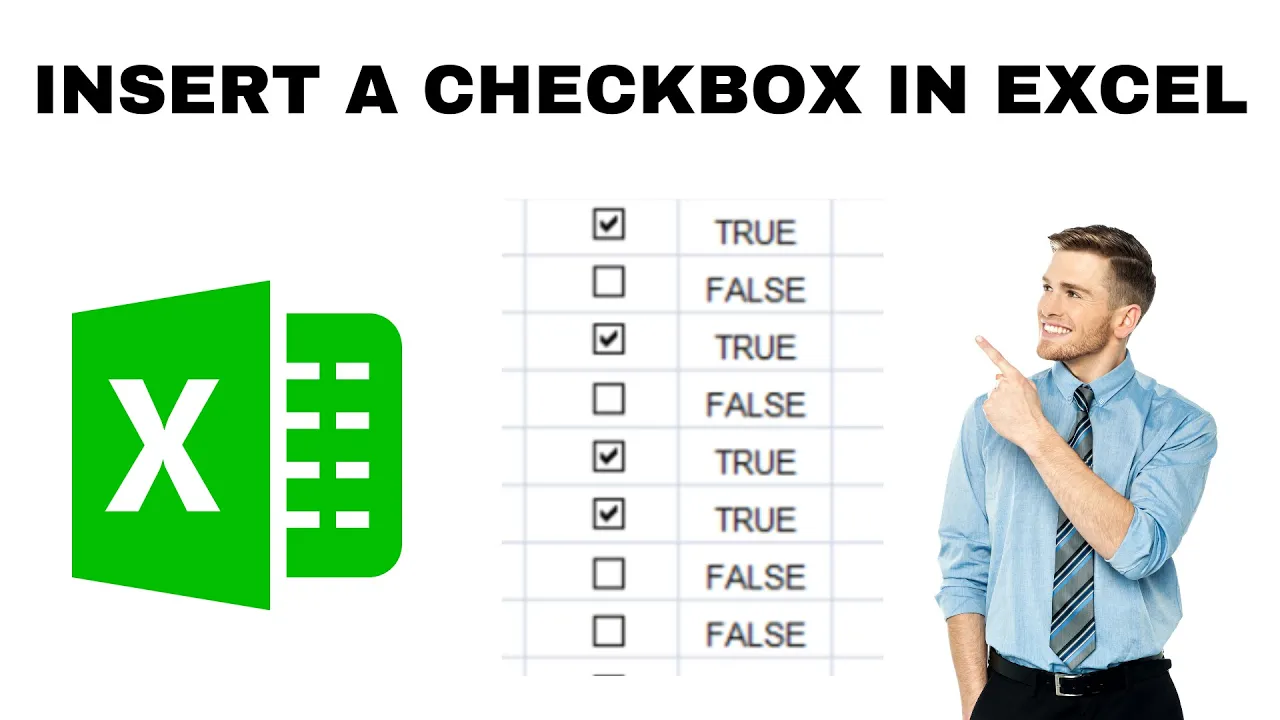
Checkboxes in Excel make your spreadsheets interactive for to-do lists, attendance sheets, or task trackers by letting users click to check/uncheck items easily. You’ll need the Developer tab enabled first, then insert form controls from the ribbon. In this blog, you’ll learn simple step-by-step instructions to add, link, copy checkboxes, and use them with formulas and conditional formatting for professional-looking sheets.
Full step-by-step (Form Controls — works in Excel 2010 → 365)
1) Show the Developer tab (if you don’t already have it)
- File → Options → Customize Ribbon.
- In the right column check Developer → OK.
(Or right-click the ribbon and choose Customize the Ribbon.)
2) Insert a checkbox
- Select the Developer tab → Controls group → click Insert.
- Under Form Controls click the Check Box icon (checkbox with a tick).
- Click on the worksheet where you want the checkbox — it will appear near that cell. Drag to reposition.
Tip: Right-click the checkbox text and choose Edit Text to change or remove the label (for a compact checklist you can delete the text and place the checkbox over the cell).
3) Link the checkbox to a cell (so it returns TRUE/FALSE)
- Right-click the checkbox → Format Control….
- Go to the Control tab → Cell link: click the small selector and click a cell (for example
B2) → OK. - Now when the checkbox is checked the linked cell shows
TRUE; when unchecked it showsFALSE. You can use that in formulas (see examples below).
Example formula: if B2 is the linked cell,
=IF(B2, "Done", "Pending")
4) Copy the checkbox to many cells quickly
- Select the checkbox, press Ctrl+C, select the destination cells or nearby locations and press Ctrl+V — or just drag a copy.
- Another fast way: place one checkbox, then use the fill handle like with normal objects: copy → paste repeatedly. Note: each pasted checkbox can be linked to its own cell manually or via macros for bulk linking.
5) Align checkboxes to cells neatly
- To position a checkbox exactly over a cell: select it, move it, then use the arrow keys for fine adjustments.
- If you want the checkbox to move and size with the cell (useful when resizing columns): right-click → Format Control → Properties → select Move and size with cells.
6) Delete checkboxes
- Select the checkbox and press Delete.
- To delete many at once: use Home → Find & Select → Selection Pane to select multiple checkboxes, or use VBA to remove all form controls.






