
Inserting a video into your PowerPoint presentation makes it more engaging and professional for meetings, classes, or events. You can easily add videos from your computer, YouTube, or online sources directly into slides with simple clicks. In this blog, you’ll learn easy step-by-step methods to insert, play, trim, and format videos in PowerPoint so your presentations stand out and keep audiences interested.

Step 1: Open Your PowerPoint Presentation
Start by opening PowerPoint and selecting the slide where you want to add the video.
You can choose an empty slide or a slide layout that supports content placement.
Step 2: Go to the Insert Tab
At the top of the PowerPoint window, click on the Insert tab.
This tab contains all media and content options for your slides.
Step 3: Click on the Video Option
Inside the Insert menu, locate the Video dropdown.
You will see multiple options such as:
- This Device (insert video from your PC)
- Online Videos
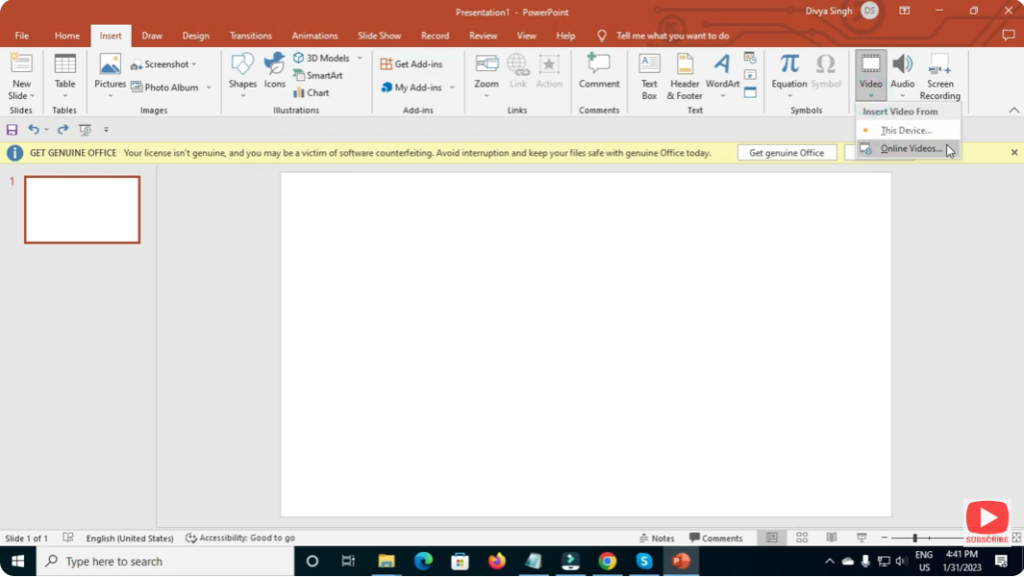
Select the one based on your requirement.
Step 4: Insert Video From Your PC
If the video is saved on your computer:
- Click Video → This Device
- Browse your folders
- Select the video file
- Click Insert
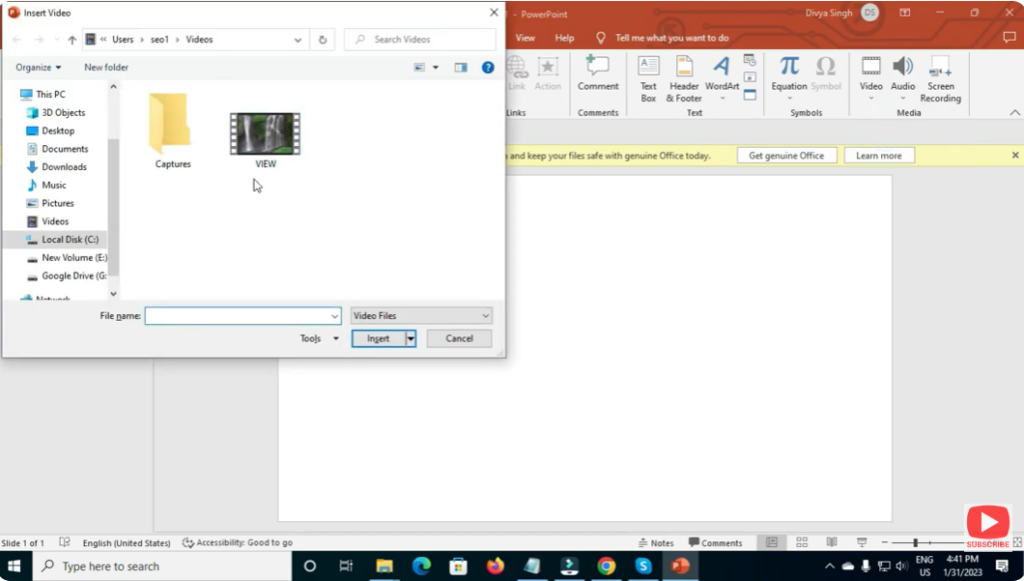
The video instantly appears on your slide.
Step 5: Insert Online Video (YouTube or Link)
To embed a YouTube or online video:
- Copy the video URL from YouTube
- In PowerPoint, click Insert → Video → Online Video
- Paste the URL in the box
- Click Insert
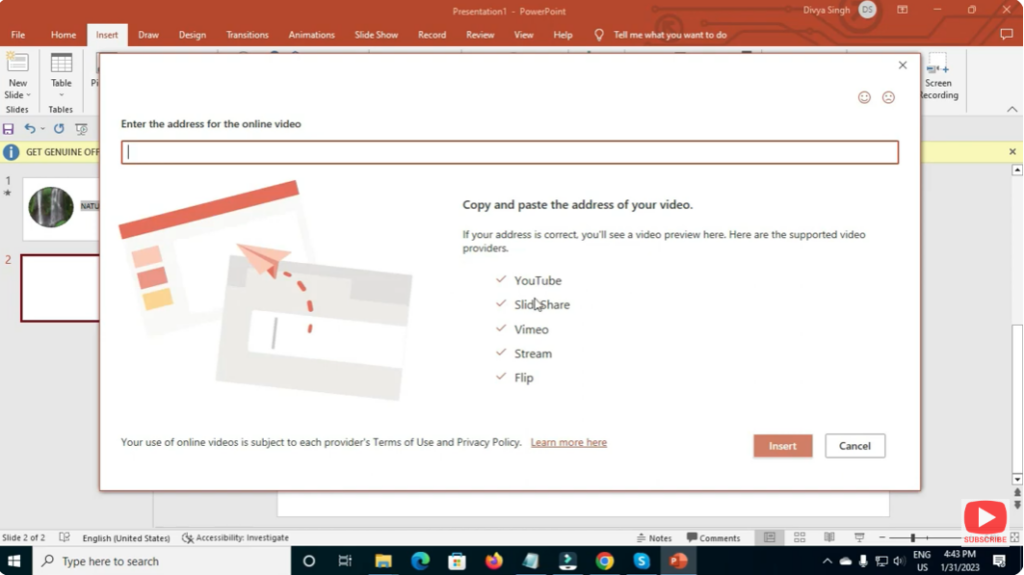
Your video thumbnail will appear on the slide.
Step 6: Resize and Position the Video
Click and drag the corners of the video frame to resize it.
You can drag the video anywhere on the slide to adjust placement.
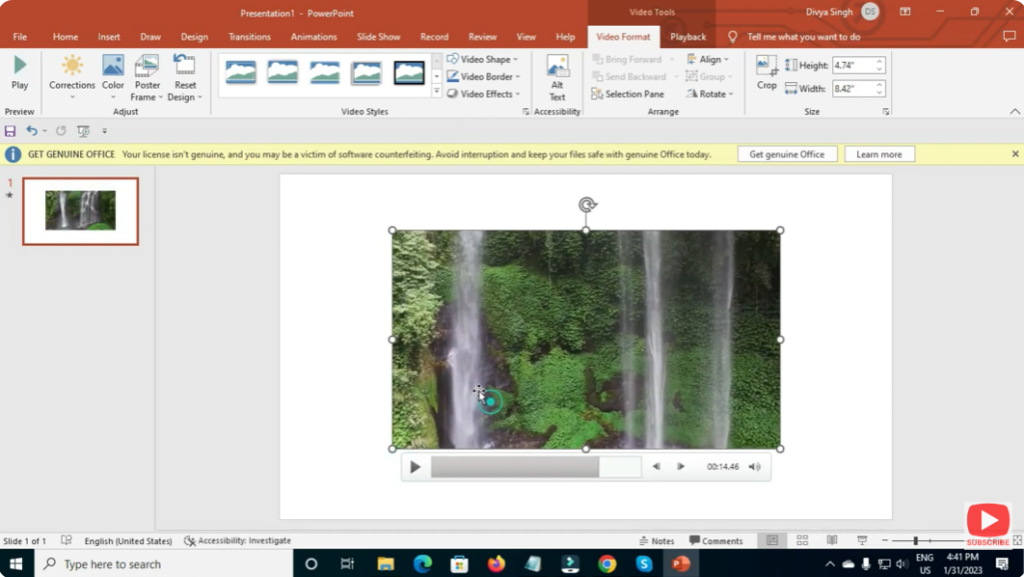
Step 7: Adjust Playback Settings
Click on the video → Go to the Playback tab.
You can choose:
- Play Automatically
- Play On Click
- Loop Until Stopped
- Mute or Unmute Audio
Select the option based on how you want the video to play during the presentation.
Step 8: Preview Your Video
Press F5 or the Preview button to test the slide and ensure the video plays properly.
Final Thoughts
Inserting a video into PowerPoint is quick and easy, and it greatly enhances the quality of your presentation. Whether you add a video from your device or stream one from YouTube, PowerPoint ensures a smooth and professional display. By following the steps above, you can make your slides more engaging and interactive for your audience.






