
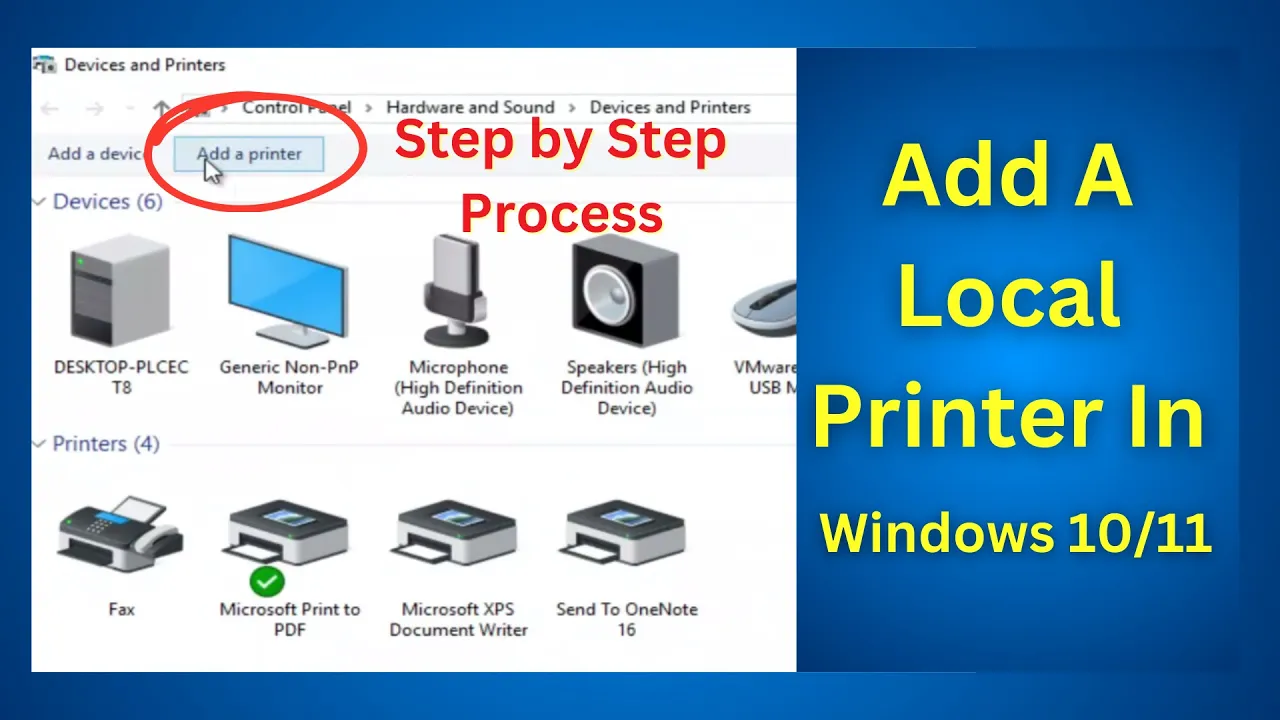
Hello friends, welcome to Tech Gitter, your go-to channel for all things tech. In today’s video, I’ll guide you through the simple steps to connect a local printer to Windows 10 or 11.
But before we dive in, take a moment to subscribe and hit the bell icon so you’ll never miss out on any of our future updates.

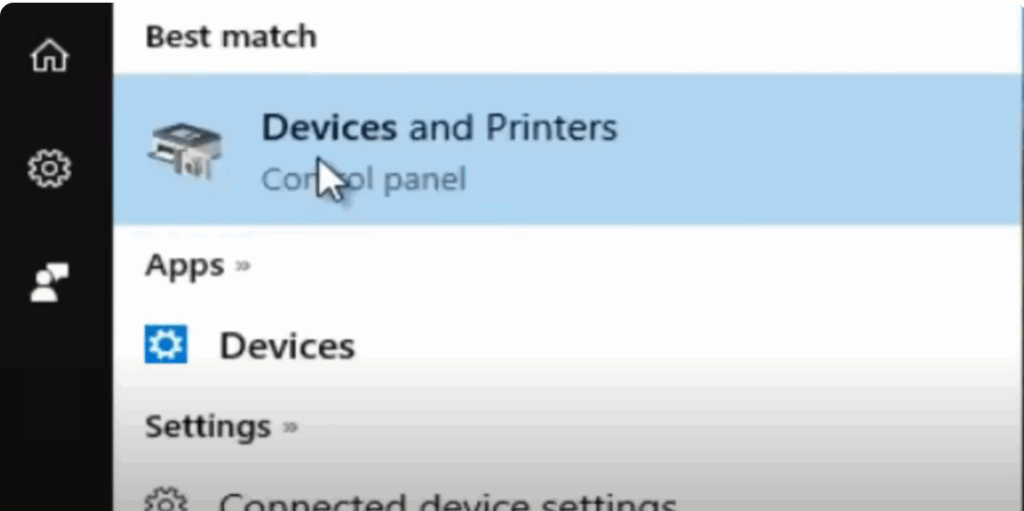
Step 1: Open Devices and Printers
First, head over to the Windows search menu and type “devices”. You’ll see the Devices and Printers option pop up. Go ahead and click on it.
Step 2: Add a Printer
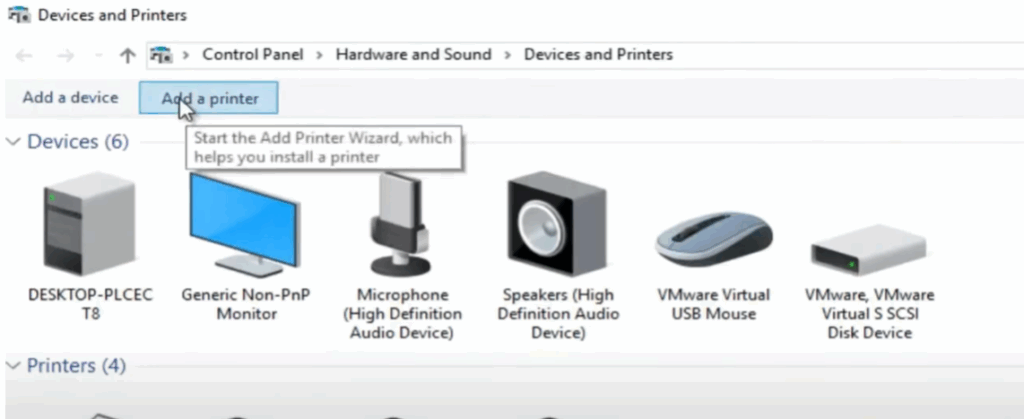
Next, select “Add a printer”. Your computer will automatically begin searching for available printers. So, be sure your printer is powered on and properly connected.
Step 3: Troubleshooting – Printer Not Listed?
If your printer doesn’t appear on the list, don’t worry. Just click “The printer that I want isn’t listed”, and you’ll be given a few alternative methods to add it.
Whether you have:
- An older model
- A local printer with manual settings
- An IP address-based printer
- A Bluetooth printer
There’s an option for you.
Step 4: Add a Local Printer
For today’s tutorial, we’re focusing on adding a local printer. Once you choose this option, you can either:
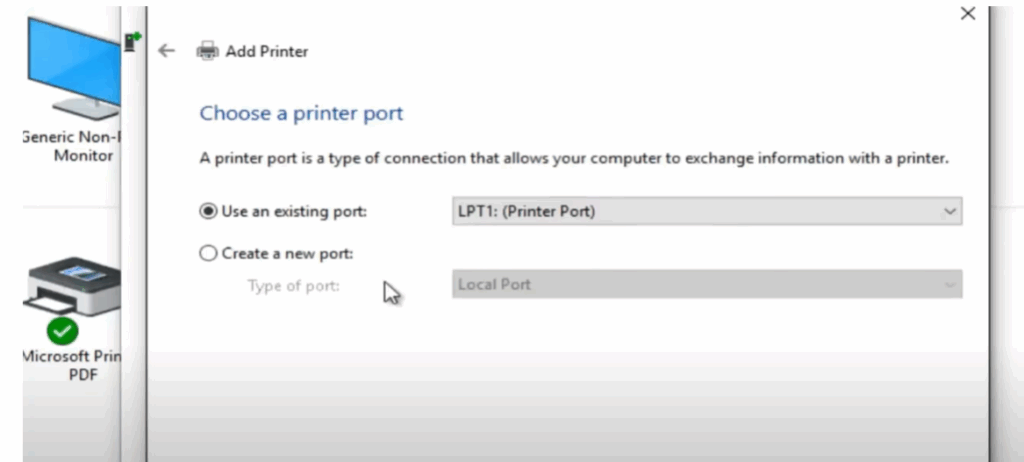
- Use an existing port
- Or proceed to set up a new one
Step 5: Install the Driver
If you have the driver disc, make sure you insert it and specify its location for the driver installation.
Now, select the manufacturer and model of your printer from the list. Once you’ve made the right selection, you can change the name of your printer if needed, then hit Next.
Step 6: Finish Installation
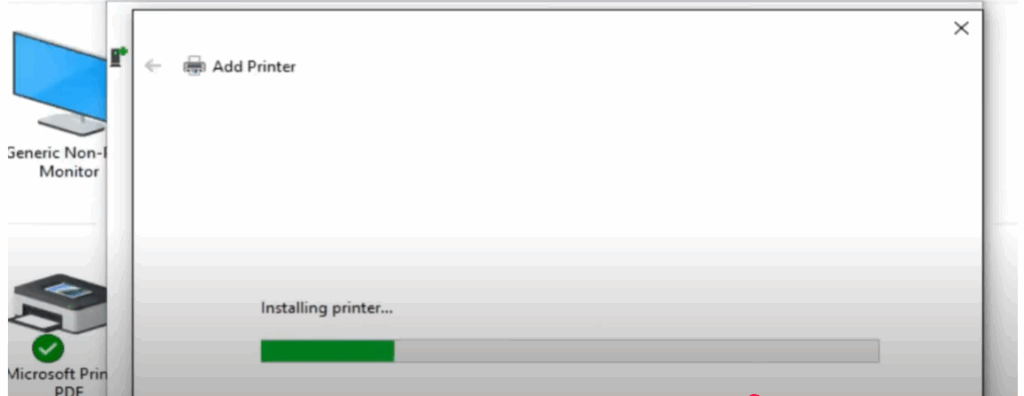
The installation process will begin. In the end, it’s a good idea to print a test page to confirm that everything is set up correctly.
If the test goes smoothly — congratulations! Your printer is now successfully connected to your PC.
Final Words
I hope you found this tutorial helpful. If you did, be sure to:
- Give this video a thumbs up
- Share it with your friends
- And don’t forget to subscribe
I’ll see you in the next video. Until then, take care and have a fantastic day.






